
25 years Haiku - BeOS revival
 DigitalBox
- System
- August 3, 2026
For the upcoming 25 years of Haiku birthday, I would like you to revive the BeOS experience.
What about playing with the BeOS Personal Edition directly from your PC ?
In the below tutorial, MacOS is used but you can try from another system where QEmu is available:)
Pre-requisites
- QEmu
- A system which accepts QEmu: MacOS, Windows, Linux but also Haiku !
- BeOS Personal Edition image
The installation of QEmu on MacOS is done via the brew utility.
I will suppose QEmu is already installed on your system, and if you are curious you can also install it on a system like Haiku:)
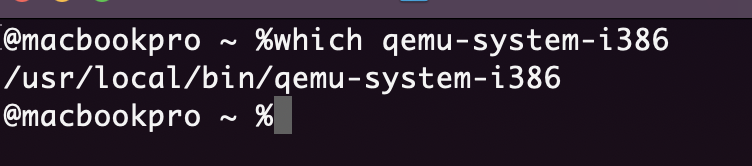
The QEmu tool to be used is for the 32 bits systems : qemu-system-i386.
The next step is to download the BeOS Personal Edition image and extract it on your PC in a dedicated folder.
First launch
Go into the folder where the image is available and launch the below command:
qemu-system-i386 -m 256 -fda floppy.img -hda image.be -boot a -vga std -nic user,model=ne2k_pci
You should see the below splash screen :
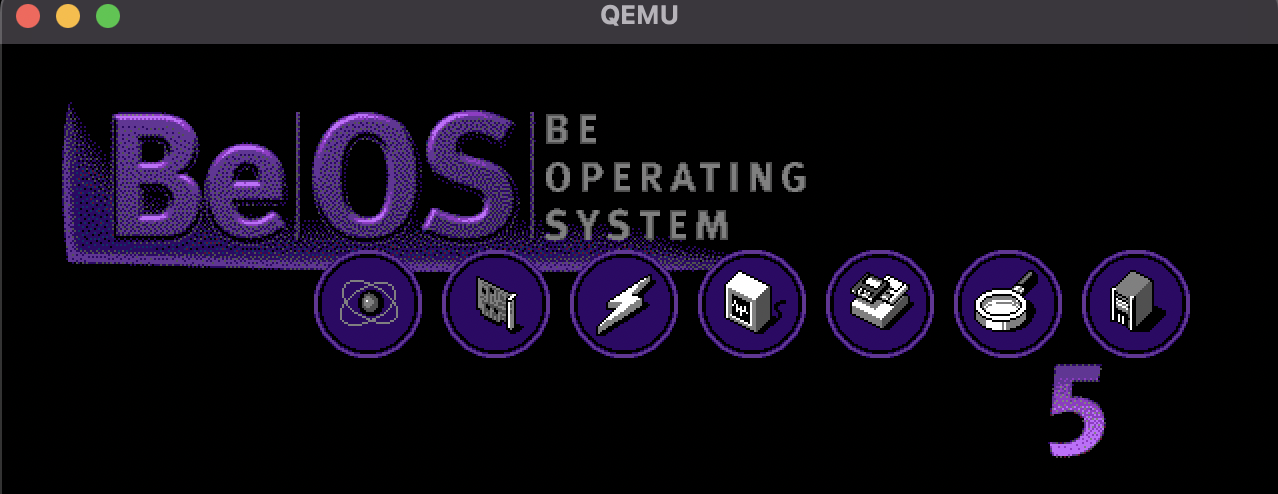
Hit <space> before the system launch is completed
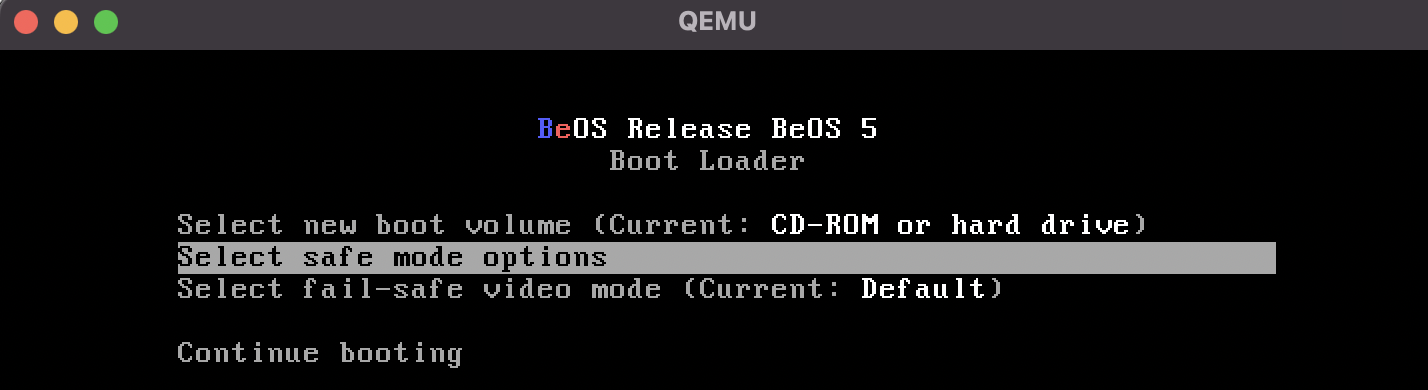
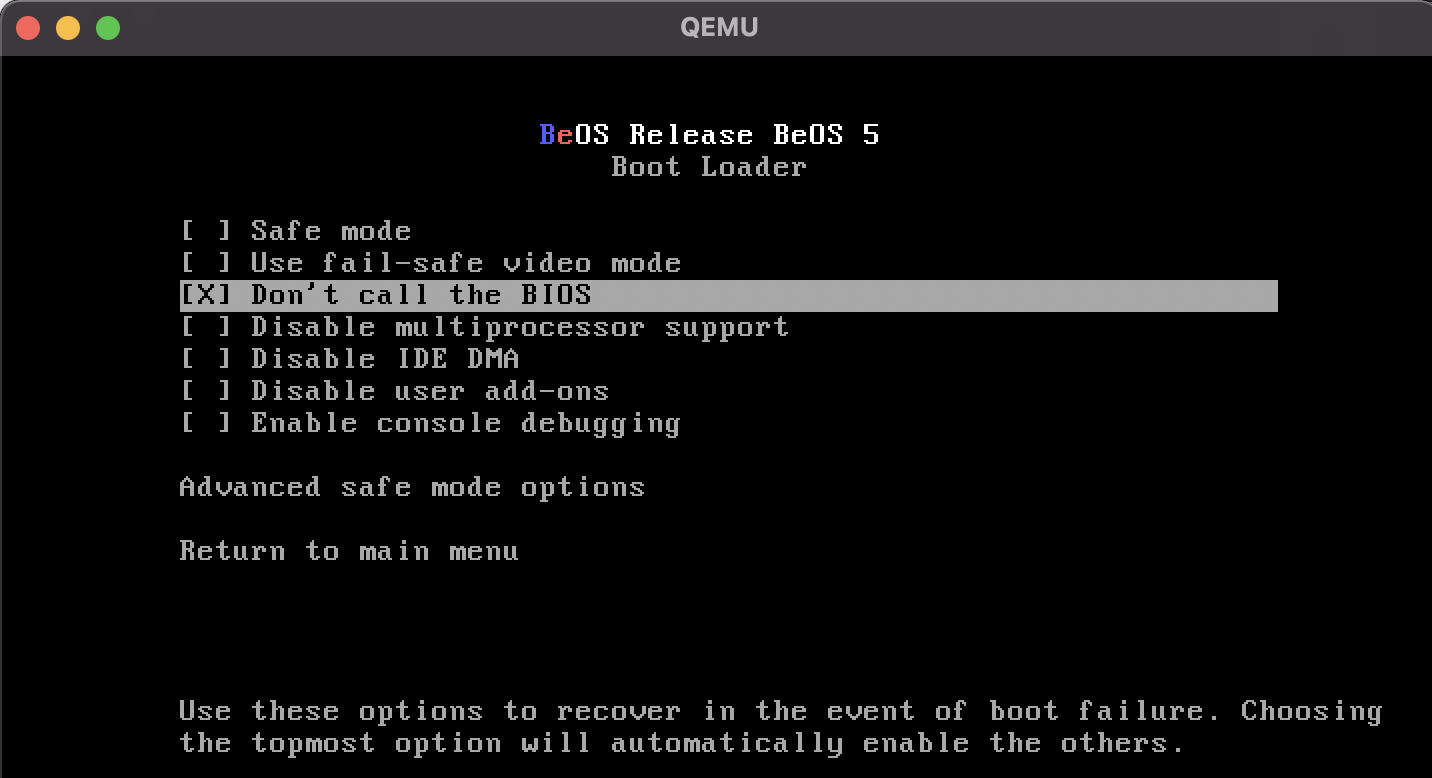
Select the "safe mode" and tick the "don't call the BIOS" option :
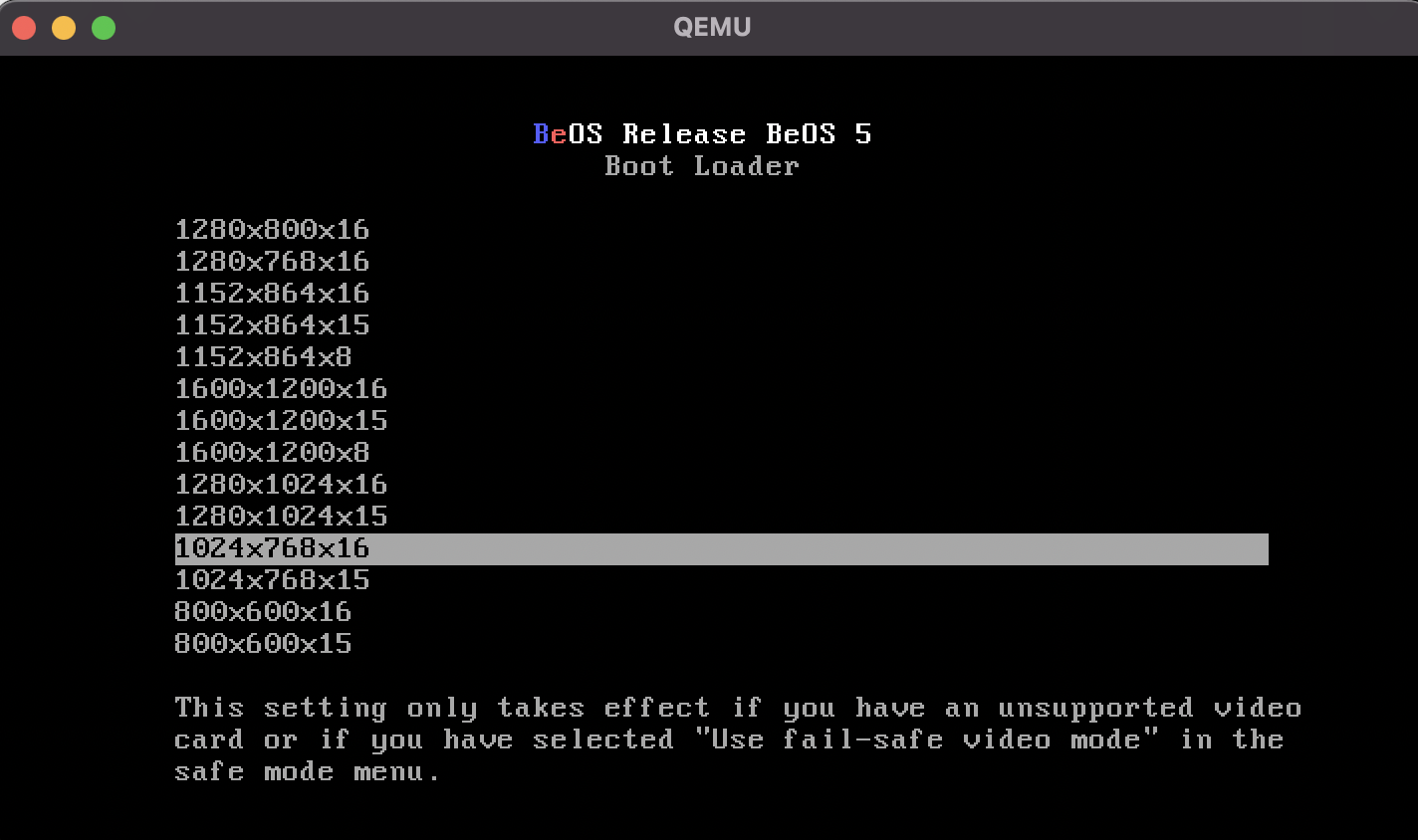
Return to the main menu and select fail-safe video mode.
Select the 1024x768x16 resolution:
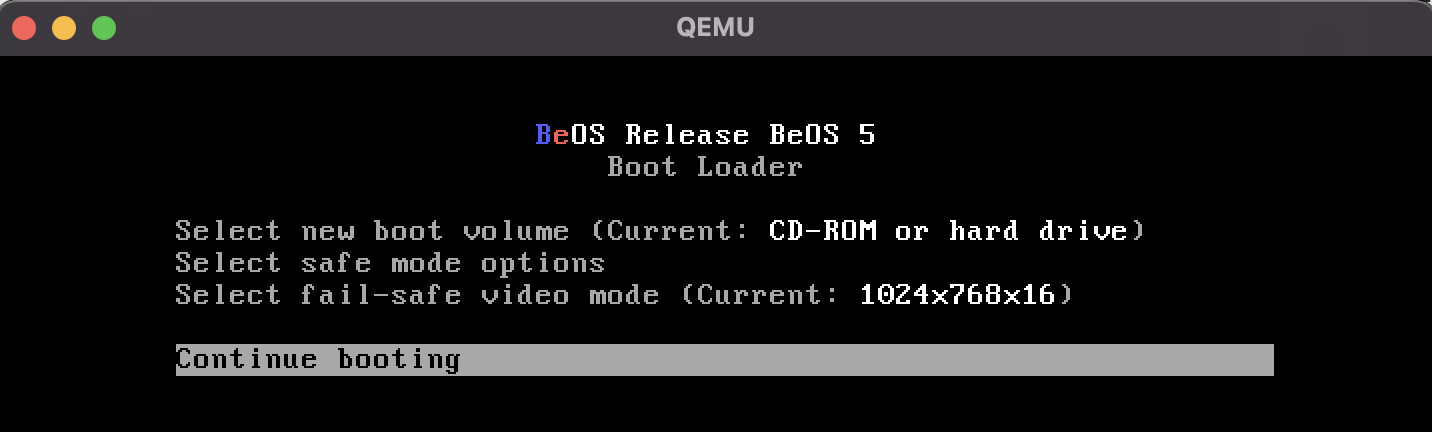
Go back to the main menu and select "Continue booting":
You should have BeOS Personal Edition screen like below:
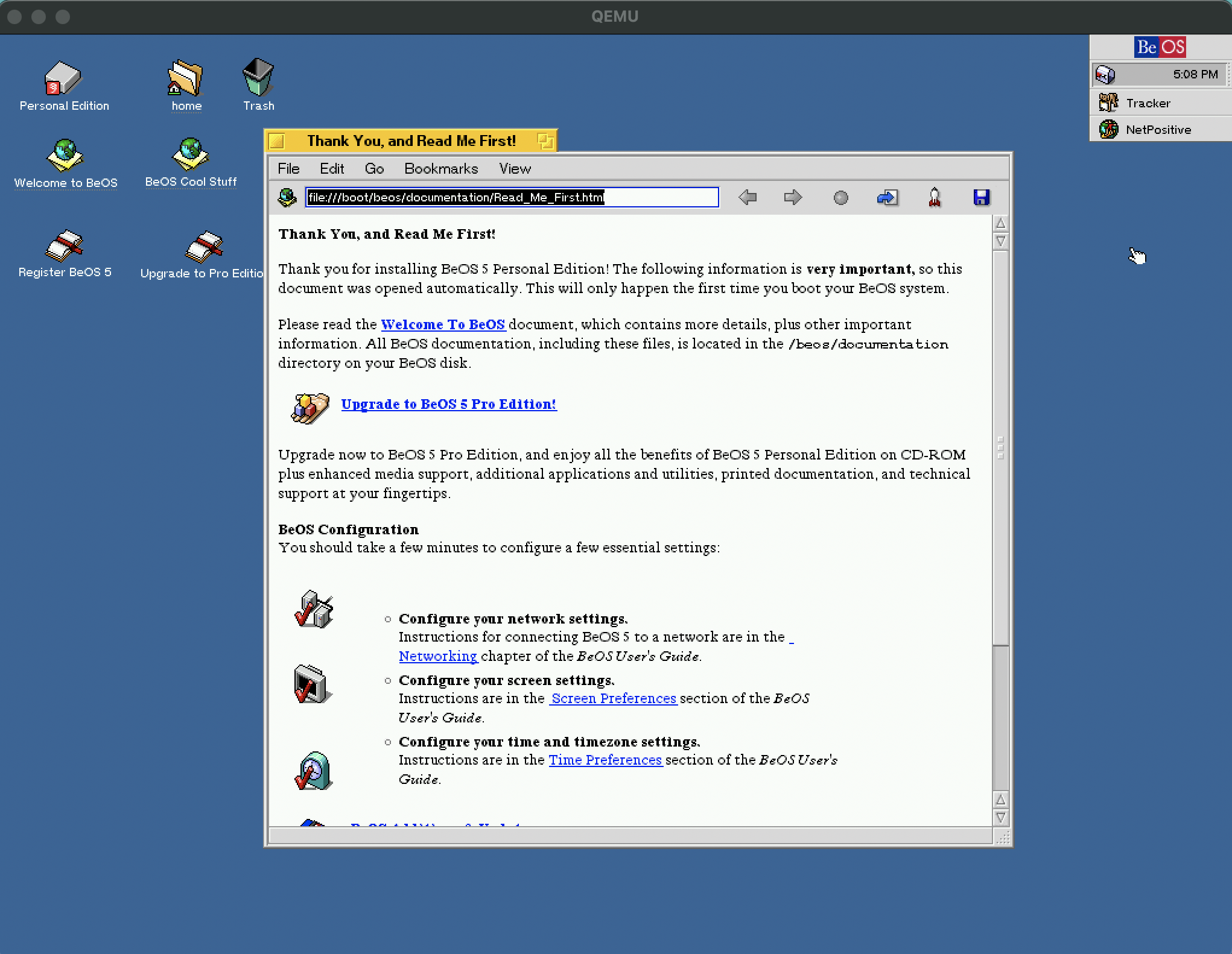
Nice isn't it ?
Additional setup
At this point, we will fix two things.
First, the network access is missing.
Go into the network preferences, click on "Settings" and tick the "Obtain settings automatically (DHCP)":
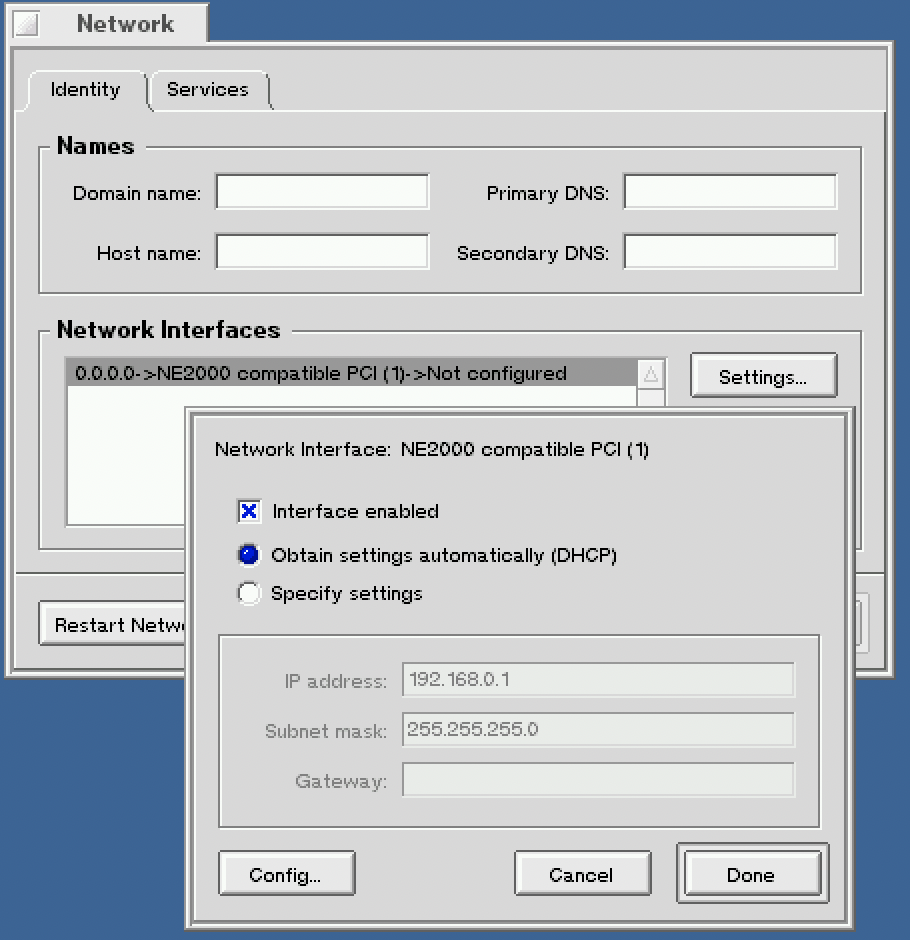
Confirm and restart the network service:
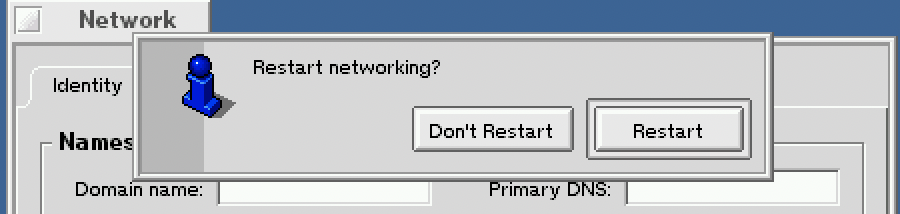
Second, the keymap could be incorrect.
In my case, I had to select in the Preferences>Keymap the Mac version of the French keyboard:
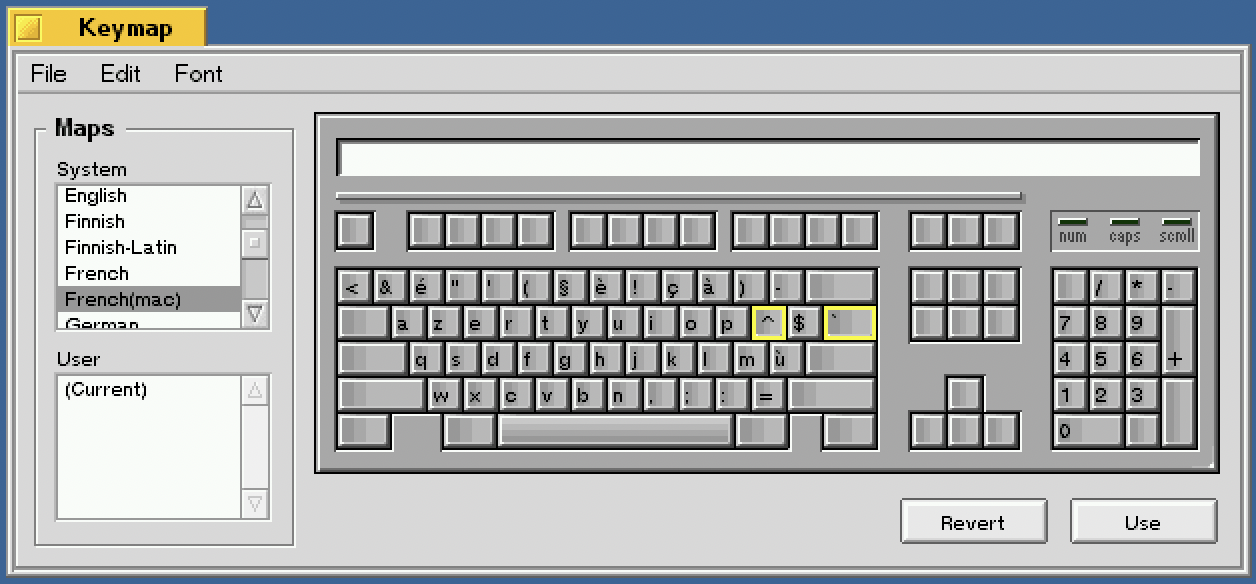
Please note only "http" websites will be recognized.
You can test for instance http://beos.chez.com which is an old French website on BeOS and still available:)
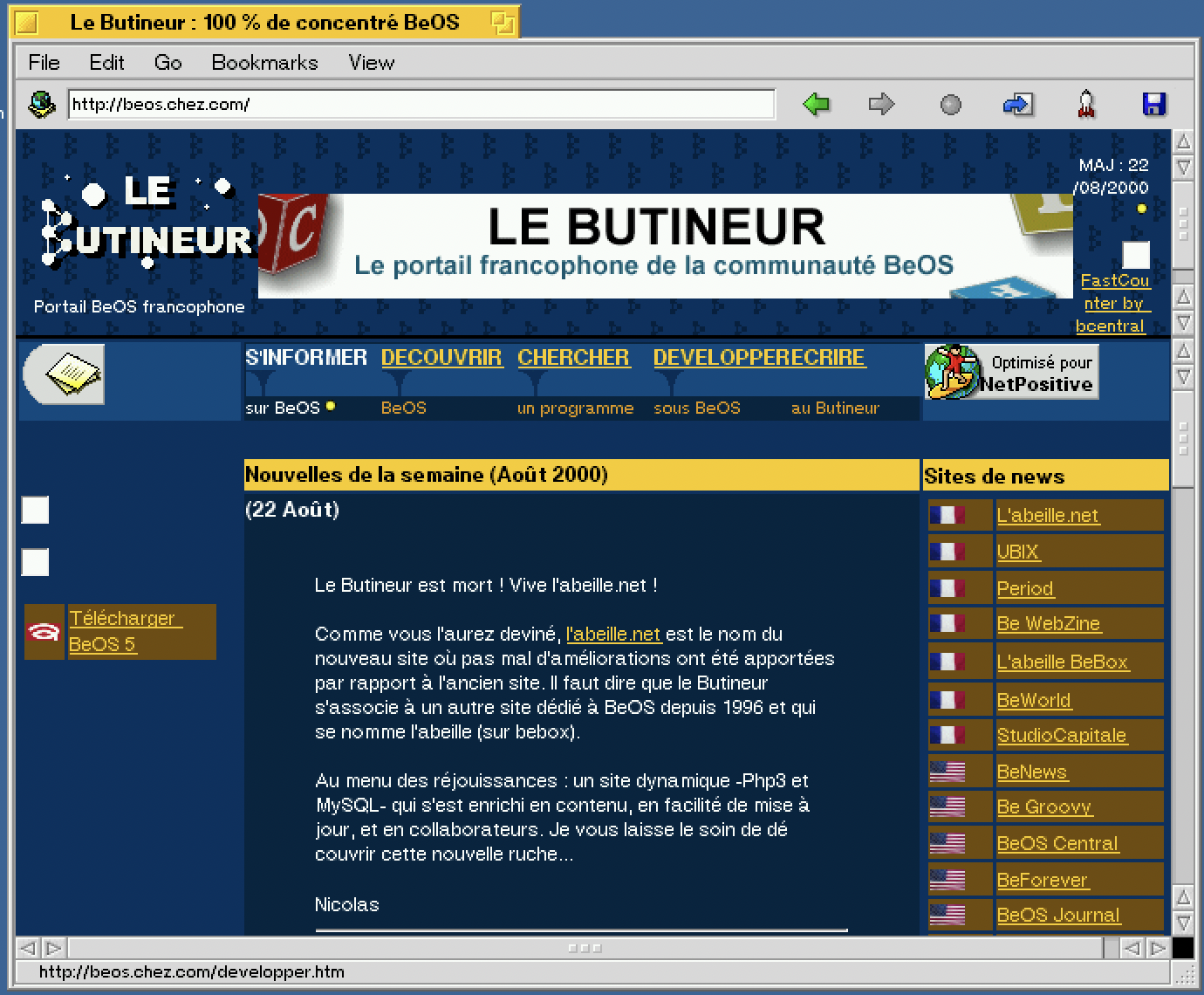
We are now ready to move forward!
Installing software
What about installing a few additional programs and check it's working fine ?
From the previous site, go into "Chercher un programme" tab and then "Utilitaires".
You should see the below page: select the BeTree entry which is the only non-broken link.
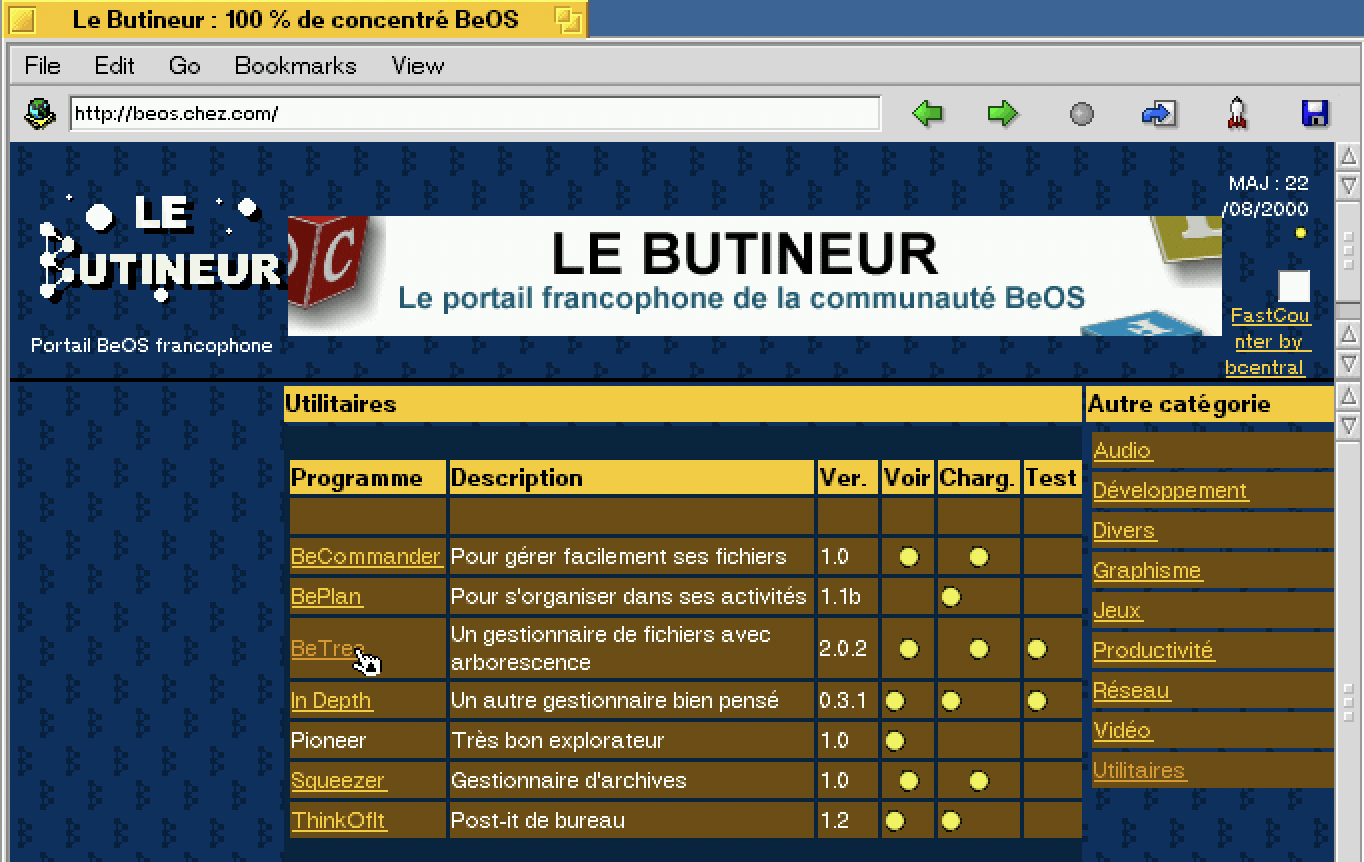
You should be redirected to the BeTree home page:
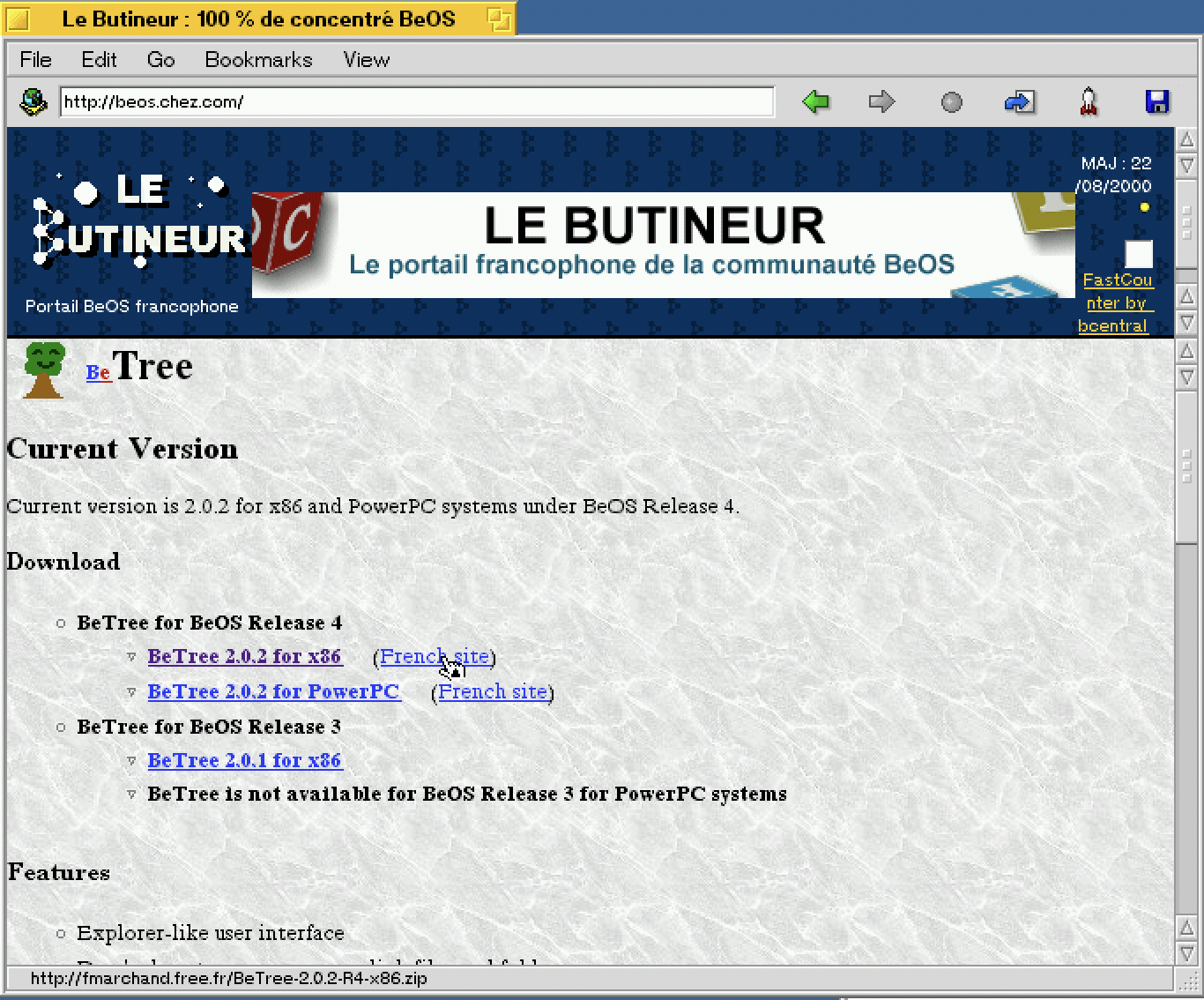
Click on the "French site" link to download the program.
Extract the zip archive and launch the "BeTree" application:
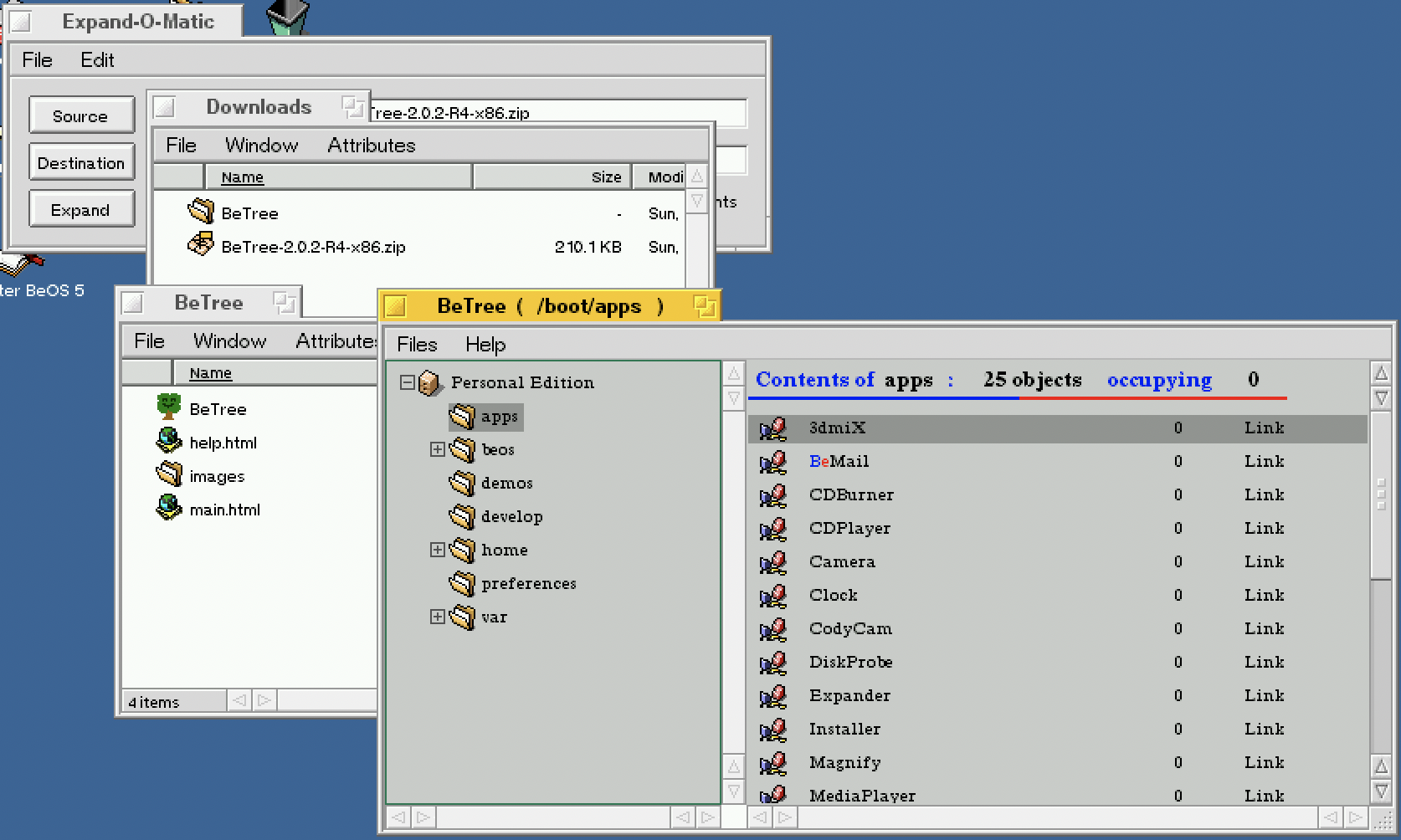
The application is recognized and you should now be able to browse your system via a tree view.
What about installing a Calculator application ?
For that go to : http://beos.chez.com/xcalc_int.htm
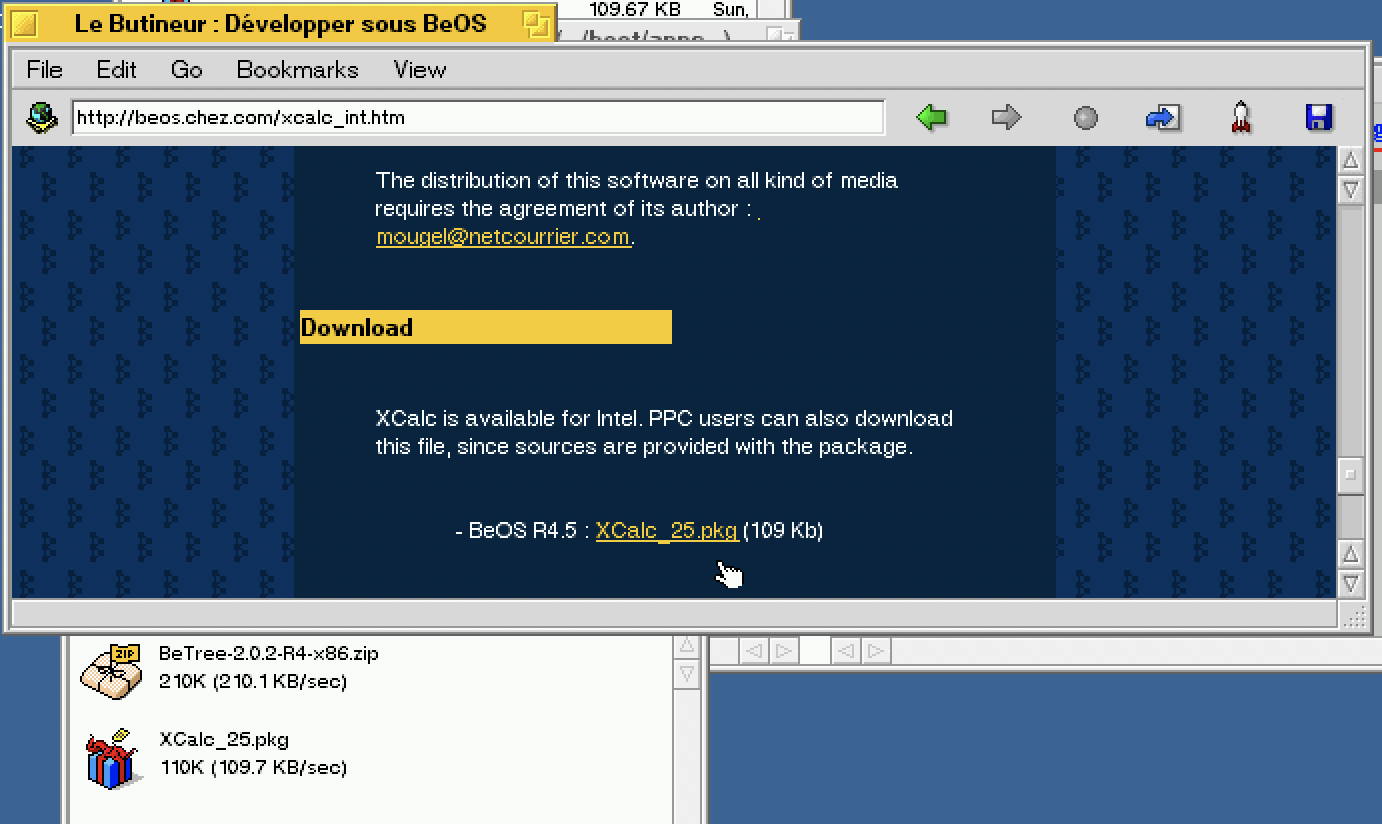
Then click on the package link to download the program.
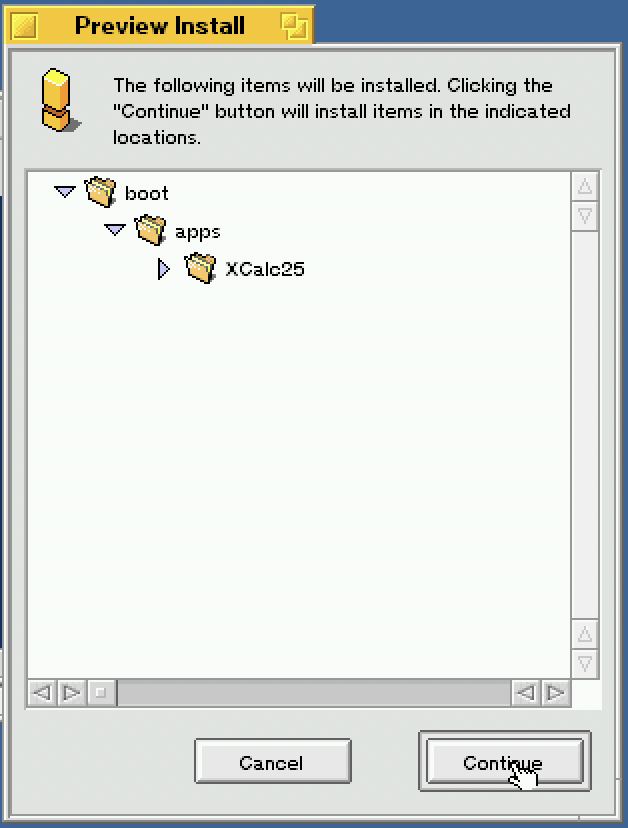
Start the installation and ignore the registration to SoftwareValet:
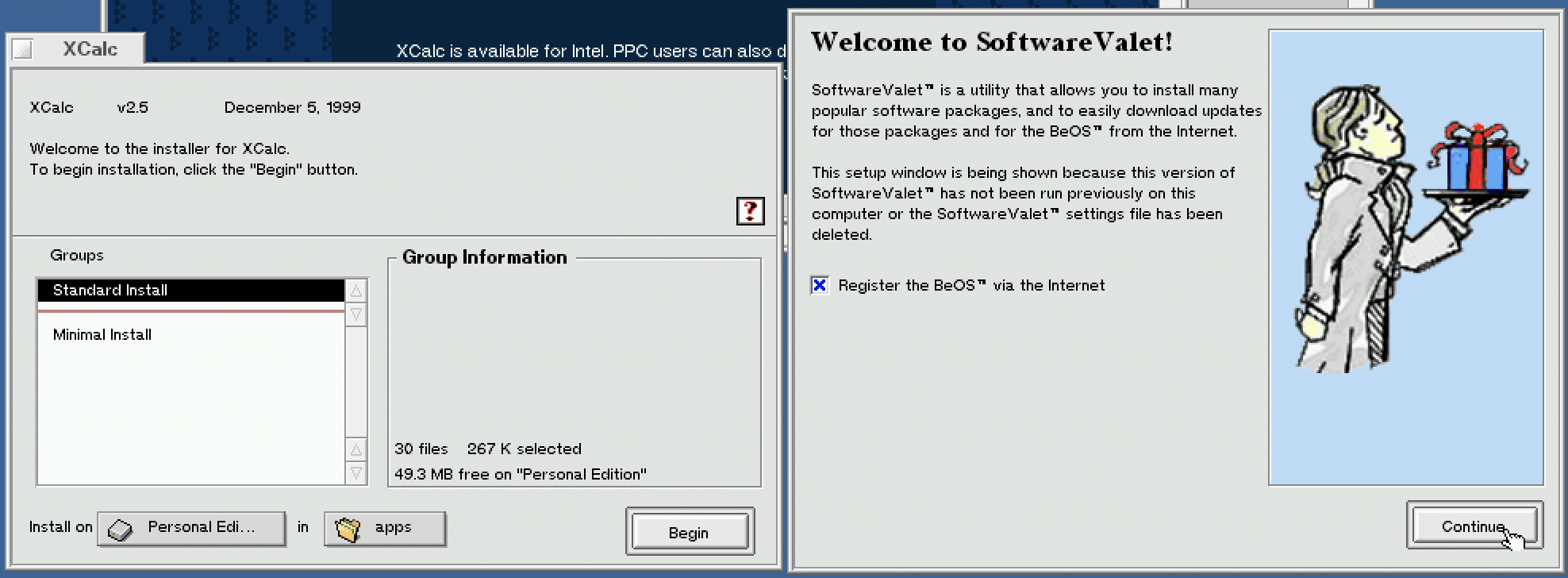
Confirm the installation:
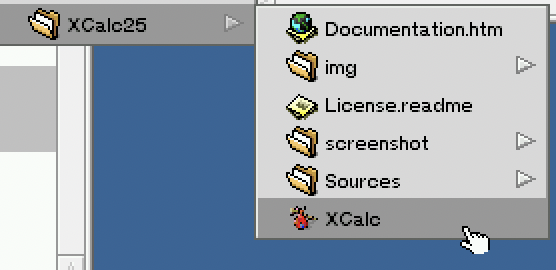
You can launch the program via the Tracker where XCalc was installed:
Inside XCalc, if you type for instance "pi" and hit "=", it should display the value of "pi".
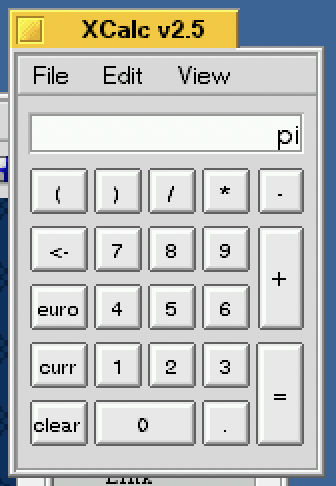
You can experiment with other formulas of course :)
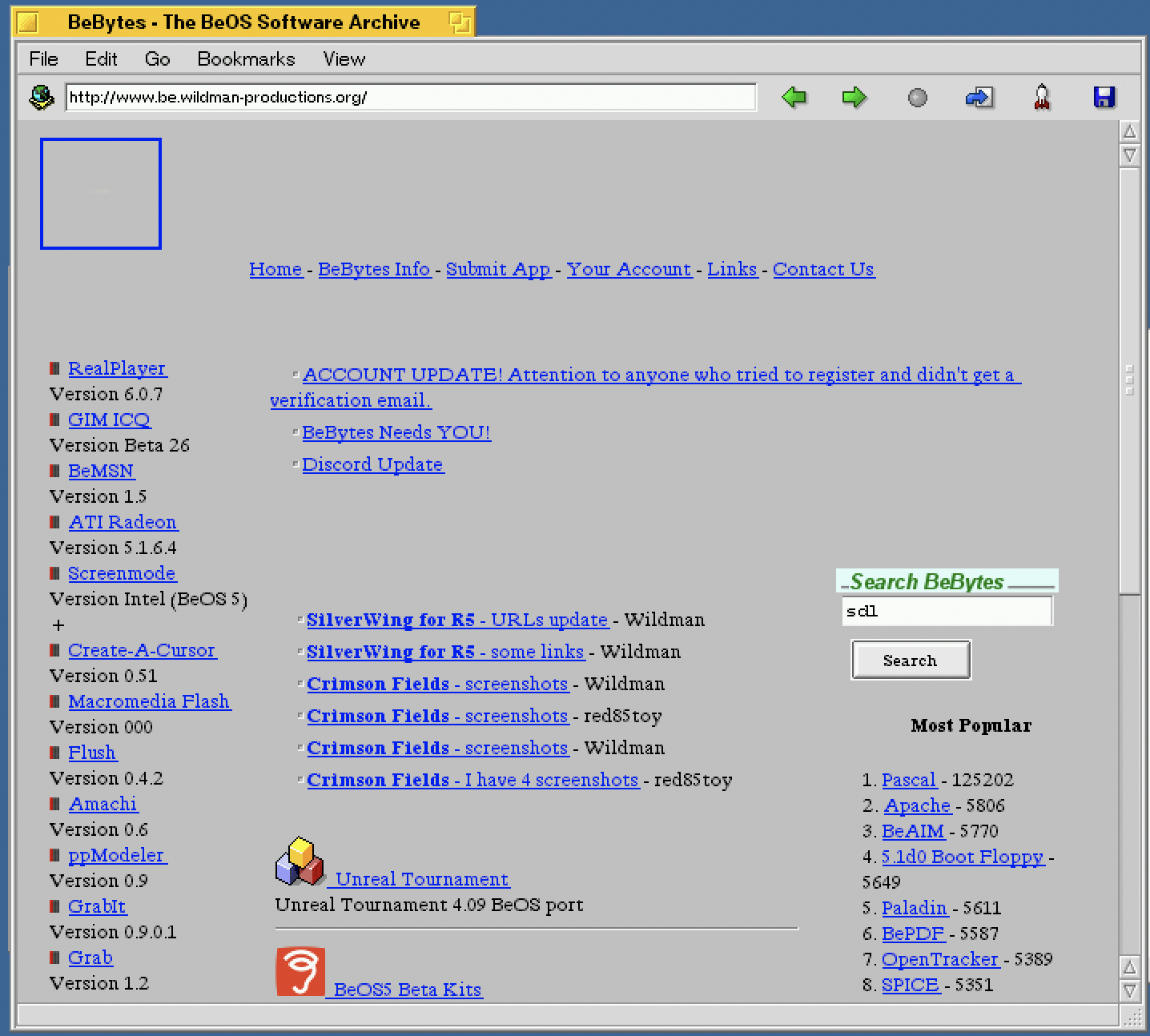
If you would like to install more software, you can also check the http://www.be.wildman-productions.org website:
BeOS Pro Edition
During the BeOS golden age, I have bought the BeOS Pro Edition, and I still have the 2 CDs available.
In order to install that version, a conversion of these CDs into ISO is needed.
Once the conversion is done with your preferred tool, run QEmu command by indicating each ISO as a CD ROM file:
qemu-system-i386 -m 256 -fda floppy.img -hda image.be -boot a -vga std -nic user,model=ne2k_pci -drive media=cdrom,file="C:\Users\haiku\Desktop\BeOS.iso01.iso" -drive media=cdrom,file="C:\Users\haiku\Desktop\BeOSISO\BeOS.iso02.iso" -drive media=cdrom,file="C:\Users\haiku\Desktop\BeOSISO\BeOS.iso03.iso"
The boot of the system will recognize one of the CD as bootable and the below installer will be displayed:
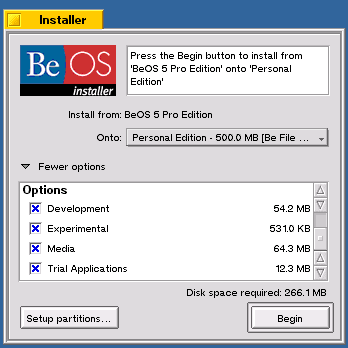
Select the existing drive named "Personal Edition" to install the Pro Edition into.
Stop QEmu and relaunch BeOS without the CDs:
qemu-system-i386 -m 256 -fda floppy.img -hda image.be -boot a -vga std -nic user,model=ne2k_pci
Check if additional software have been installed:
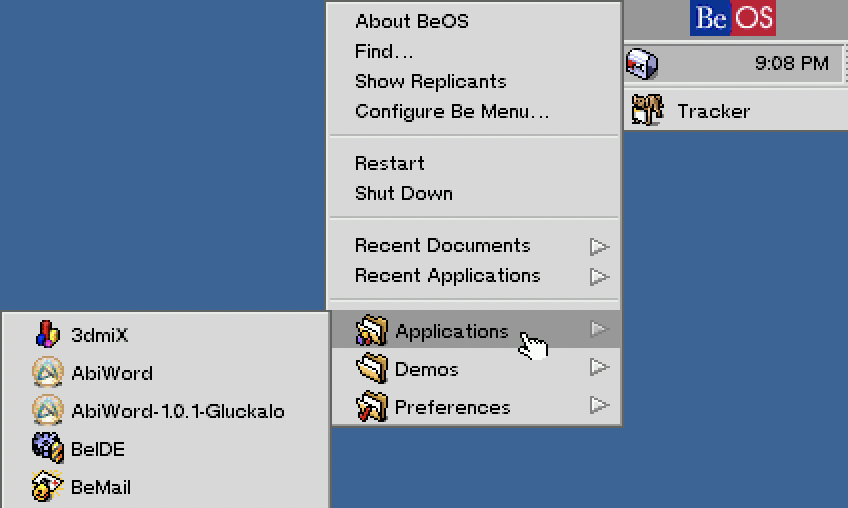
Yes!
BeIDE and the build tools are now available!
Compiling
Now that BeIDE is installed, what about trying to compile libSDL from the sources?
The current restriction is that downloading files is not possible via https, so you will need to find a workaround to transfer the zip archives of SDL repo into your system.
Once it's done, you can configure and install SDL into BeOS R5:
configure
make
make install
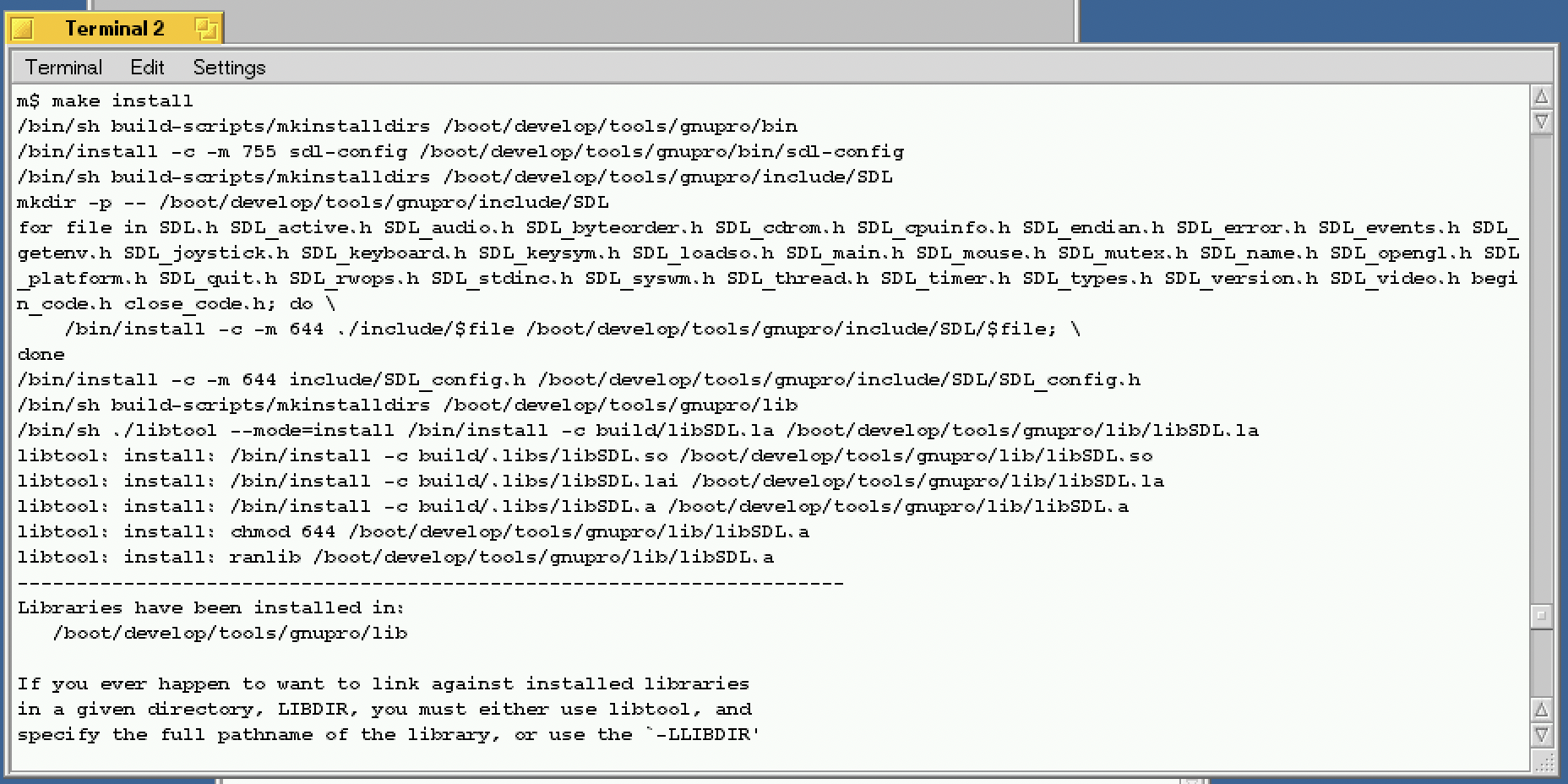
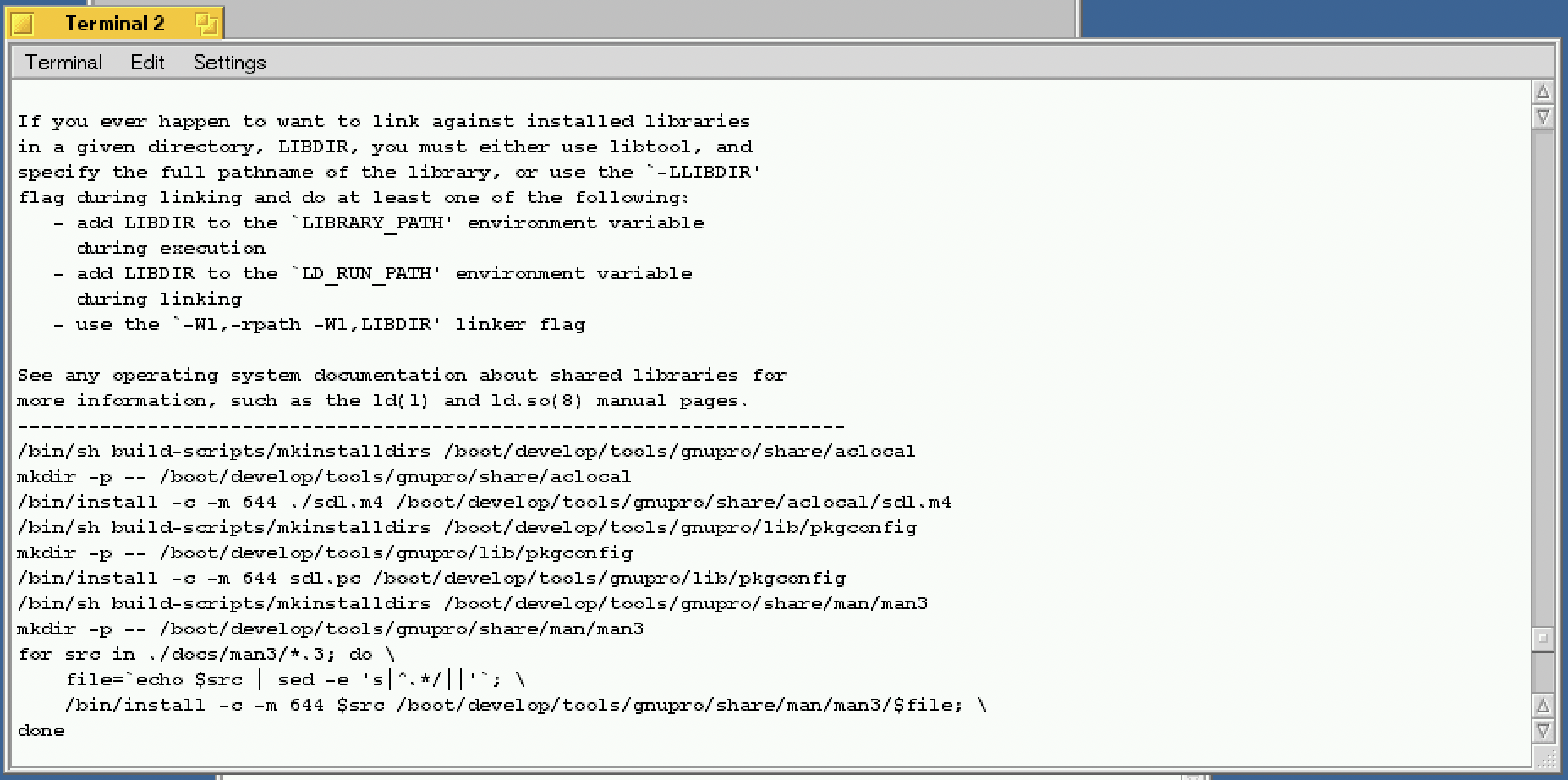
You can then go into the test directory of SDL and try to build a testing example:
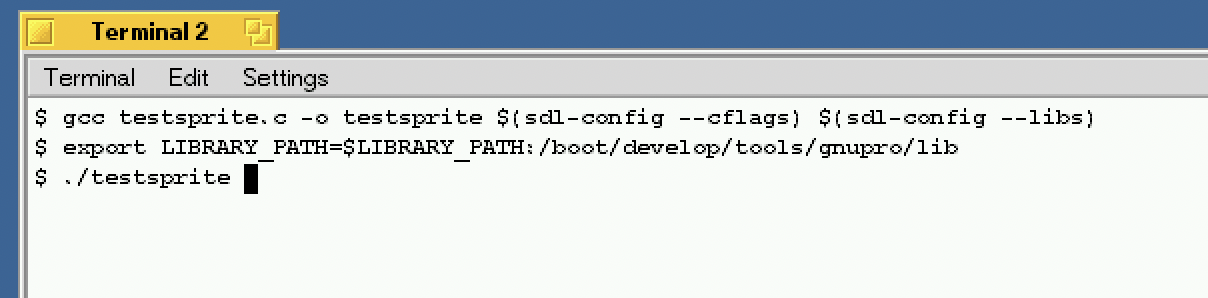
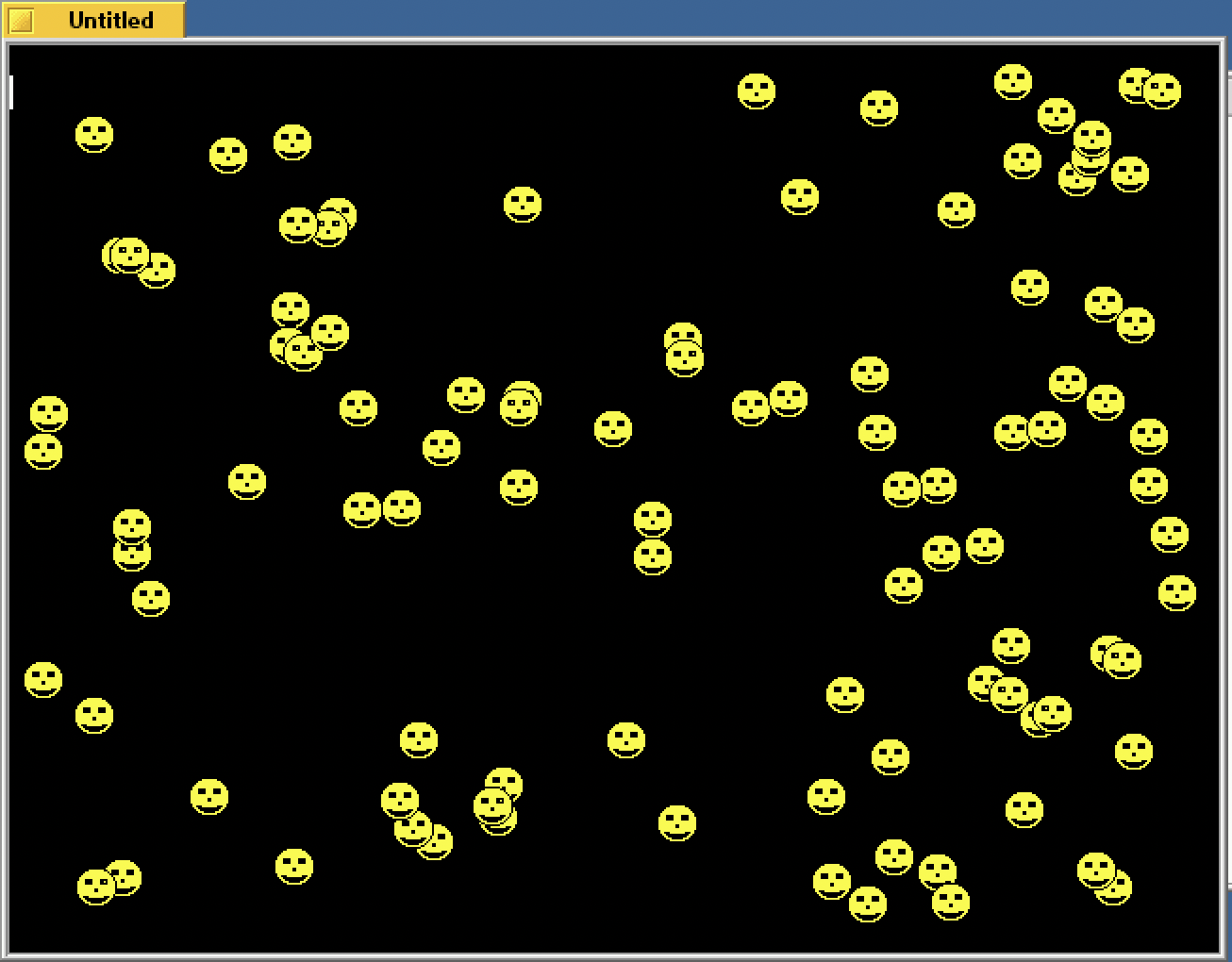
Yes the "testsprite" program is working fine and is using SDL compiled from the sources under BeOS!
I hope you have found this revival journey interesting:)
Stay tuned for the next article for the 25 years of Haiku birthday!