
Application Kit: create a native application
 DigitalBox
- KitLab
- September 1, 2025
Getting started with Haiku: your first native application
Haiku, like its spiritual predecessor BeOS, provides a clean, powerful C++ API that encourages simplicity and performance.
In this article, we'll walk through building a minimal graphical application using Haiku’s native application framework: the Application Kit and the Interface Kit.
If you're familiar with object-oriented programming and comfortable in C++, you're already halfway to mastering Haiku development.
The core architecture
Every Haiku application begins with two essential building blocks:
-
BApplication – Represents the running app. It connects to the Application Server and handles system-wide messages.
-
BWindow – A window on the screen. It manages user interaction and display.
These classes form part of Haiku’s Application Kit and Interface Kit, respectively.
Example: a simple window application
Let’s create a basic app that opens a titled window and quits cleanly when you close it.
Source Code: SimpleApp.cpp
#include <Application.h>
#include <Window.h>

// A simple window class
class SimpleWindow : public BWindow
{
public:
    SimpleWindow(BRect frame)
        :
        BWindow(frame, "A Haiku Window", B_TITLED_WINDOW, B_QUIT_ON_WINDOW_CLOSE)
    {
        // Window is created but not yet shown
    }
};

// A simple application class
class SimpleApplication : public BApplication
{
public:
    SimpleApplication()
        :
        BApplication("application/x-vnd.example-simpleapp")
    {
        // Create a rectangle (left, top, right, bottom)
        BRect rect(100, 100, 400, 300);
        SimpleWindow* window = new SimpleWindow(rect);
        window->Show(); // Display the window
    }
};

// Main function
int main()
{
    SimpleApplication app;
    app.Run(); // Start the main event loop
    return 0;
}
Compilation on Haiku
In Terminal, type:
g++ -o SimpleApp SimpleApp.cpp -lbe
Launch the application from the Terminal:
./SimpleApp
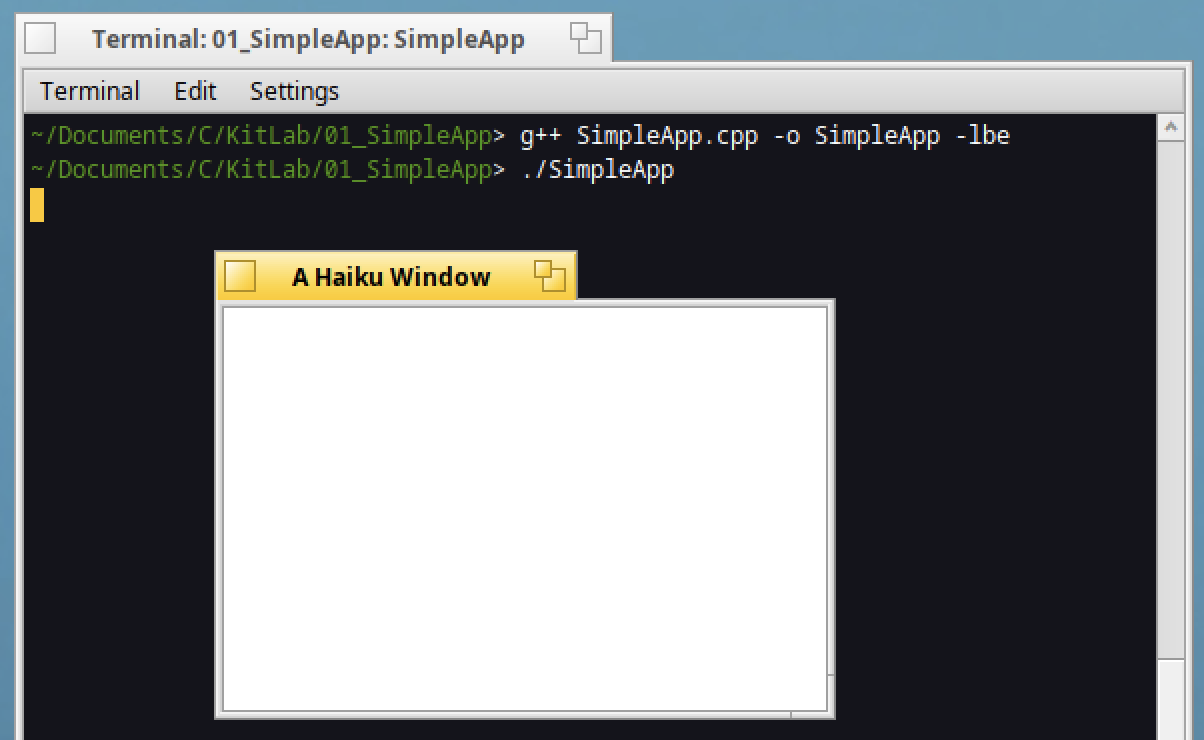
You’ll see a window titled “A Haiku Window”.
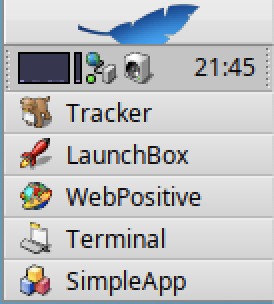
The application is also visible in the DeskBar with a default icon:
You can change the size of this window as per below:

Click the close button and the app will quit cleanly.
Key Concepts
-
BApplication
-
Handles communication with the Application Server.
-
You must subclass BApplication and implement its constructor.
-
The MIME signature (e.g.
"application/x-vnd.example-simpleapp") uniquely identifies your app.
-
-
BWindow
-
Manages its own thread and message loop.
-
In this example, we override
QuitRequested()to send a quit message to the application.
-
-
be_app
-
A global pointer to your BApplication instance.
-
Used here to post a quit message when the window is closed.
-
Available flags
Please note the QuitRequested() method is not required if you use the B_QUIT_ON_WINDOW_CLOSE flag in the BWindow constructor:
    SimpleWindow(BRect frame)
        : BWindow(frame, "A Haiku Window", B_TITLED_WINDOW, B_QUIT_ON_WINDOW_CLOSE)
    {
        // Window is created but not yet shown
    }
The other flags below are available:
| Flag | Description |
|---|---|
B_NOT_MOVABLE |
Prevents the window from being moved. |
B_NOT_CLOSABLE |
Hides the close button (prevents user from closing the window). |
B_NOT_ZOOMABLE |
Disables the zoom (maximize) button. |
B_NOT_MINIMIZABLE |
Disables the minimize button. |
B_NOT_RESIZABLE |
Prevents the user from resizing the window. |
B_NOT_H_RESIZABLE |
Locks the horizontal size. |
B_NOT_V_RESIZABLE |
Locks the vertical size. |
B_AVOID_FRONT |
The window avoids coming to the front automatically. |
B_AVOID_FOCUS |
The window doesn't receive focus automatically. |
B_WILL_ACCEPT_FIRST_CLICK |
The window handles the first mouse click even if it doesn't have focus. |
B_OUTLINE_RESIZE |
Uses an outline instead of live resizing. |
B_NO_WORKSPACE_ACTIVATION |
The window won't activate its workspace when shown. |
B_AUTO_UPDATE_SIZE_LIMITS |
Updates min/max size automatically from layout. |
B_QUIT_ON_WINDOW_CLOSE |
Quits the app when the window is closed. |
B_CLOSE_ON_ESCAPE |
Closes the window when the Escape key is pressed. |
B_ASYNCHRONOUS_CONTROLS |
Enables faster rendering of controls (experimental). |
Notable usage patterns
- Main application window:
B_TITLED_WINDOW, B_QUIT_ON_WINDOW_CLOSE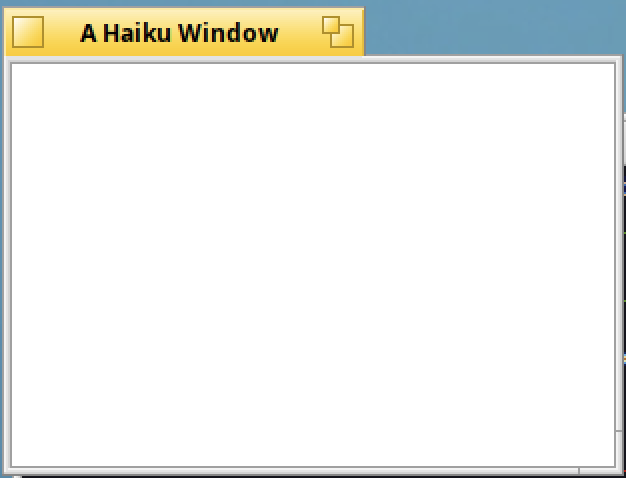

B_BORDERED_WINDOW, B_AVOID_FOCUS | B_AVOID_FRONT | B_NOT_MOVABLE
What Haiku does for you
Haiku handles:
- Window decorations, dragging, resizing, zooming
- Creating the thread for each window
- System messaging (e.g., mouse clicks, keyboard events)
And all this with less than 50 lines of code!
What you learned
- How to create and show a basic window in Haiku
- How to use BApplication and BWindow
- How to compile and run a native app in Terminal
What’s next?
This simple foundation opens the door to richer applications. In future KitLab articles, we’ll cover:
- Creating and adding a custom BView to your window
- Adding buttons and UI controls
- Drawing custom graphics
- Handling input events
Conclusion
Haiku’s C++ API is designed to get out of your way.
With just a few classes and method overrides, you’ve built a functional GUI app.
This minimalism, inherited from BeOS, is what makes Haiku development uniquely elegant.
Stay tuned for the next part!