
Attrify the attributes editor
 DigitalBox
- Native
- June 1, 2026
Last December, a new native application was available in the Haiku Depot under the name "Attrify".
The idea behind Attrify is to let any Haiku user view and edit - when possible - files attributes on any kind of files : image, link, person, etc.
Let's review in this article how to use it.
Default window
As Attrify can edit any kind of files, a good candidate is to be an alternative to the People application.
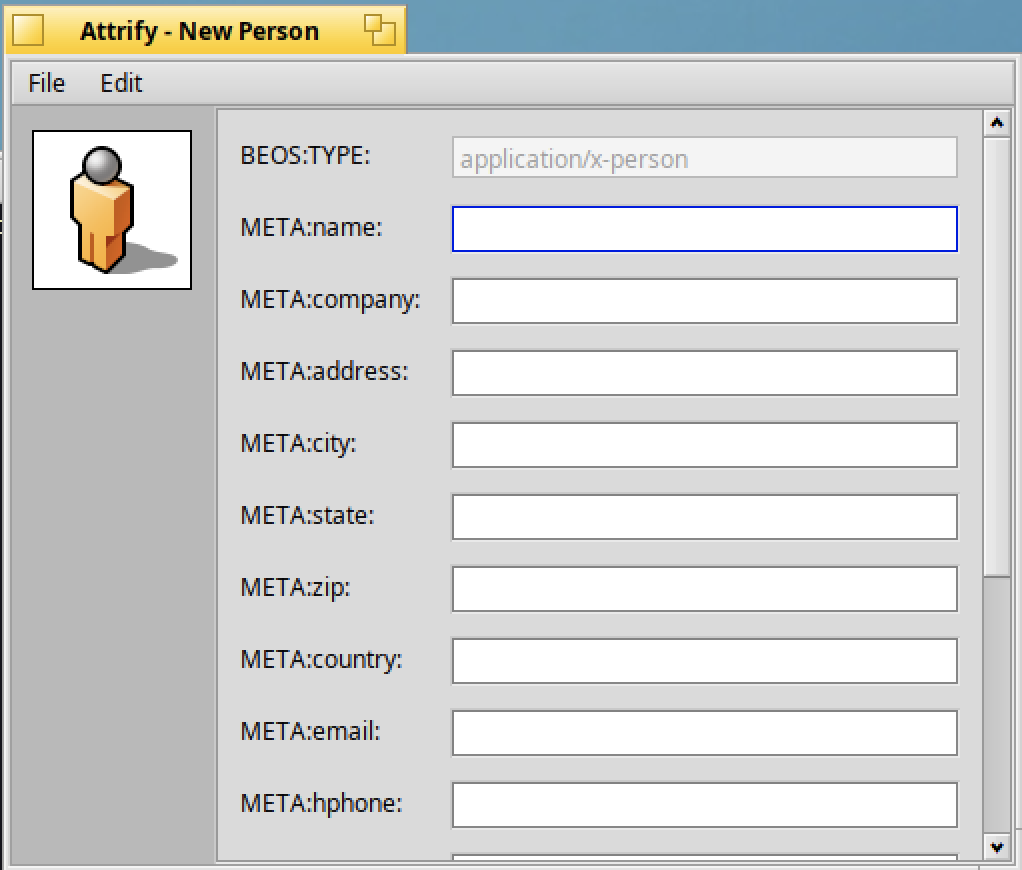
When you launch the application for the first time, it proposes a window to edit a Person by default (application/x-person):
Let's enter a few details on a person like Alfred below:
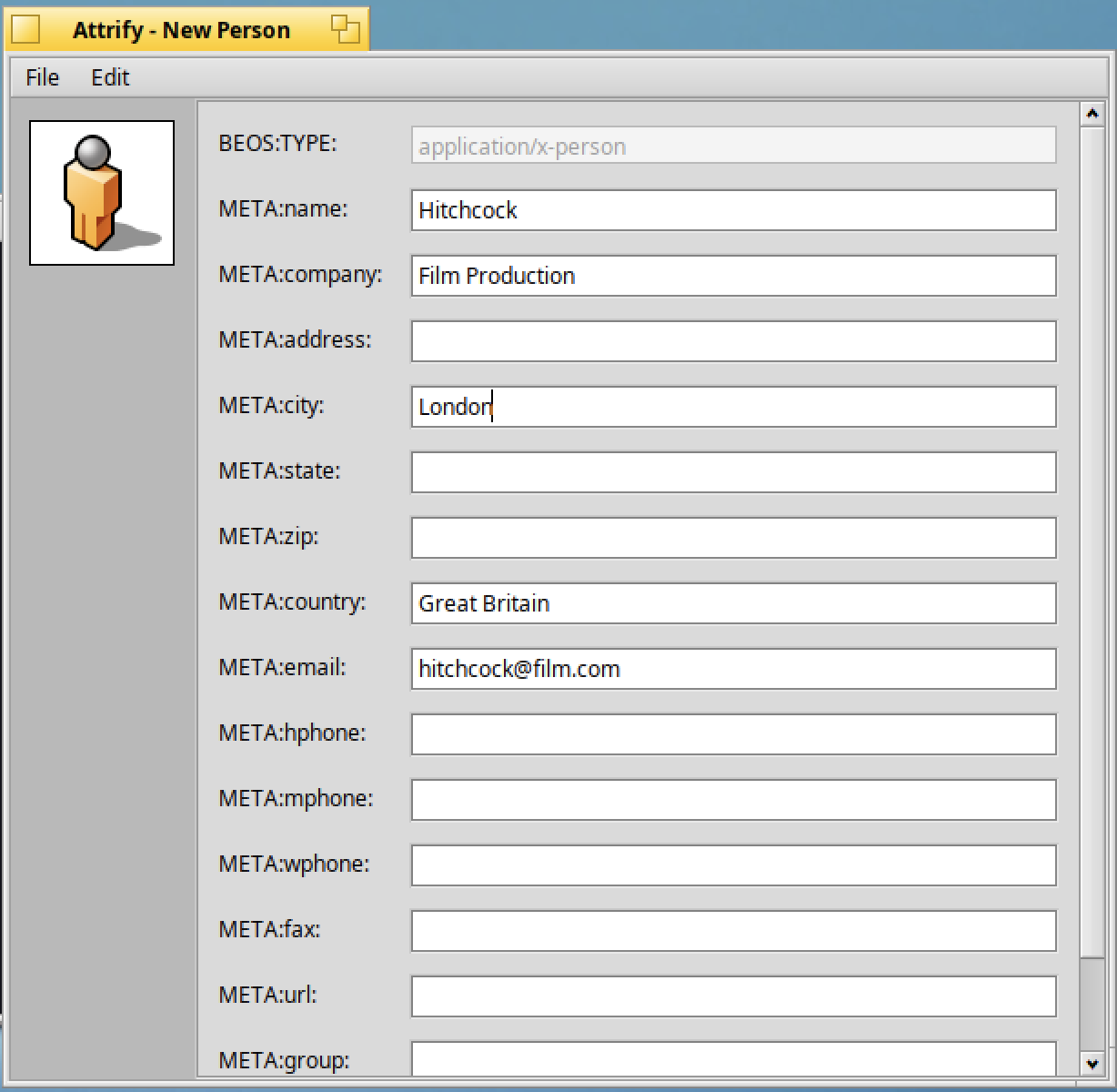
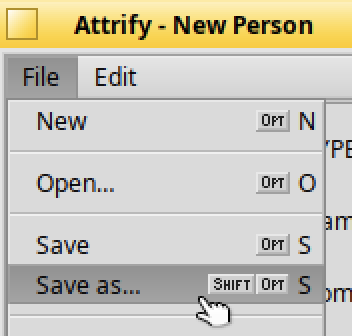
When the desired details are filled, you can save the Person with "File>Save as":
Enter the name of the person and save it in the "people" directory:
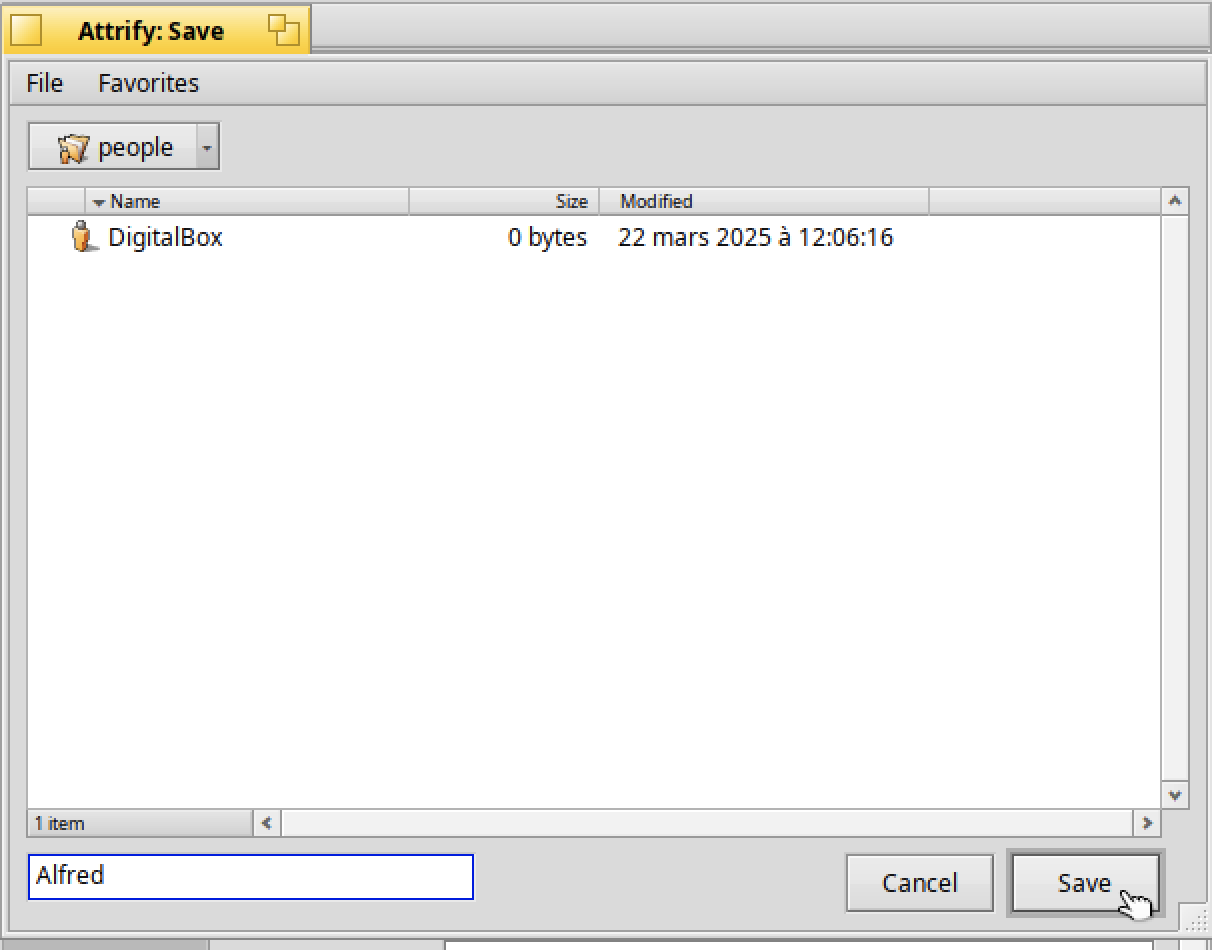
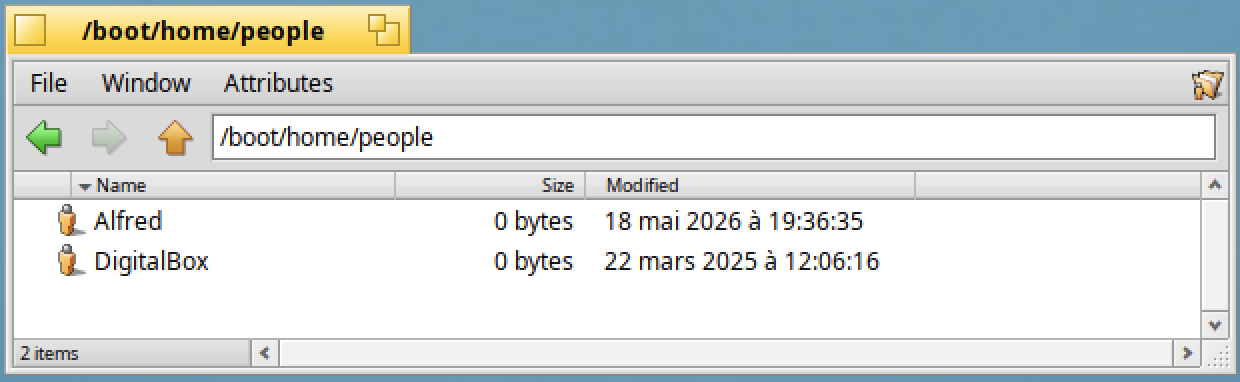
As you can see, adding new people is quite easy:
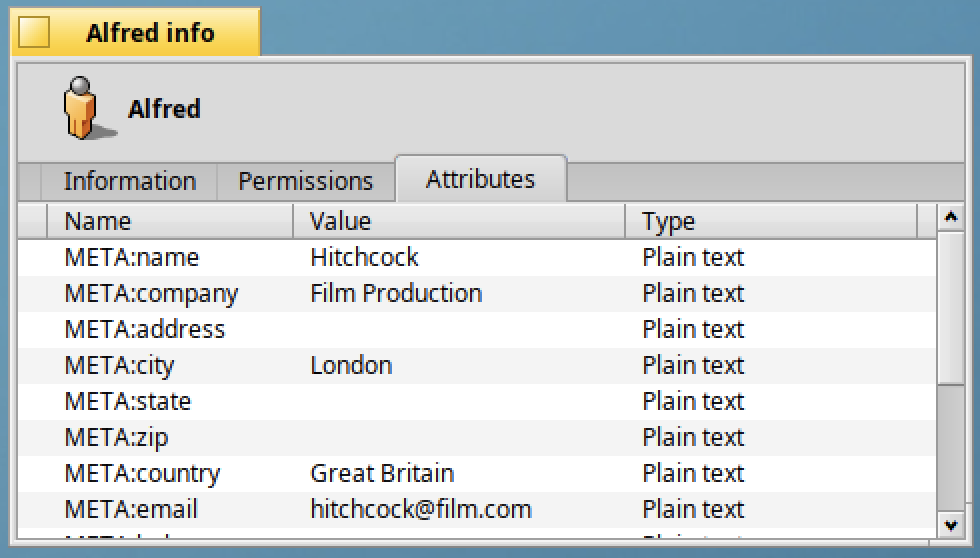
If you check the information on Alfred file, the attributes which were entered before are now available in the corresponding tab:
Editing custom filetypes
Except for people, Attrify will not propose to create a new kind of file.
Instead it will rely on the existing FileTypes application and Tracker Addons.
Let's suppose you have followed the workshop about Filetype, Attributes, Index and Queries on the official Haiku website.
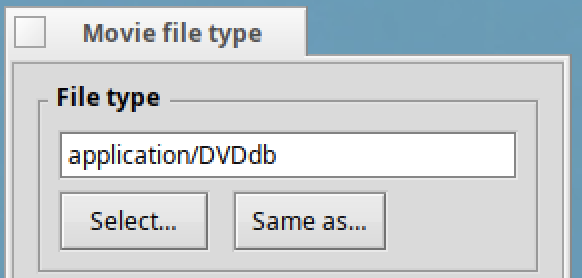
You should now have a new filetype to handle your favorite DVD database (application/DVDdb).
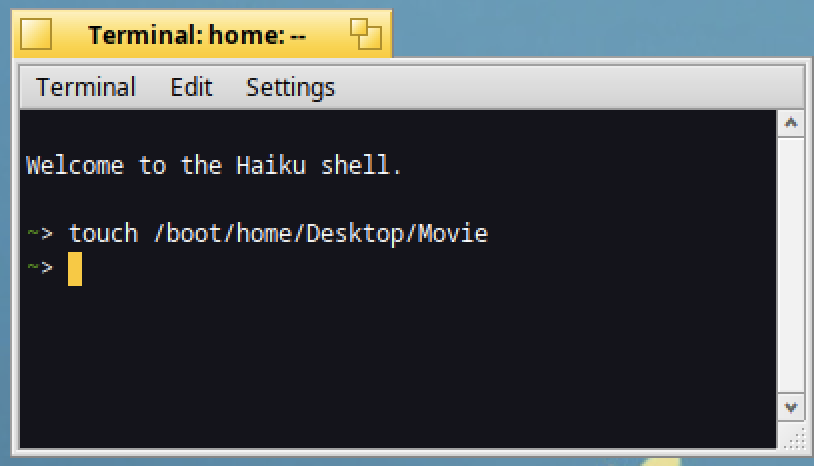
Create a new empty file with the touch command:
touch /boot/home/Desktop/Movie
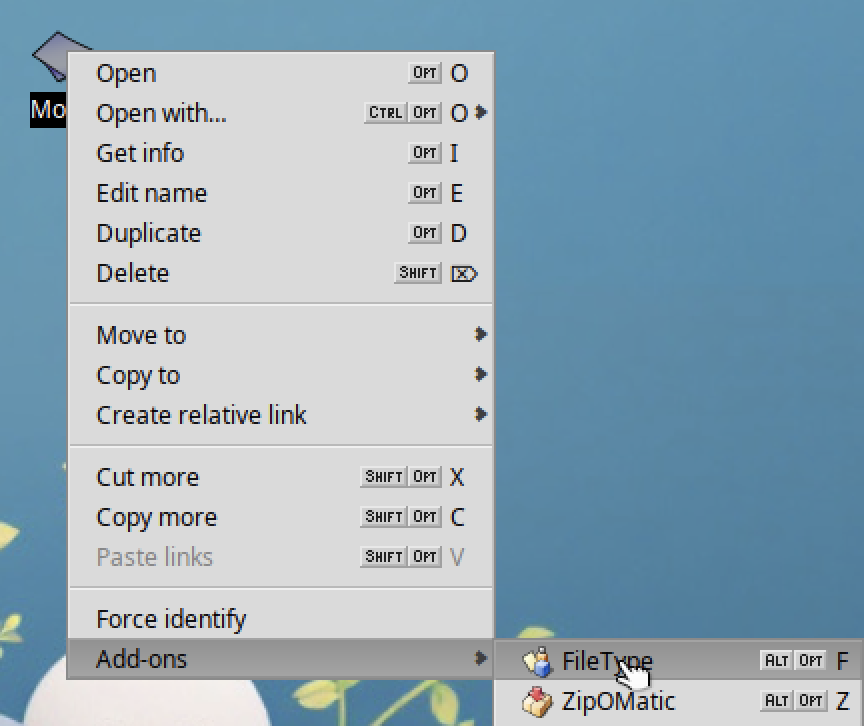
Now change its filetype with Addons>FileType:
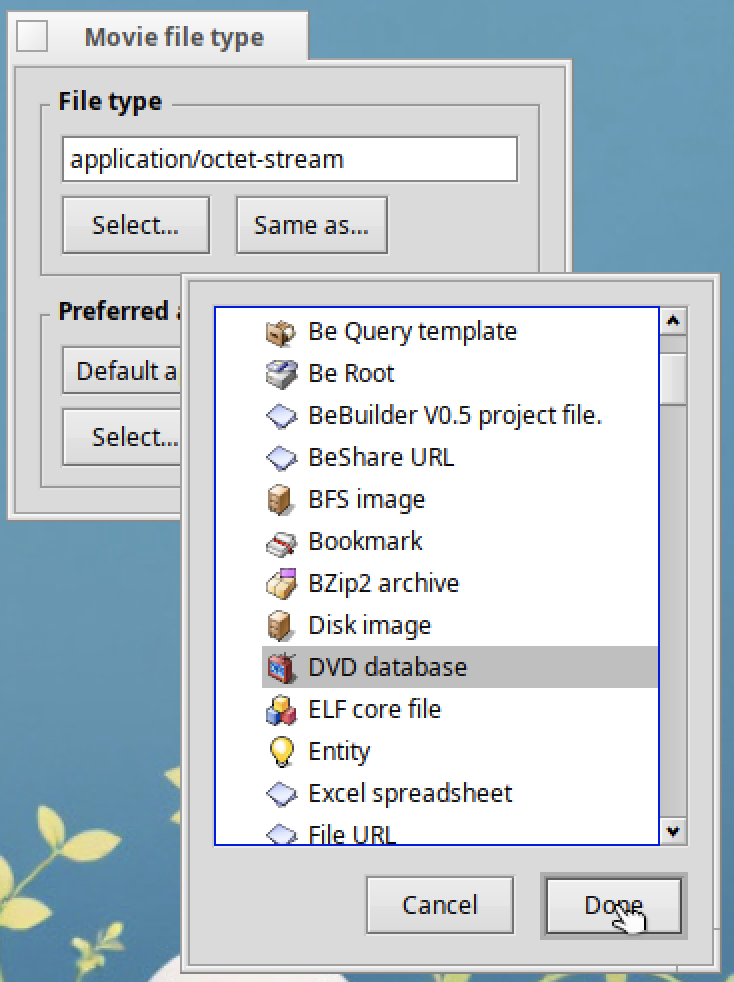
Select the corresponding DVD database type:
Then close the window:
Drag and drop this new file into the Attrify window:
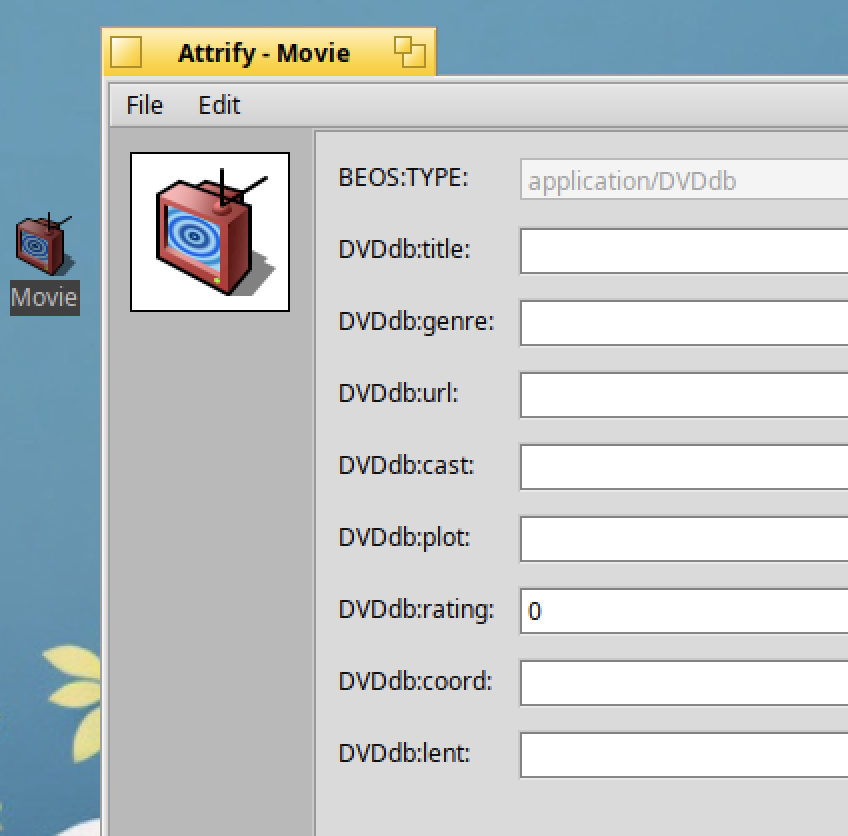
From that point, you can now edit your new empty DVD database file:)
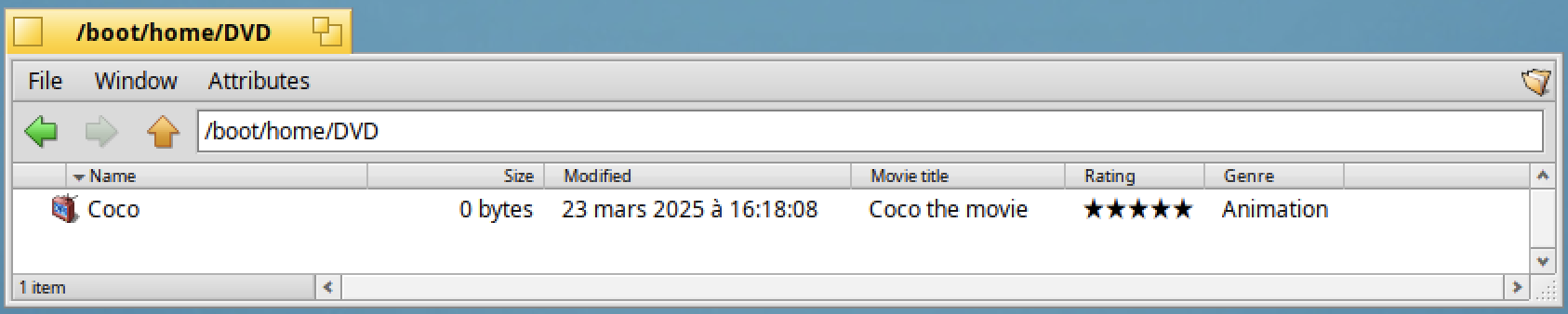
In case you have some existing DVD file like below, you can view the corresponding attributes in the tracker (rating, movie title, etc):
Or if you want to edit/view it in Attrify, a single drag and drop will make the job:
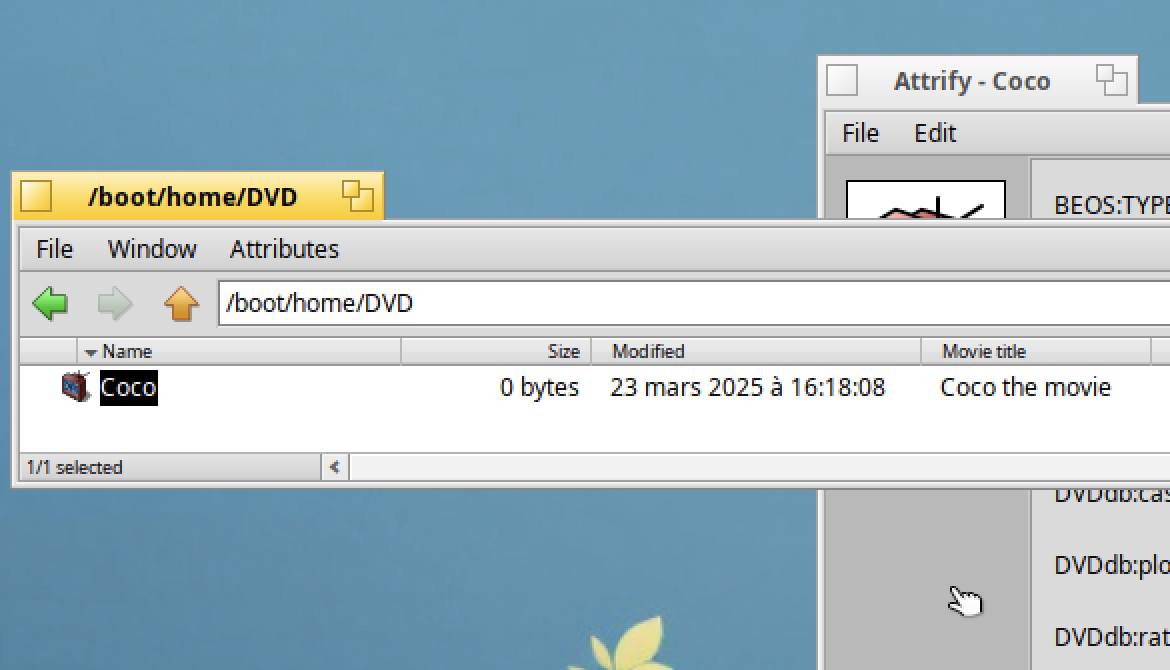
Please note that the ratings are from 0 to 10:
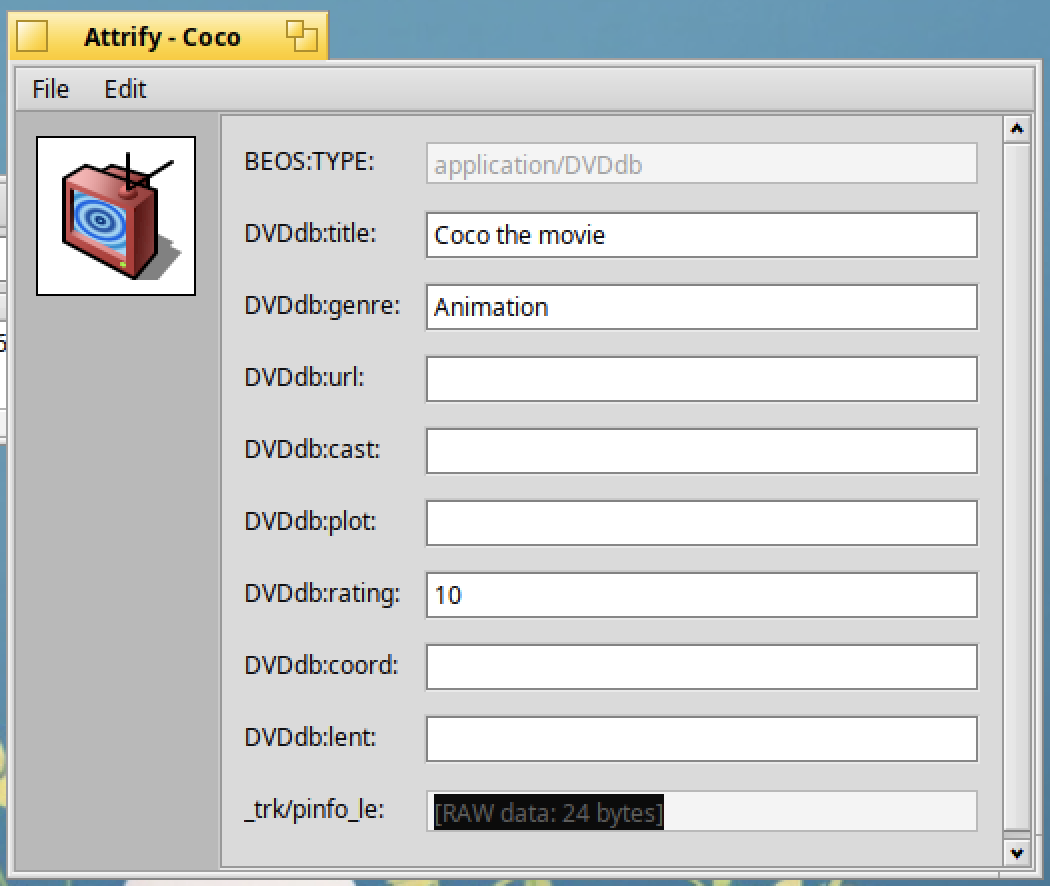
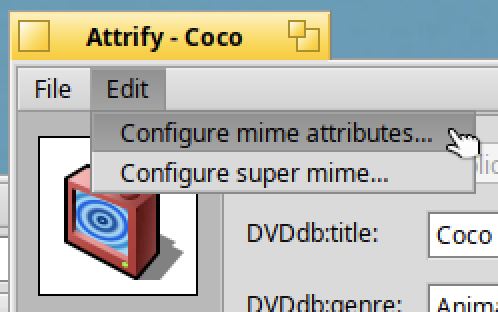
A nice feature in Attrify is the possibility to configure the current mime type attributes.
For that go to "Edit>Configure mime attributes":
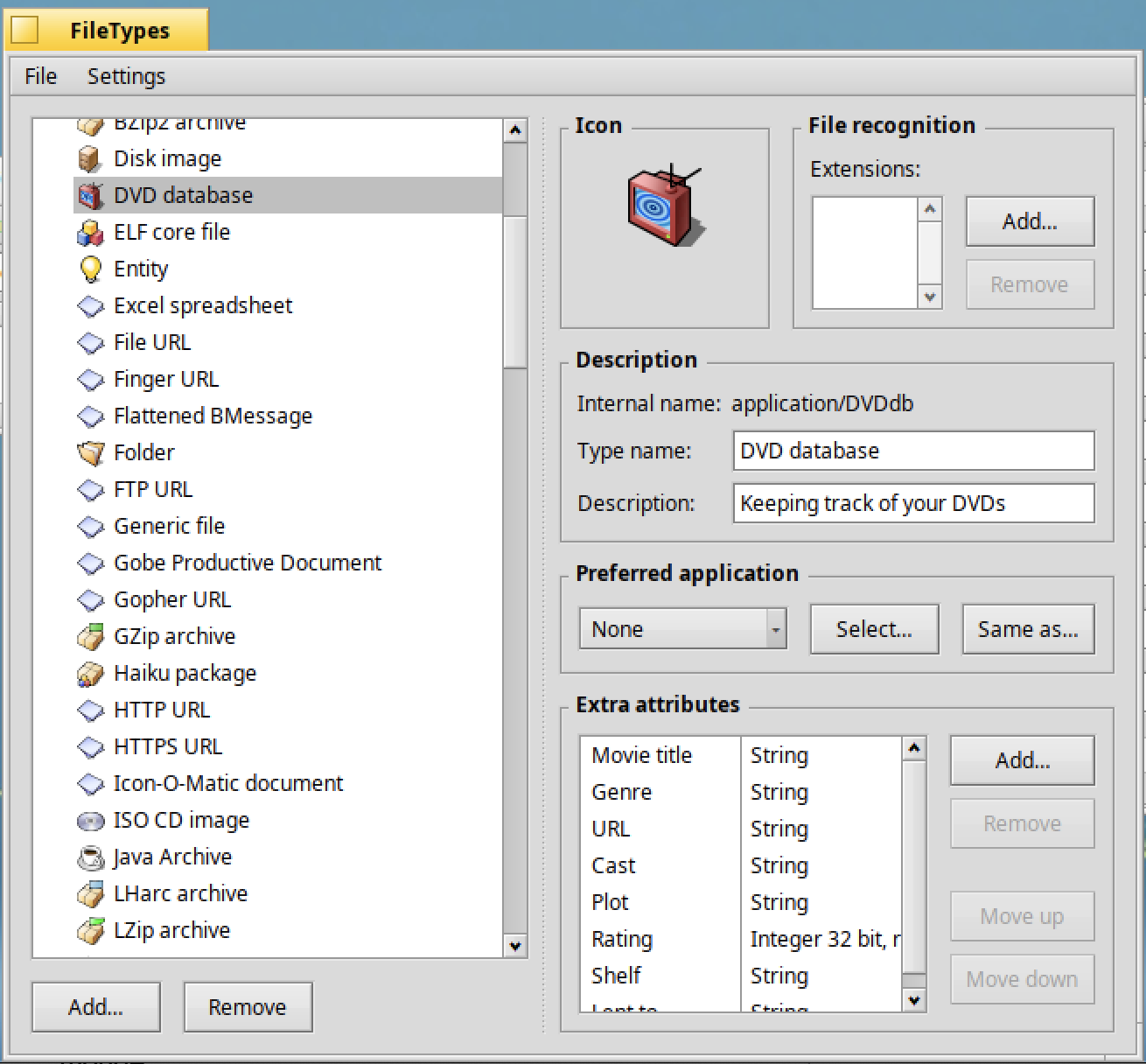
The FileTypes application will be opened with the corresponding type to be edited:
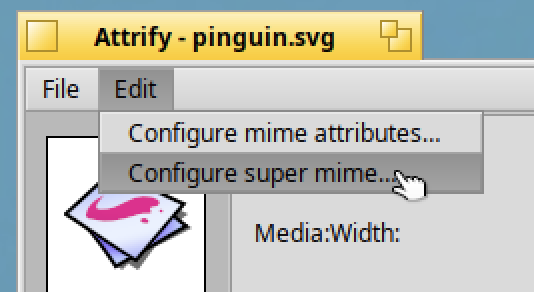
The same can be done with the super mime type.
Below is the edition of attributes from an SVG image:
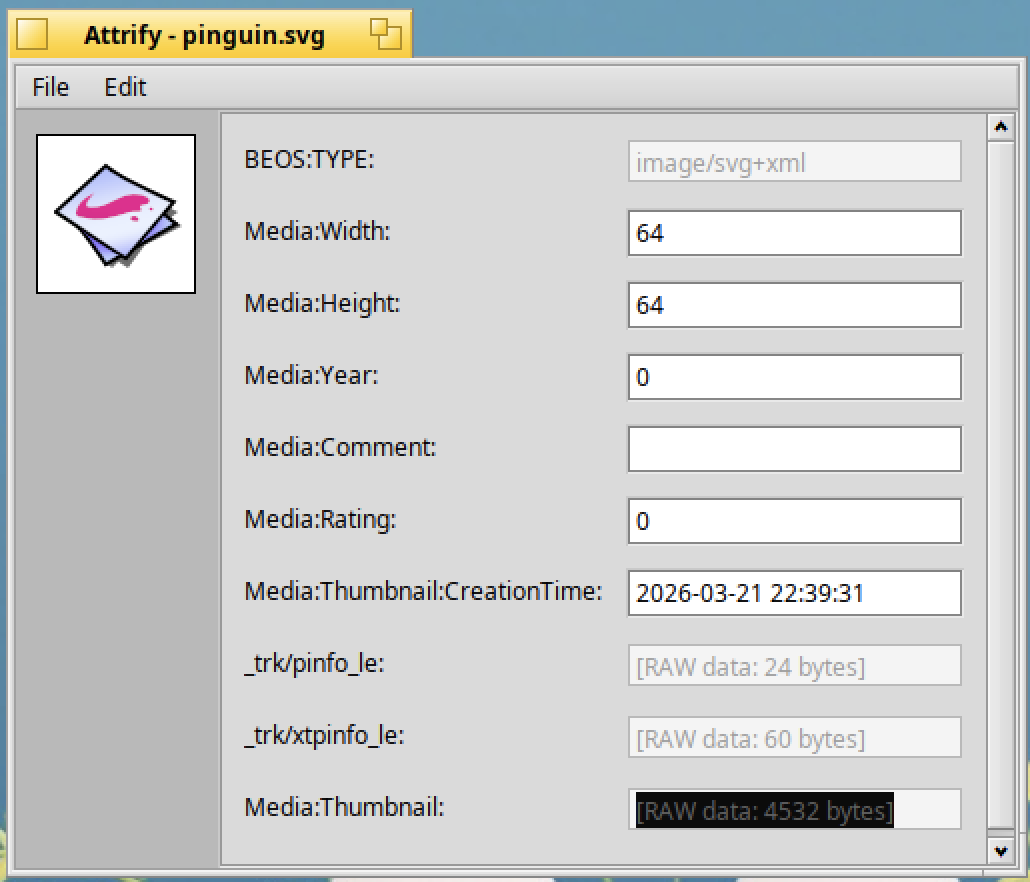
You now have a great idea about a new attribute to be created in the super mime type (image):
Select "Edit>Configure super mime":
The FileTypes application will be opened with the "image" type to be edited:)
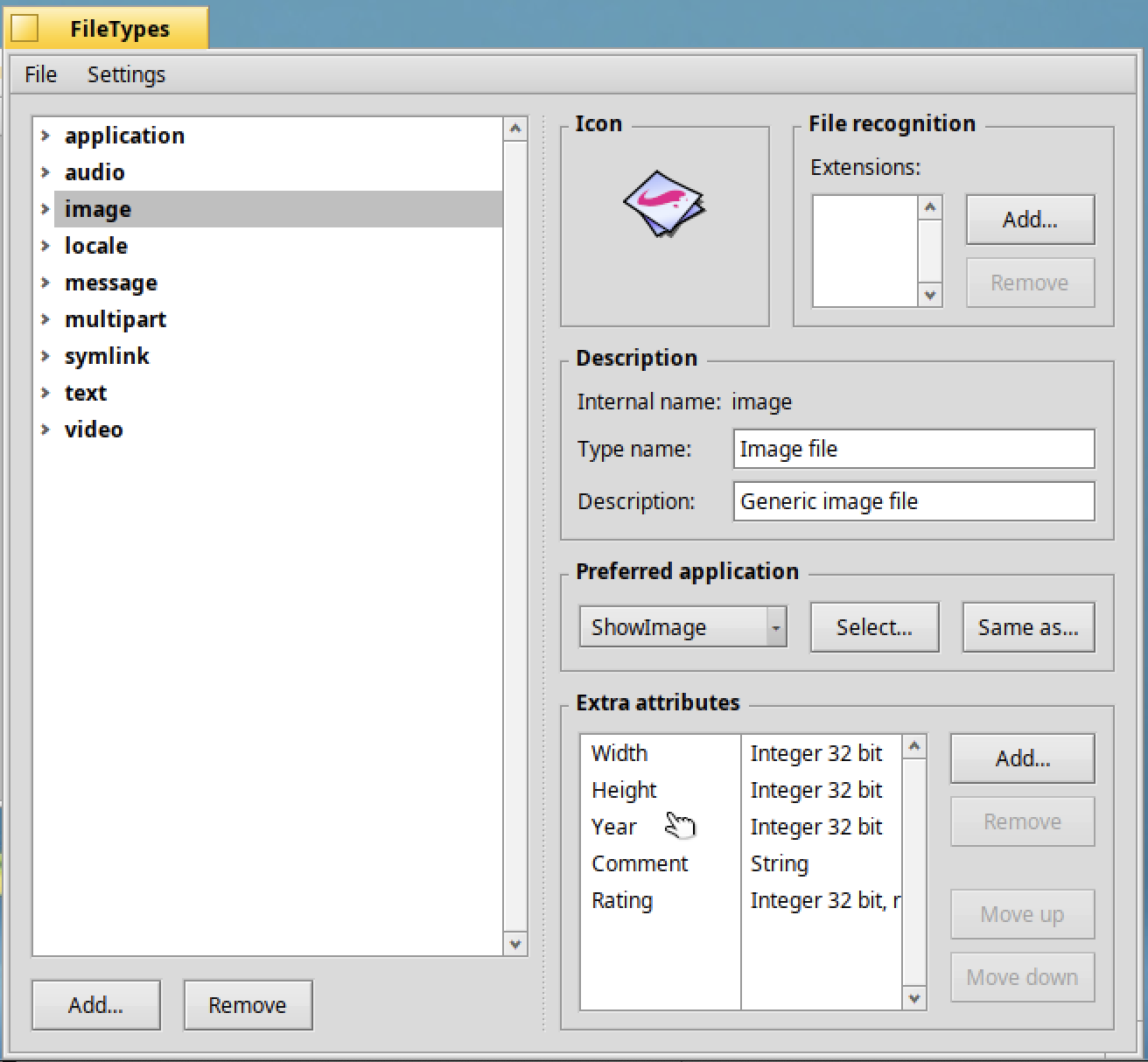
You can then decide to add a new extra attributes which will work for all the images on your system (SVG, PNG, JPEG, etc)
Super easy:)
Another feature in Attrify is the drag and drop for files.
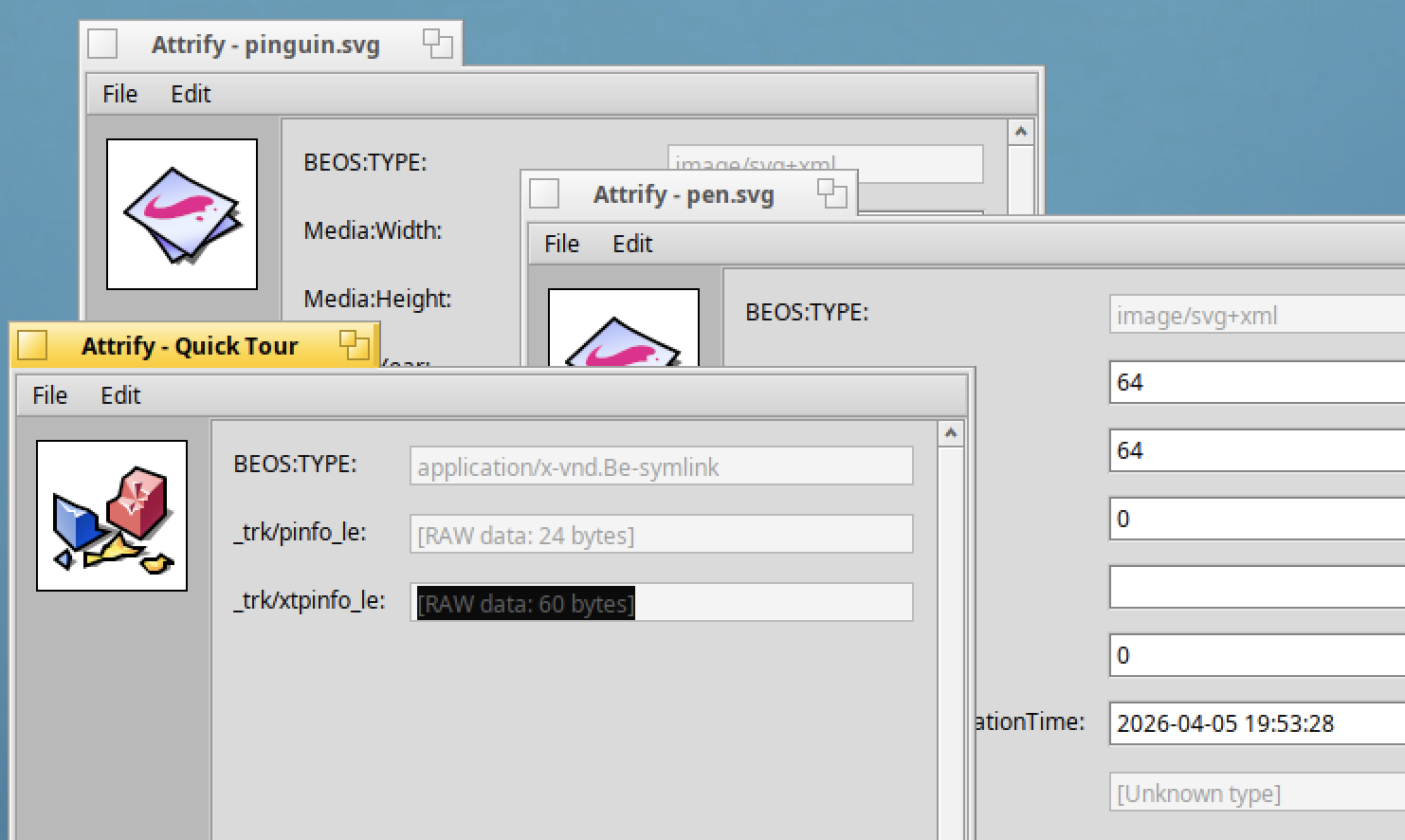
You can select as many files as you want, then drop them in an Attrify window:
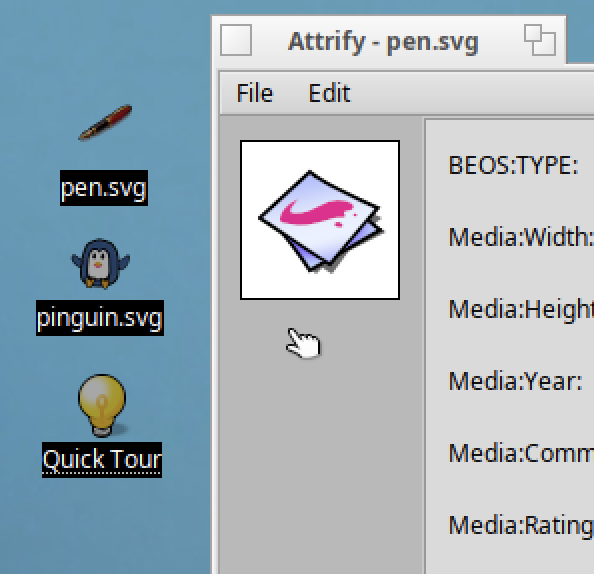
Each selected file will open a new window and the corresponding attributes will be displayed and editable if possible:
In case you would like to learn how the application is working or propose any enhancement, the Github homepage for Attrify is available there: https://github.com/DigitalBox98/Attrify
Have you ever used Attrify before ?
If you like it you can put a star on the GitHub repo or share your experience in the comments below.