
Install and run llama.cpp
 DigitalBox
- Dev
- June 6, 2025
If you need to run a LLM locally, you can use llama.cpp which is a C++ implementation developed by Meta.
3dEyes has proposed an interesting patch for a specific version of llama.cpp : this version can be compiled and run on Haiku.
I will showcase this solution, however please note that on a standard machine - like my NUC Intel - the responsiveness will not be sufficient.
You can give it a try, if you think your machine could do the job:)
Compile
The first step to build the solution is to clone the llama.cpp repo.
git clone https://github.com/ggml-org/llama.cpp
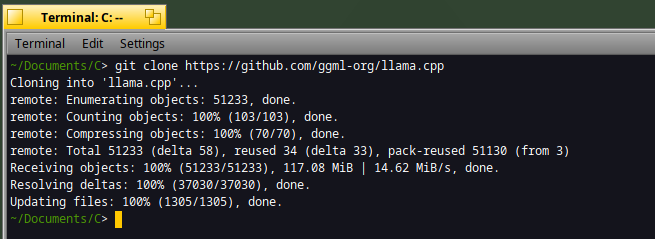
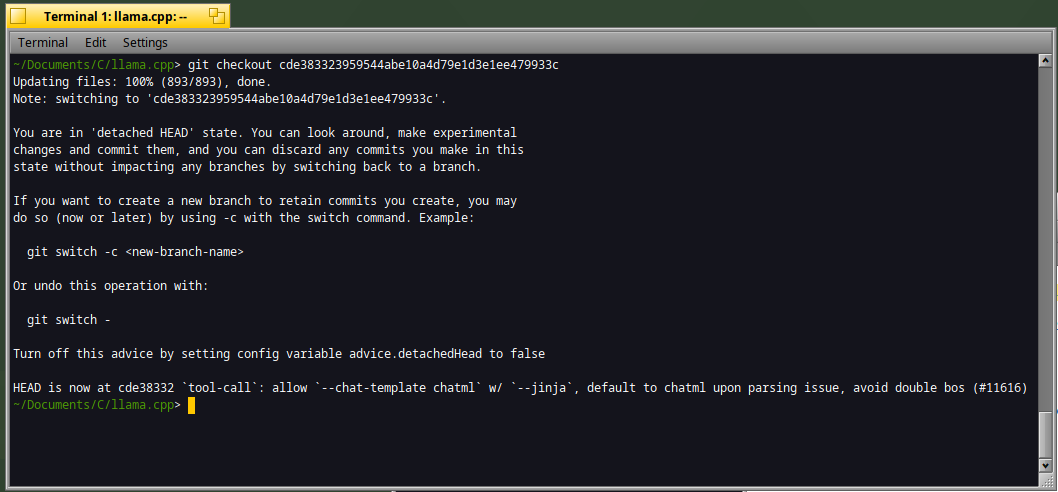
Then go into a specific commit version:
git checkout cde383323959544abe10a4d79e1d3e1ee479933c
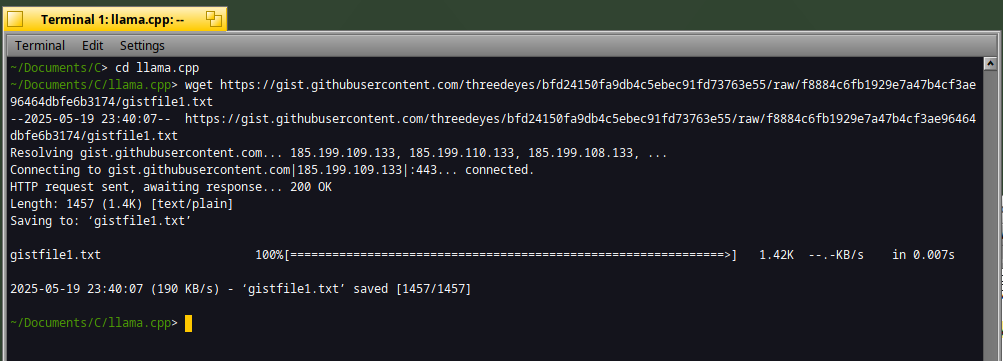
Download the patch set file from 3dEyes:

cd llama.cpp
wget https://gist.githubusercontent.com/threedeyes/bfd24150fa9db4c5ebec91fd73763e55/raw/f8884c6fb1929e7a47b4cf3ae96464dbfe6b3174/gistfile1.txt
Then apply the patch to the sources:
git apply gistfile1.txt
git status
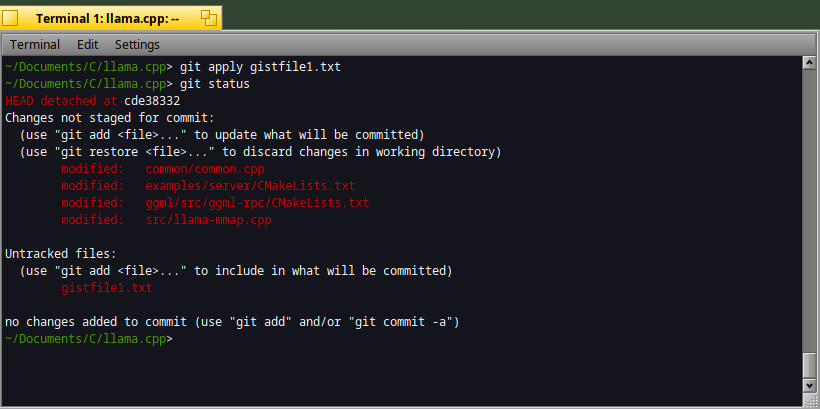
As you can see, 4 files were modified to make llama.cpp working under Haiku.
Before building the solution, we need to install "mimalloc_devel":
pkgman install mimalloc_devel
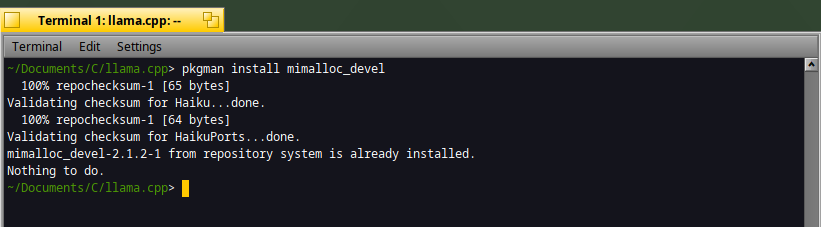
Now let's configure the solution with mimalloc:
cmake -B build -DCMAKE_EXE_LINKER_FLAGS="/boot/system/lib/mimalloc-2.1/mimalloc.o" -DCMAKE_CXX_FLAGS="-lnetwork"
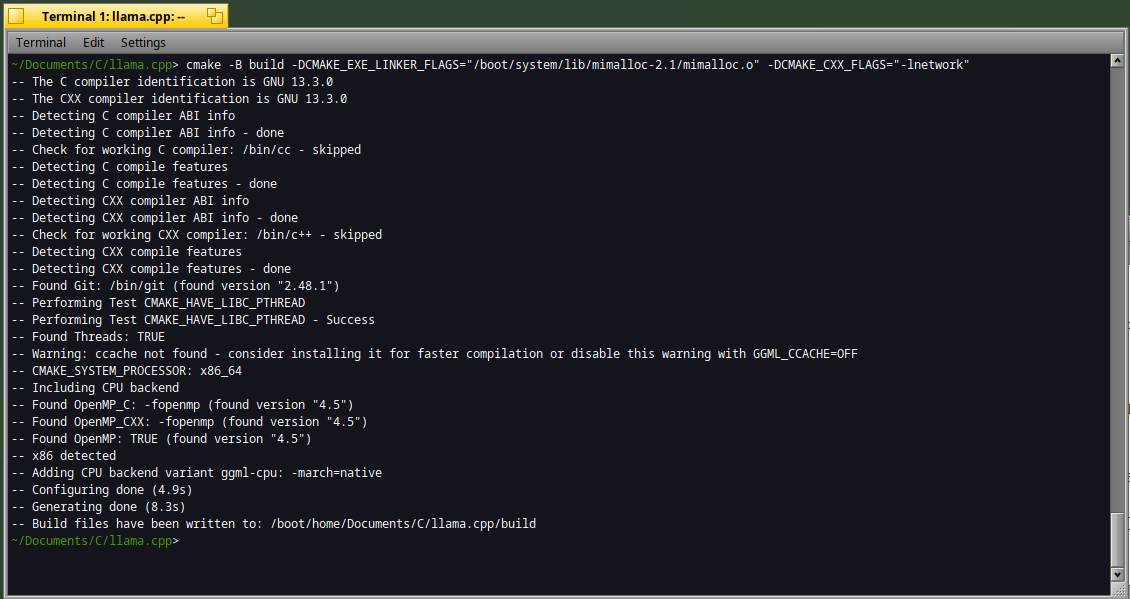
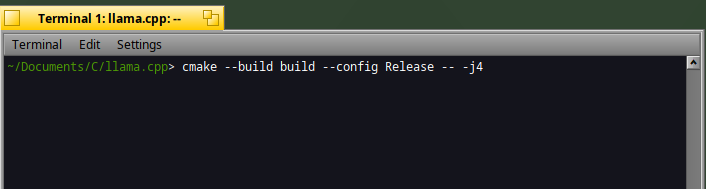
Finally let's build the release version of llama.cpp:
cmake --build build --config Release -- -j4
After a few minutes, you should see the below results:
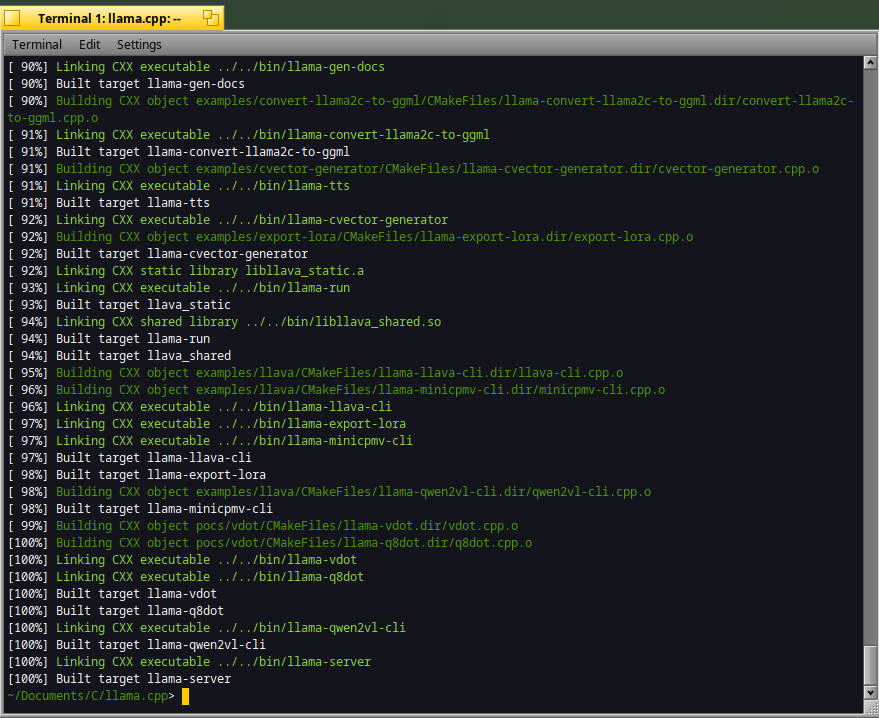
Llama.cpp is ready to be used!
Select a model
Before launching the server, we need to select a model.
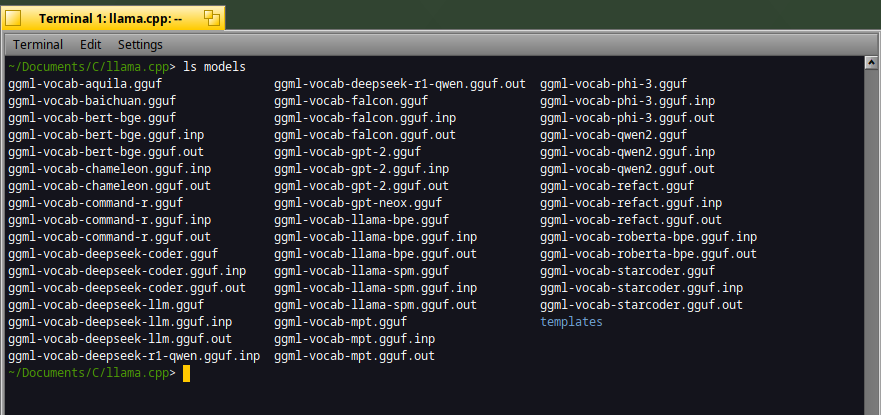
The below models are available by default:
ls models
If you own a machine with 32 Gb of memory, you can use the "gemma-2-27b-it-GGUF" model.
Go to the URL: https://huggingface.co/bartowski/gemma-2-27b-it-GGUF
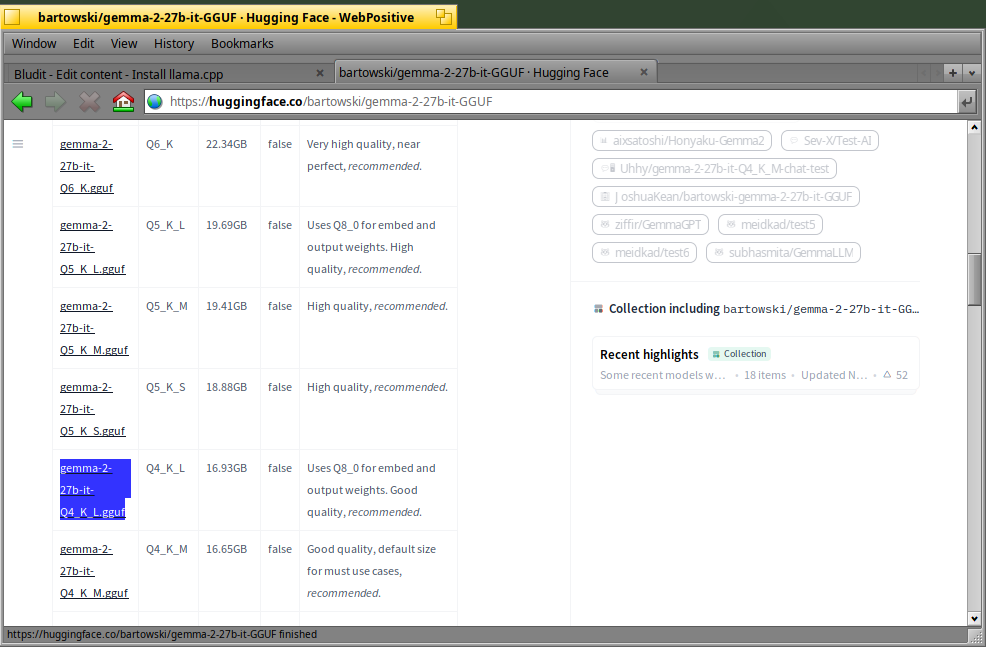
And download the file "gemma-2-27b-it-Q4_K_L-0.gguf".
Put it in the "models" directory.
If you own a machine with 8 Gb of memory, you can use the "DeepSeek-R1-Distill-Llama-8B-GGUF" model.
Go to the URL: https://huggingface.co/unsloth/DeepSeek-R1-Distill-Llama-8B-GGUF
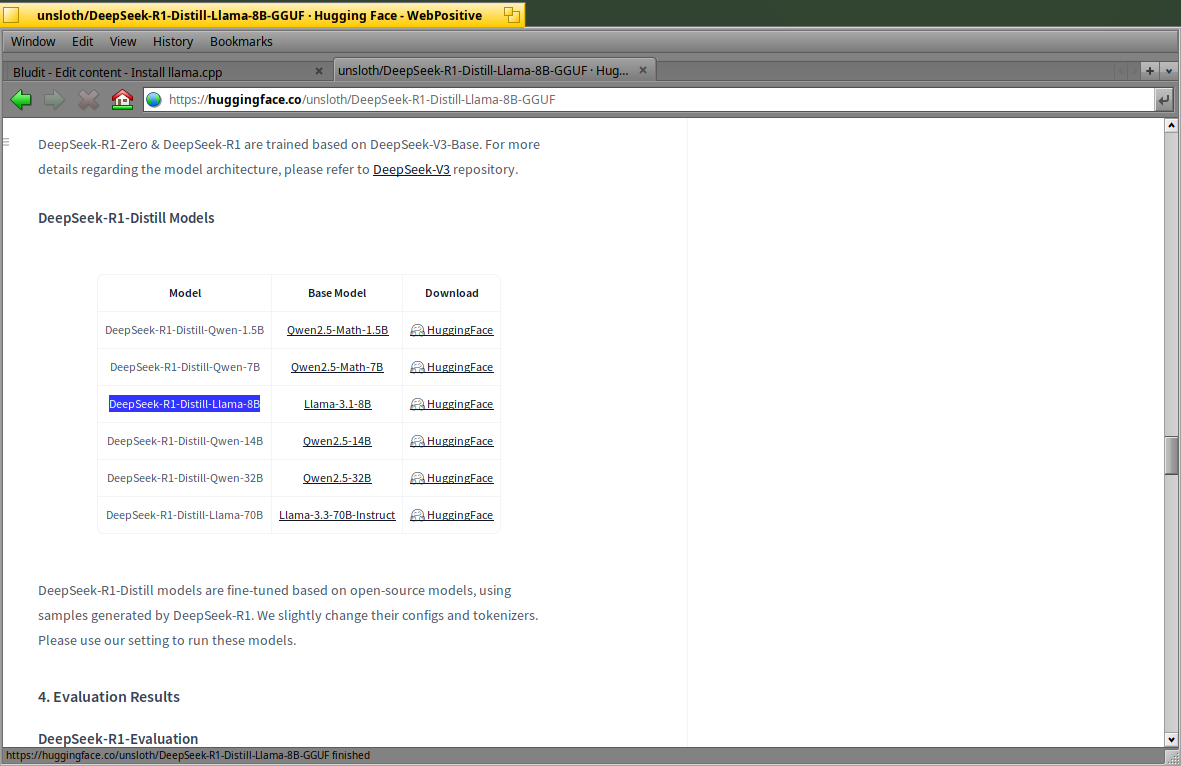
And download the file "DeepSeek-R1-Distill-Llama-8B-Q4_K_M.gguf".
Put it in the "models" folder.
If you check the folder content, you should have the below:

Run the server
When launching the llama.cpp server, you need to specify the model.
Let's start with "gemma-2-27b-it-GGUF":
./build/bin/llama-server -m models/gemma-2-27b-it-Q4_K_L-0.gguf --port 8080
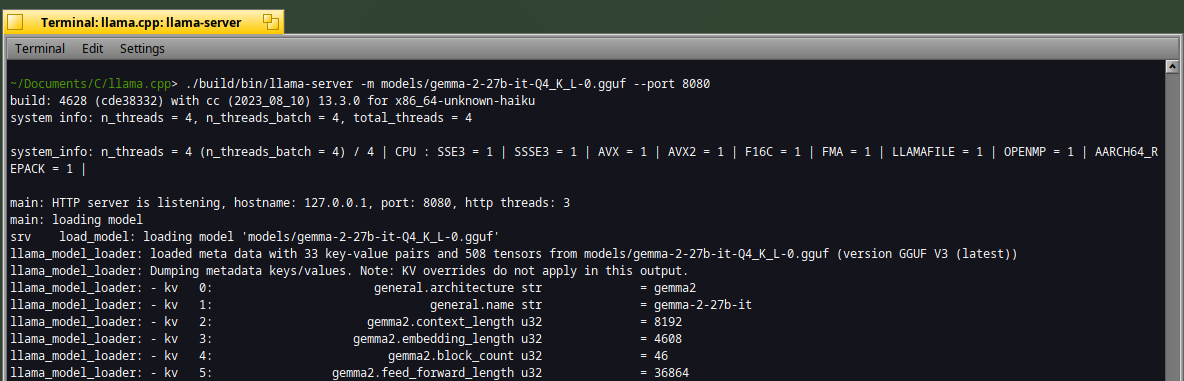
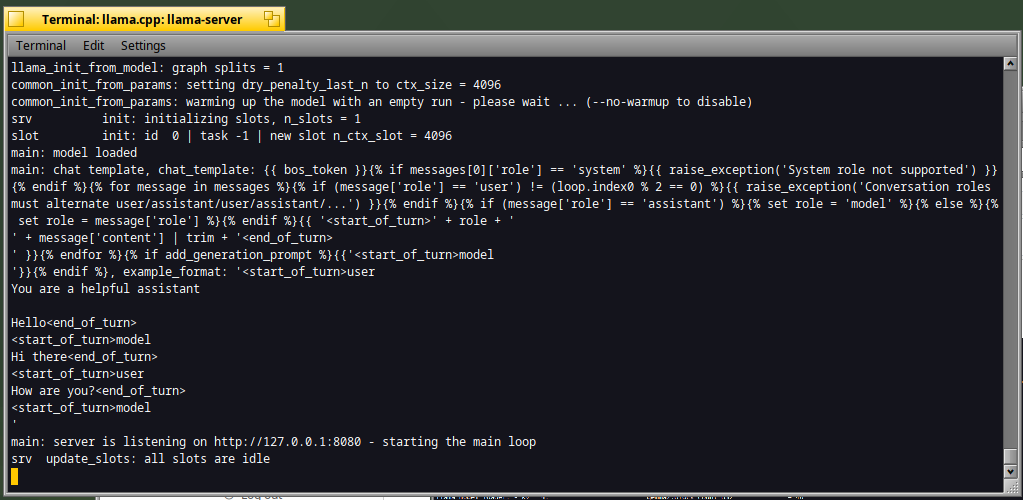
After a few minutes, the server is listening to port 8080:
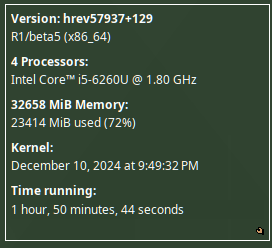
The memory used is as below:
Open a web browser like Iceweasel and type:
http://127.0.0.1:8080
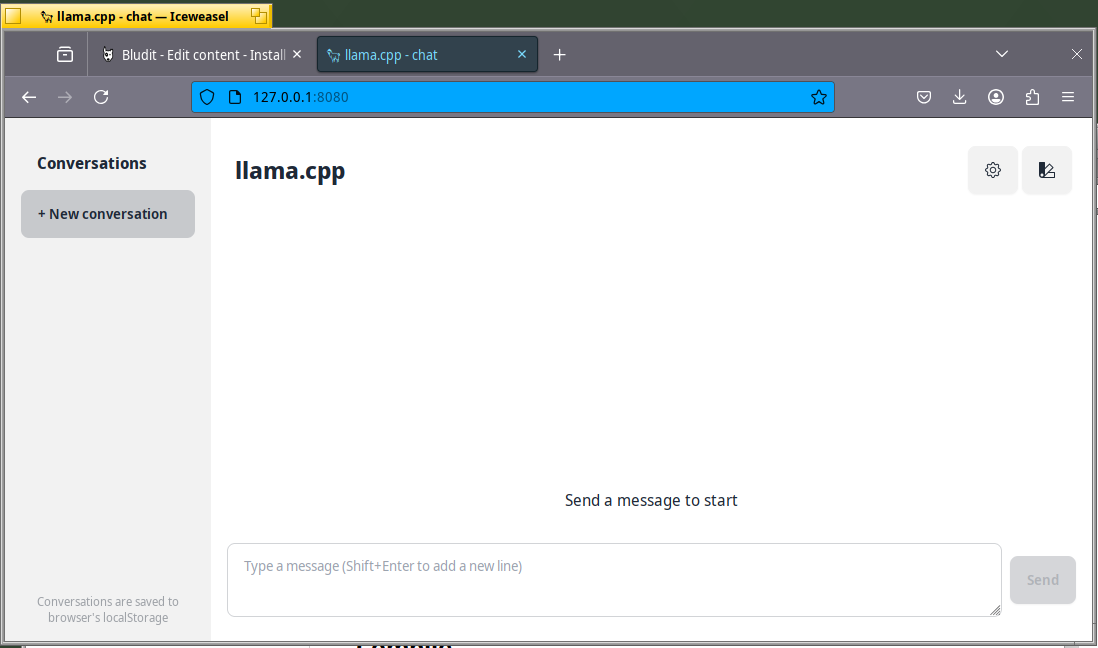
As you can see, there's a prompt waiting for your message.
Let's ask for the Raspberry Pi machine:)
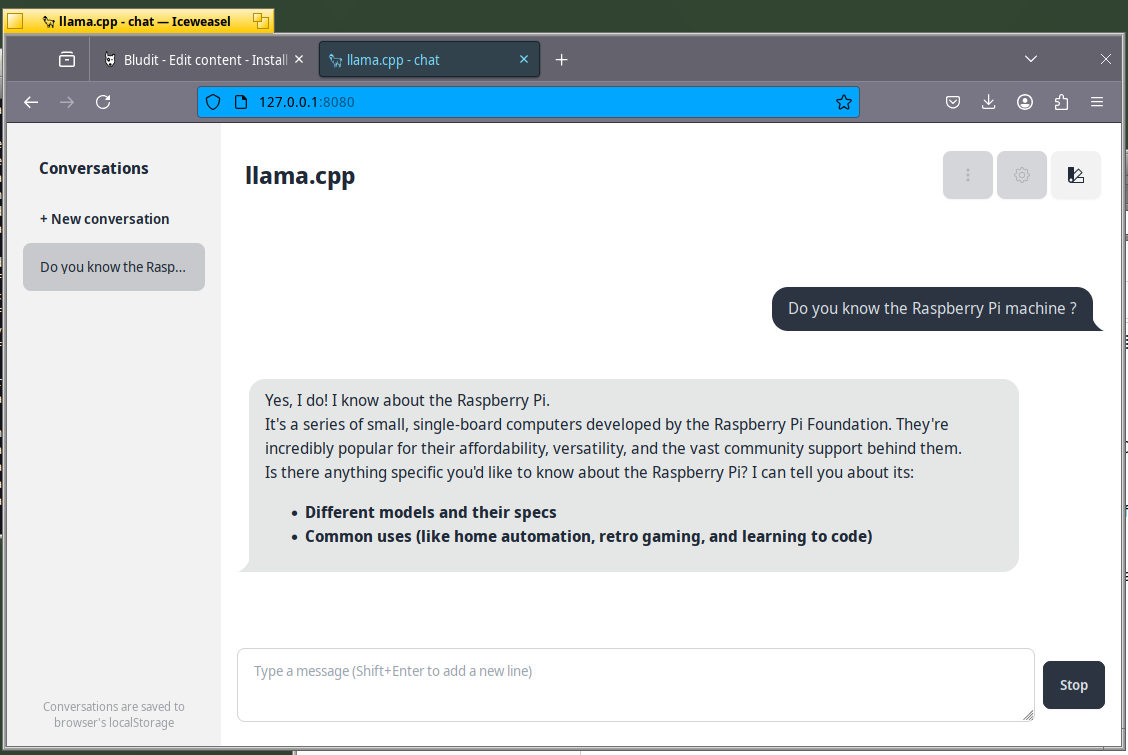
Nice, isnt' it ?
Please note that on my NUC Intel Core I5, it's working, however the tokens processing is very very slow.
So don't expect to use it, if you don't have a powerful machine:)
Let's check now the "DeepSeek-R1-Distill-Llama-8B-GGUF" model:
./build/bin/llama-server -m models/DeepSeek-R1-Distill-Llama-8B-Q4_K_M.gguf --port 8080
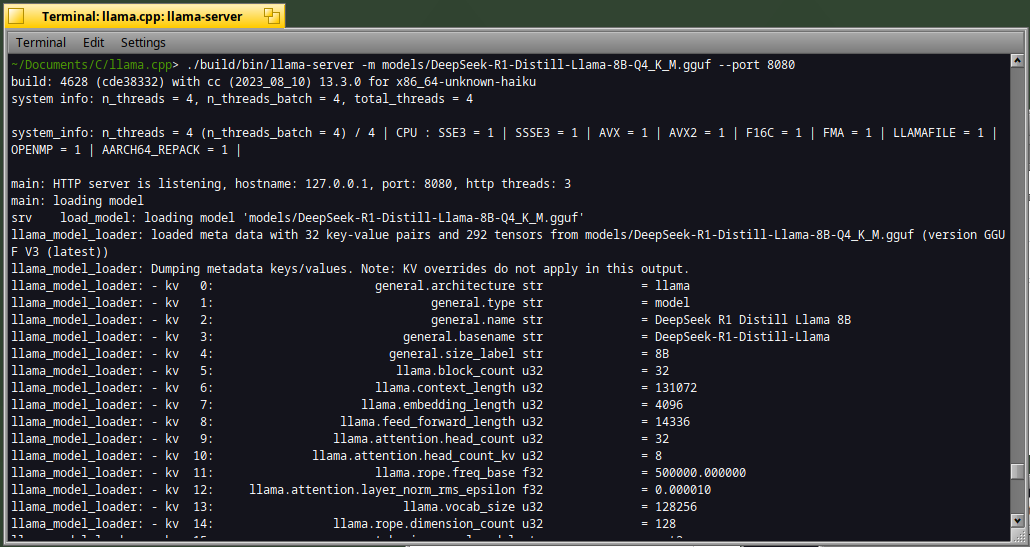
Wait until the server is listening on port 8080:
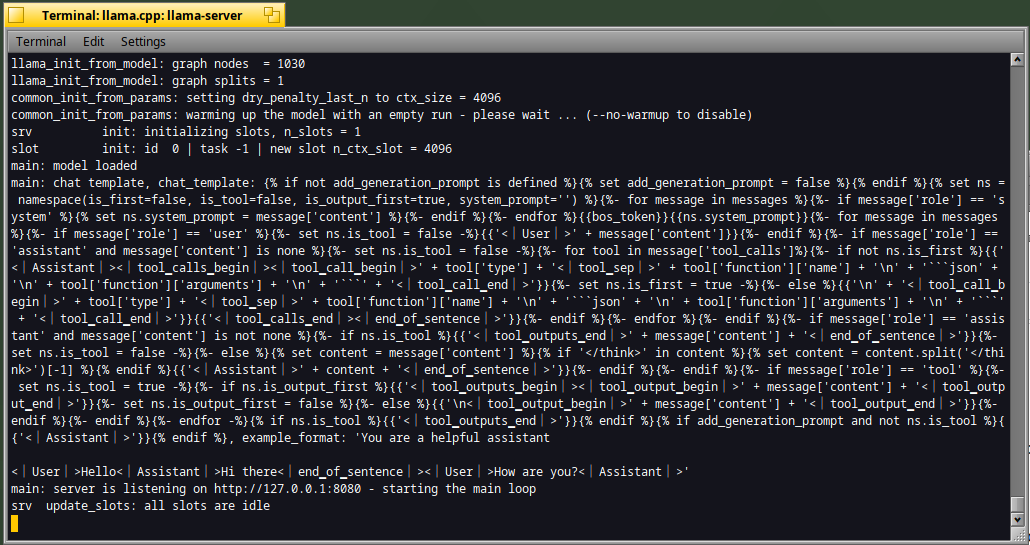
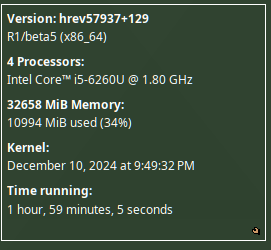
The memory used is as below which is better for a machine with 16 Gb of RAM:
You can connect again to the server via your favorite web browser:
http://127.0.0.1:8080
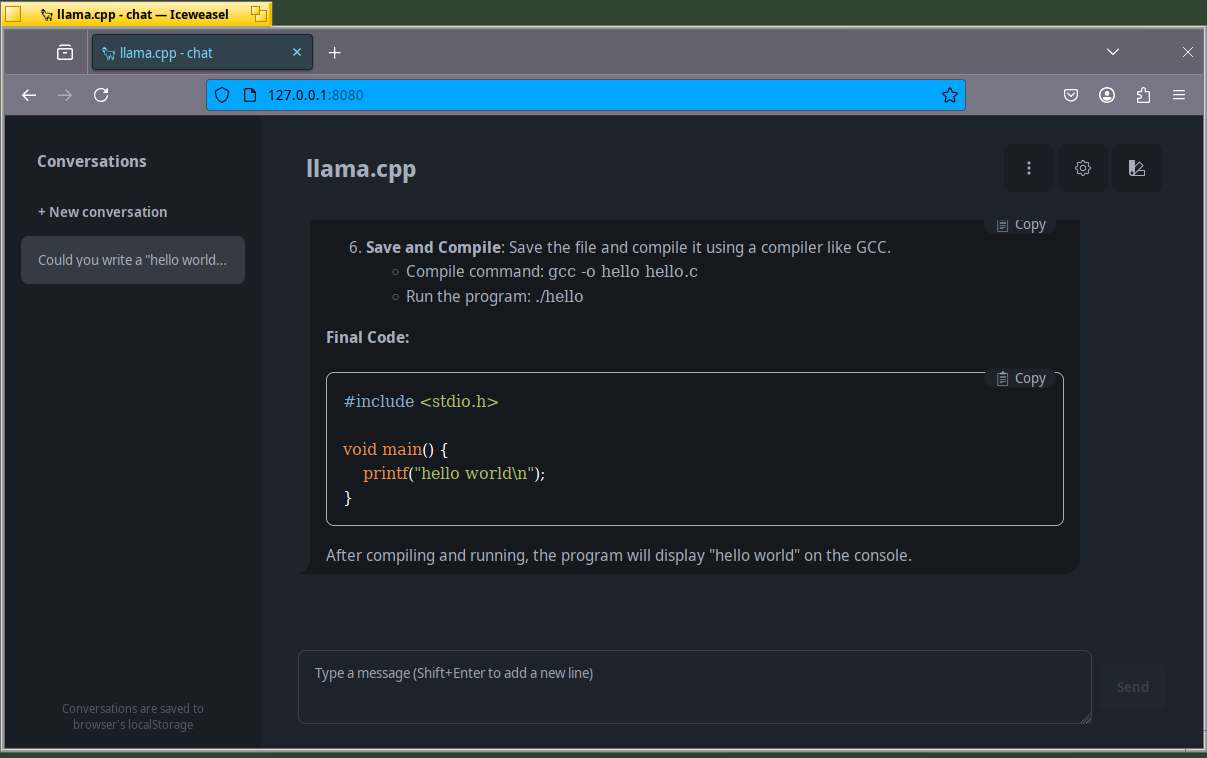
This time, I've asked to write a simple "Hello World" in C.
After a few minutes, I have a working result:)
Again here, please note you will need a powerful machine to have llama.cpp working quick enough.
Have you ever experiences a LLM server running locally on your machine?
You can share your experience in the comments below.