
Interface Kit: contextual menus
 DigitalBox
- KitLab
- November 3, 2025
In previous KitLab articles, we explored windows, views, layouts, and application menus.
Now let’s look at a feature every modern UI needs: contextual menus.
Contextual menus (also called right-click menus or popup menus) are menus that appear when the user right-clicks (or control-clicks) on a view.
They provide quick access to relevant actions without cluttering the main interface.
How contextual menus work in Haiku
In Haiku’s Interface Kit:
-
A BView can override the
MouseDown()method to detect a right-click. -
You can create a BPopUpMenu dynamically and call
Go()to display it at the click position. -
Menu items (BMenuItem) send messages, just like in the main menu bar.
Example: ContextMenuApp.cpp
This example creates a window with a simple view.
When you right-click inside the view, a contextual menu appears with a few options.
#include <Application.h>
#include <Window.h>
#include <View.h>
#include <PopUpMenu.h>
#include <MenuItem.h>
#include <Alert.h>

const uint32 MSG_COPY  = 'copy';
const uint32 MSG_PASTE = 'past';
const uint32 MSG_CLEAR = 'clea';

class ContextView : public BView {
public:
    ContextView(BRect frame)
        : BView(frame, "context_view", B_FOLLOW_ALL, B_WILL_DRAW)
    {
        SetViewColor(240, 240, 240);
    }

    void Draw(BRect) override {
        SetHighColor(0, 0, 0);
        DrawString("Right-click here for context menu",
                   BPoint(20, Bounds().Height() / 2));
    }

    void MouseDown(BPoint point) override {
        uint32 buttons;
        GetMouse(&point, &buttons);

        if (buttons & B_SECONDARY_MOUSE_BUTTON) {
            ShowContextMenu(point);
        }
    }

private:
    void ShowContextMenu(BPoint point) {
        BPopUpMenu* menu = new BPopUpMenu("context_menu");

        menu->AddItem(new BMenuItem("Copy",  new BMessage(MSG_COPY)));
        menu->AddItem(new BMenuItem("Paste", new BMessage(MSG_PASTE)));
        menu->AddSeparatorItem();
        menu->AddItem(new BMenuItem("Clear", new BMessage(MSG_CLEAR)));

        ConvertToScreen(&point);
        BMenuItem* selected = menu->Go(point);

        if (selected != nullptr && selected->Message() != nullptr) {
            Window()->PostMessage(selected->Message());
        }
        delete menu;
    }
};

class ContextWindow : public BWindow {
public:
    ContextWindow(BRect frame)
        : BWindow(frame, "Context Menu Example",
                  B_TITLED_WINDOW, B_QUIT_ON_WINDOW_CLOSE)
    {
        AddChild(new ContextView(Bounds()));
    }

    void MessageReceived(BMessage* msg) override {
        switch (msg->what) {
            case MSG_COPY:
                (new BAlert("info", "Copy selected.", "OK"))->Go();
                break;
            case MSG_PASTE:
                (new BAlert("info", "Paste selected.", "OK"))->Go();
                break;
            case MSG_CLEAR:
                (new BAlert("info", "Clear selected.", "OK"))->Go();
                break;
            default:
                BWindow::MessageReceived(msg);
        }
    }

    bool QuitRequested() override {
        be_app->PostMessage(B_QUIT_REQUESTED);
        return true;
    }
};

class ContextApp : public BApplication {
public:
    ContextApp()
        : BApplication("application/x-vnd.example-contextmenu")
    {
        BRect r(100, 100, 400, 300);
        ContextWindow* w = new ContextWindow(r);
        w->Show();
    }
};

int main() {
    ContextApp app;
    app.Run();
    return 0;
}
How It Works
-
Right-click detection:
InMouseDown(), we check forB_SECONDARY_MOUSE_BUTTON. -
Popup menu:
ABPopUpMenuis created dynamically with menu items. -
Go() method:
Displays the menu at the mouse position (ConvertToScreenensures correct placement). -
Message dispatch:
The selected item’s message is posted back to the window, which handles it inMessageReceived().
Try It Out
Compile the program:
Then run the application:
ContextMenuApp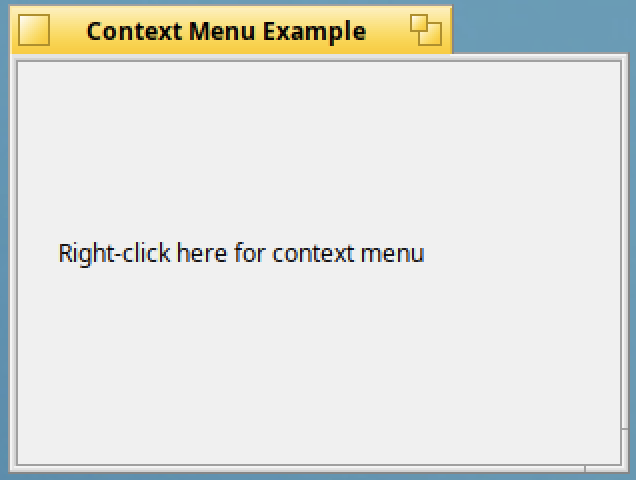
Right-click inside the window → the context menu appears:
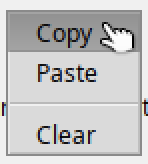
Select “Copy”, “Paste”, or “Clear":
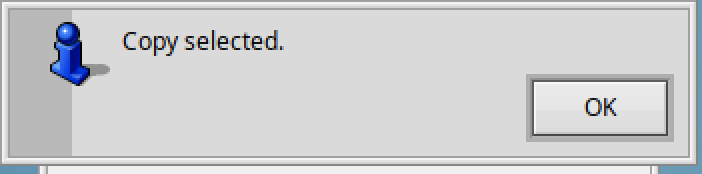
An alert box confirms the action.
Why It Matters
-
Keeps the UI clean by hiding less-used commands.
-
Provides faster access to common actions.
-
Follows Haiku’s message-passing model, consistent with other menus.
What’s Next?
We’ve now covered the core of the Interface Kit:
- drawing and views
- controls
- input events
- layouts
- drag and drop
- customized menus
Next, we’ll move beyond pure UI into document and image handling with the Translation Kit in upcoming KitLab articles.
Stay tuned, and keep on exploring!