
Interface Kit: dropping files
 DigitalBox
- KitLab
- October 20, 2025
In the last KitLab article, we experimented with drag and drop between views using custom messages.
Now, let’s explore one of the most common real-world uses of drag & drop in Haiku: files from Tracker.
When you drag a file from Tracker and drop it into your application window, Haiku delivers a message (B_REFS_RECEIVED or B_SIMPLE_DATA) containing one or more entry_ref references to those files.
Your app can then process them — display paths, open them, or filter them by type.
The Example: Dropping Multiple Files
Our demo creates a window with a simple drop zone.
You can drag one or more files from Tracker and drop them onto the window.
The application will list all dropped file paths.
Source Code: FileDropApp.cpp
#include <Application.h>
#include <Entry.h>
#include <Path.h>
#include <String.h>
#include <View.h>
#include <Window.h>

class DropView : public BView
{
public:
    DropView(BRect frame)
        :
        BView(frame, "drop_view", B_FOLLOW_ALL, B_WILL_DRAW)
    {
        SetViewColor(220, 220, 220);
        fLabel = "Drop files here";
    }

    void Draw(BRect) override
    {
        SetHighColor(0, 0, 0);

        float y = 20;   // starting y position
        BString line;
        int32 start = 0;
        int32 end;

        // Loop through lines separated by '\n'
        while ((end = fLabel.FindFirst('\n', start)) >= 0) {
            fLabel.CopyInto(line, start, end - start);
            MovePenTo(10, y);
            DrawString(line.String());
            y += 15;    // line spacing
            start = end + 1;
        }

        // Draw the last line (if no '\n' at the end)
        if (start < fLabel.Length()) {
            fLabel.CopyInto(line, start, fLabel.Length() - start);
            MovePenTo(10, y);
            DrawString(line.String());
        }
    }

    void SetLabel(const char* text)
    {
        fLabel = text;
        Invalidate();
    }

private:
    BString fLabel;
};

class DropWindow : public BWindow
{
public:
    DropWindow(BRect frame)
        :
        BWindow(frame, "File Drop Example", B_TITLED_WINDOW, B_QUIT_ON_WINDOW_CLOSE)
    {
        fDropView = new DropView(Bounds());
        AddChild(fDropView);
    }

    void MessageReceived(BMessage* message) override
    {
        if (message->what == B_REFS_RECEIVED || message->what == B_SIMPLE_DATA) {
            entry_ref ref;
            BString label("Dropped files:\n");

            for (int32 i = 0; message->FindRef("refs", i, &ref) == B_OK; i++) {
                BEntry entry(&ref, true);   // follow symlinks
                BPath path;
                if (entry.GetPath(&path) == B_OK) {
                    label << path.Path() << "\n";
                }
            }

            fDropView->SetLabel(label.String());
        } else {
            BWindow::MessageReceived(message);
        }
    }

    bool QuitRequested() override
    {
        be_app->PostMessage(B_QUIT_REQUESTED);
        return true;
    }

private:
    DropView* fDropView;
};

class DropApp : public BApplication
{
public:
    DropApp()
        :
        BApplication("application/x-vnd.example-dropfiles")
    {
        BRect r(100, 100, 500, 300);
        DropWindow* w = new DropWindow(r);
        w->Show();
    }
};

int main()
{
    DropApp app;
    app.Run();
    return 0;
}
How It Works
-
DropView: a simple
BViewthat draws a text label. -
DropWindow: overrides
MessageReceived()to handle bothB_REFS_RECEIVED(files opened with the app) andB_SIMPLE_DATA(files dragged into the window).
- By checking for both, the window can accept files regardless of whether they are opened from Tracker or dragged in from another source.
-
Looping through refs: instead of reading only the first file, we iterate over all
"refs"in the message. Each file path is appended to the label.
Compile and Run
In Terminal type:
g++ -o FileDropApp FileDropApp.cpp -lbeThen, launch the application:
FileDropApp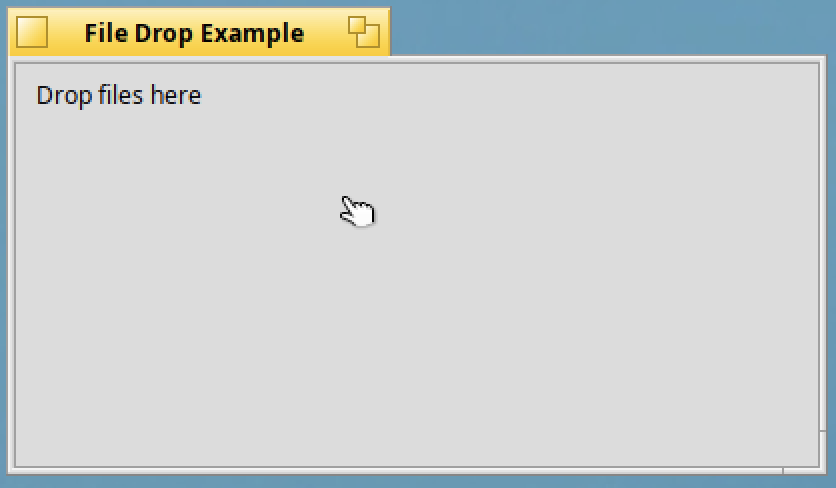
Then, drag one or more files from Tracker into the window.
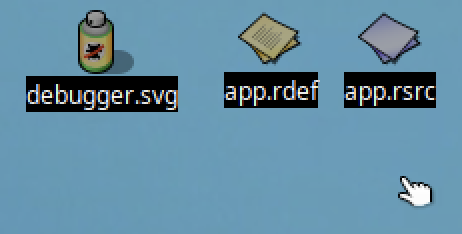
You’ll see their paths listed inside the drop zone:
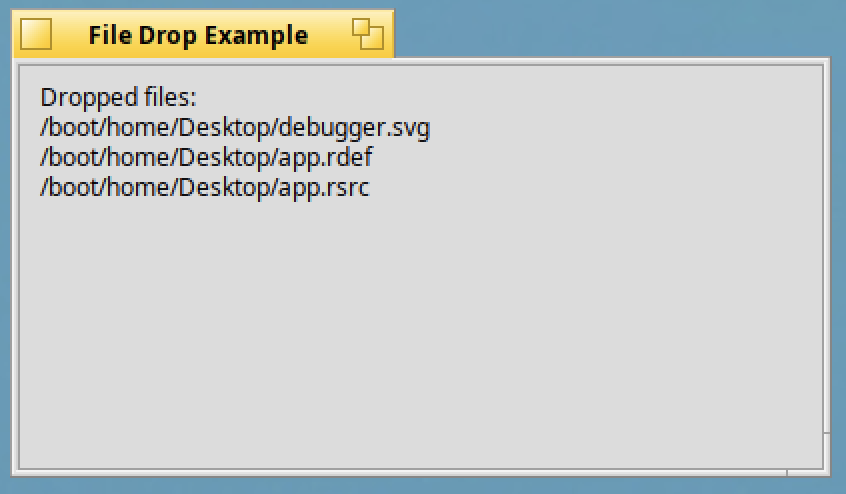
In this example, we only display paths.
However, we can open them, filter them by type, etc.
Why This Matters
-
Multiple files: real apps often need to open more than one file.
-
Minimal boilerplate: drag and drop is just a
BMessageloop. -
Flexible: you can extend this to filter by file type or open documents directly.
Extra Ideas
-
Filter by MIME type: only accept certain file formats (like images).
-
Open files automatically: instead of just listing paths, launch a viewer or parser.
-
Combine with layouts: display a scrollable list of dropped files using
BListView.
What’s Next?
In upcoming KitLab entries, we’ll explore:
-
Adding application menus
-
Adding contextual menus
Keep exploring!