Interface Kit: handling input events

Interface Kit: handling input events
  • mdo  DigitalBox
  •   KitLab
  •   September 22, 2025

So far in KitLab, we’ve seen how to create windows, add views, draw text, and respond to button clicks.

Now it’s time to go deeper into direct user input: handling mouse and keyboard events inside a BView.

In Haiku, every BView can capture events such as clicks, key presses, and mouse movement. By overriding the appropriate methods, you can make your application interactive in a very natural way.


Input in a BView

The most common input hooks you can override are:

  • MouseDown(BPoint point) – called when the user clicks inside the view.

  • MouseUp(BPoint point) – called when the mouse button is released.

  • MouseMoved(BPoint point, uint32 transit, const BMessage* dragMessage) – called when the mouse moves across the view.

  • KeyDown(const char* bytes, int32 numBytes) – called when a key is pressed while the view has focus.

  • KeyUp(const char* bytes, int32 numBytes) – called when a key is released.


Example: Interactive Circle

The following program combines mouse and keyboard input.

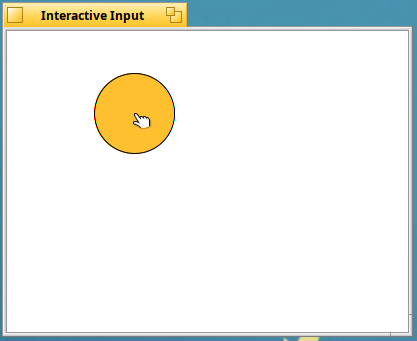
  • Left-click inside the window: the circle moves to that position.

  • Press the C key: the circle changes color randomly.

Source Code: InputApp.cpp

#include <Application.h>
#include <Window.h>
#include <View.h>
#include <stdlib.h>   // rand()

class InputView : public BView
{
public:
    InputView(BRect frame)
        :
        BView(frame, "input_view", B_FOLLOW_ALL, B_WILL_DRAW),
        fColor({255, 200, 0, 255})
    {
        SetViewColor(255, 255, 255);

        // Initial center of the circle
        fCenter = BPoint((frame.left + frame.right) / 2.0f,
            (frame.top + frame.bottom) / 2.0f);
    }

    void Draw(BRect) override
    {
        float radius = 40;

        // Filled circle
        SetHighColor(fColor);
        FillEllipse(BRect(fCenter.x - radius, fCenter.y - radius,
            fCenter.x + radius, fCenter.y + radius));

        // Outline
        SetHighColor(0, 0, 0);
        StrokeEllipse(BRect(fCenter.x - radius, fCenter.y - radius,
            fCenter.x + radius, fCenter.y + radius));
    }

    void MouseDown(BPoint point) override
    {
        fCenter = point;        // Move circle to mouse position
        Invalidate();           // Schedule redraw
        MakeFocus(true);        // View now receives key events
    }

    void KeyDown(const char* bytes, int32 numBytes) override
    {
        if (numBytes > 0 && (bytes[0] == 'c' || bytes[0] == 'C')) {
            // Randomize color on 'c' key
            fColor.red   = rand() % 256;
            fColor.green = rand() % 256;
            fColor.blue  = rand() % 256;
            Invalidate();
        } else
            BView::KeyDown(bytes, numBytes);
    }

private:
    BPoint fCenter;
    rgb_color fColor;
};

class InputWindow : public BWindow
{
public:
    InputWindow(BRect f)
        :
        BWindow(f, "Interactive Input", B_TITLED_WINDOW, B_QUIT_ON_WINDOW_CLOSE)
    {
        InputView* view = new InputView(Bounds());
        AddChild(view);
        view->MakeFocus(true);
    }

    bool QuitRequested() override
    {
        be_app->PostMessage(B_QUIT_REQUESTED);
        return true;
    }
};

class InputApp : public BApplication
{
public:
    InputApp()
        :
        BApplication("application/x-vnd.example-input")
    {
        BRect r(100, 100, 500, 400);
        InputWindow* w = new InputWindow(r);
        w->Show();
    }
};

int main()
{
    InputApp app;
    app.Run();
    return 0;
}

How It Works

  • MouseDown moves the circle to the click location and requests focus.

  • KeyDown checks if the key pressed is "C" and updates the circle’s color randomly.

  • Invalidate() tells Haiku to call Draw() again, refreshing the view with the updated state.

  • Because we call MakeFocus(true), our view correctly receives keyboard input after a mouse click. Don't forget to add this line to handle events in your view!


Compile and Run

In a Terminal, compile the source code:
g++ -o InputApp InputApp.cpp -lbe

Then launch the program:

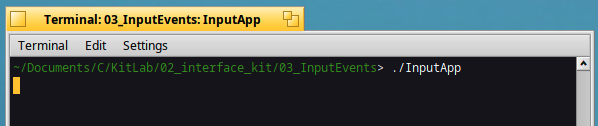
./InputApp


Let's play!

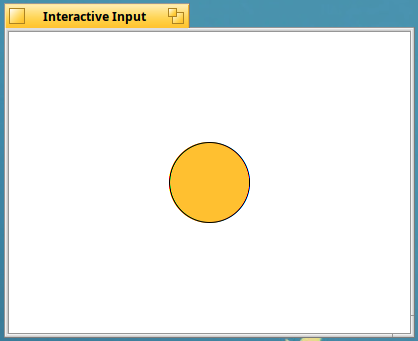
You’ll see a window with a circle in the middle.
Click anywhere, and the circle follows: 
Press C, and the circle changes its color randomly:
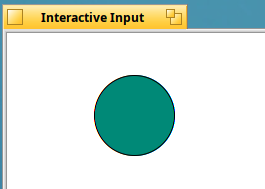
Press again C, and the circle changes its color one more time:
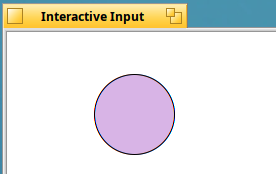
Nice isn't it ?


Why This Matters

Handling input is the cornerstone of interactive applications.
With just two overridden methods, we’ve created an app that responds to both mouse and keyboard.

This foundation enables:

  • Games and interactive art

  • Drawing tools or editors

  • Custom widgets with keyboard shortcuts


What’s Next?

Now that we can capture input events, the next KitLab entries will explore:

  • Drawing shapes in a view
  • Creating resizable layouts that adapt to input
  • Handling drag and drop messages in a view

Stay tune in the coming weeks :)


Powered by Bludit - Hosted by Planet Hoster
© 2025 Haiku Insider