
Mastering queries
 DigitalBox
- System
- December 8, 2025
One of the often-under-used but powerful features of Haiku OS is its “query” system: search definitions that are live rather than static.
In this article we’ll walk through simple use-cases via the Tracker GUI, then show how the same logic can be applied in the Terminal using the query command.
We’ll highlight why this approach is especially useful when you pair it with file attributes — and how you get automatic refresh behaviour for free.
What is a Query?
In Haiku, a query is not just a one-off search. It’s a saved search formula (a “search definition”) that returns the matching files or folders every time you open it — and updates its results automatically as files change.
So rather than running a search, getting a snapshot of results, then having to re-run it later — you build a query object, open it at any time, and the results are always up-to-date.
This is particularly powerful in combination with file attributes (metadata) and saved queries.
Using queries via Tracker for basic search
Let’s look at a first simple scenario via Tracker to get comfortable with the GUI side.
In order to do a basic search by name:
-
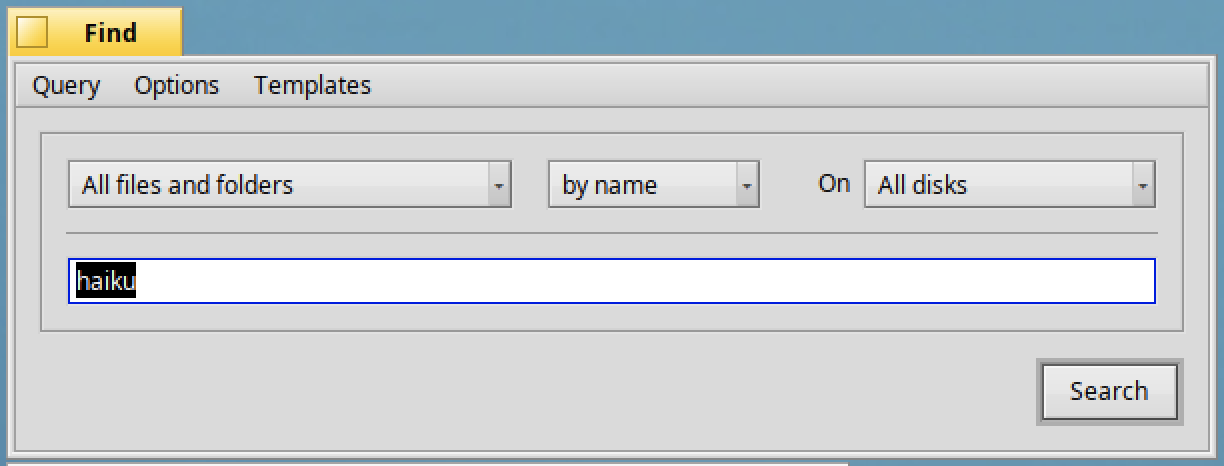
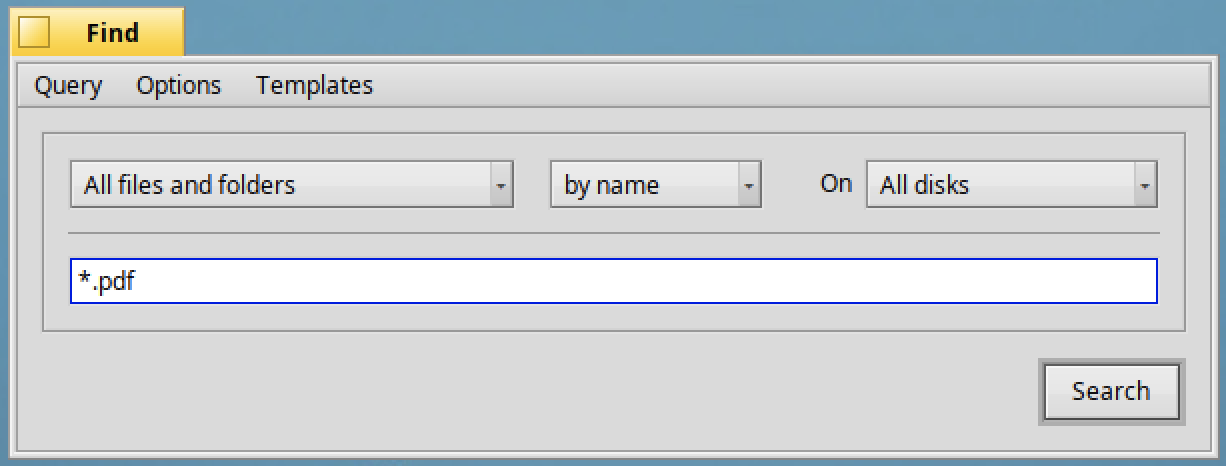
In Tracker, open Find… (via Deskbar or a Tracker window; shortcut Alt-F)
-
In the “By name” mode, enter a text pattern, e.g.
reportor*.pdf.
-
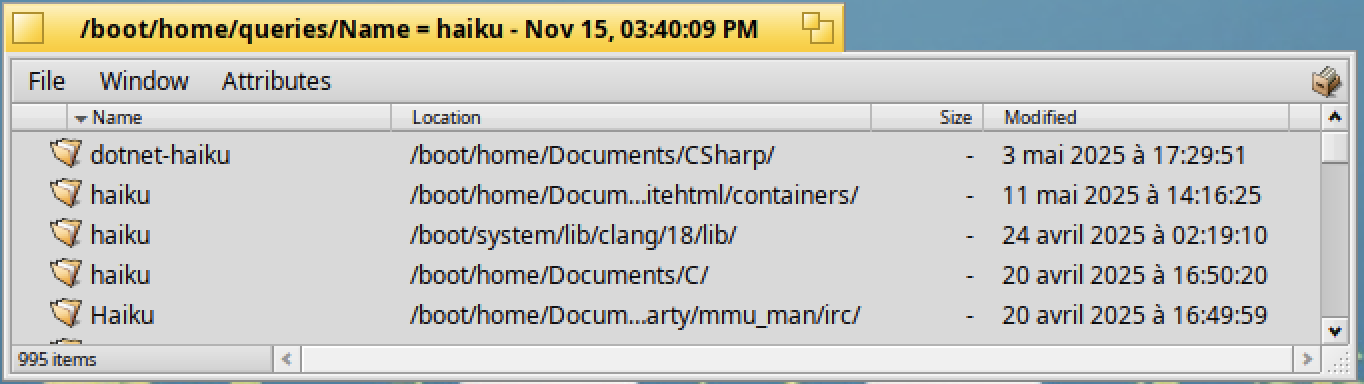
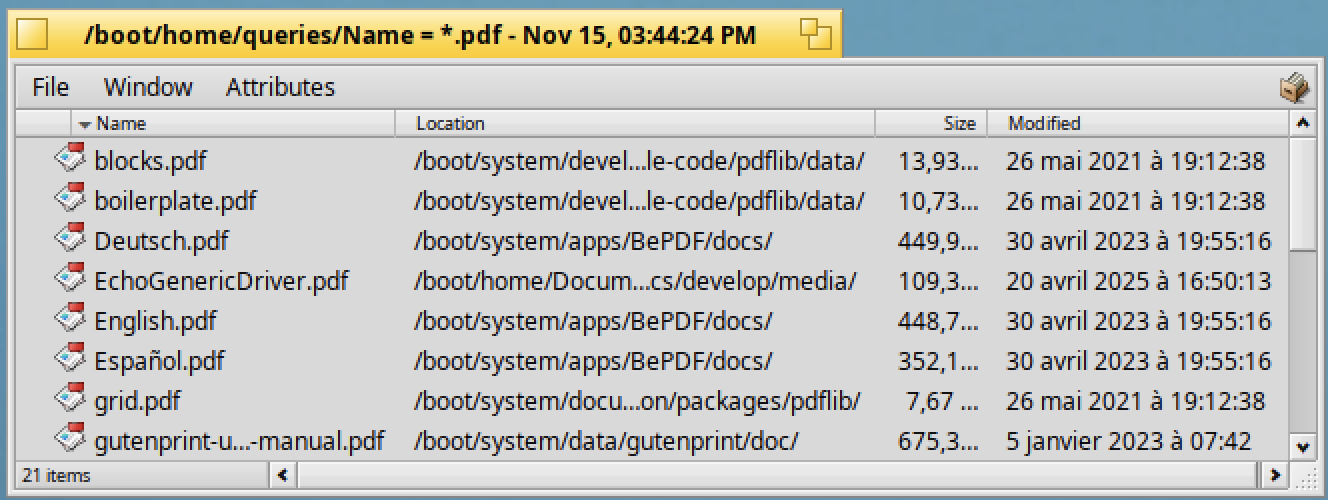
You get a result window with files/folders whose name matches.
-
All queries are stored in your
~/queries/folder:
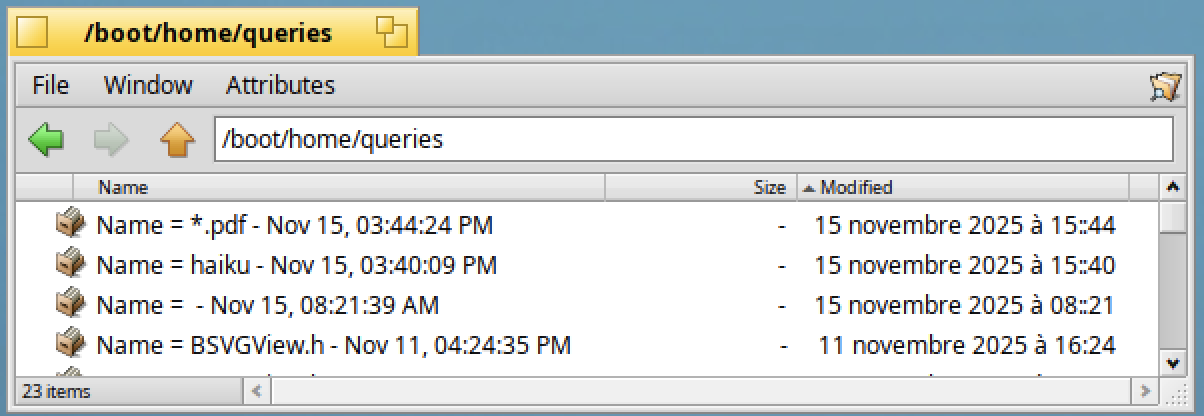
- If you right-click on an existing query, you can get the results as a pop-up menu:
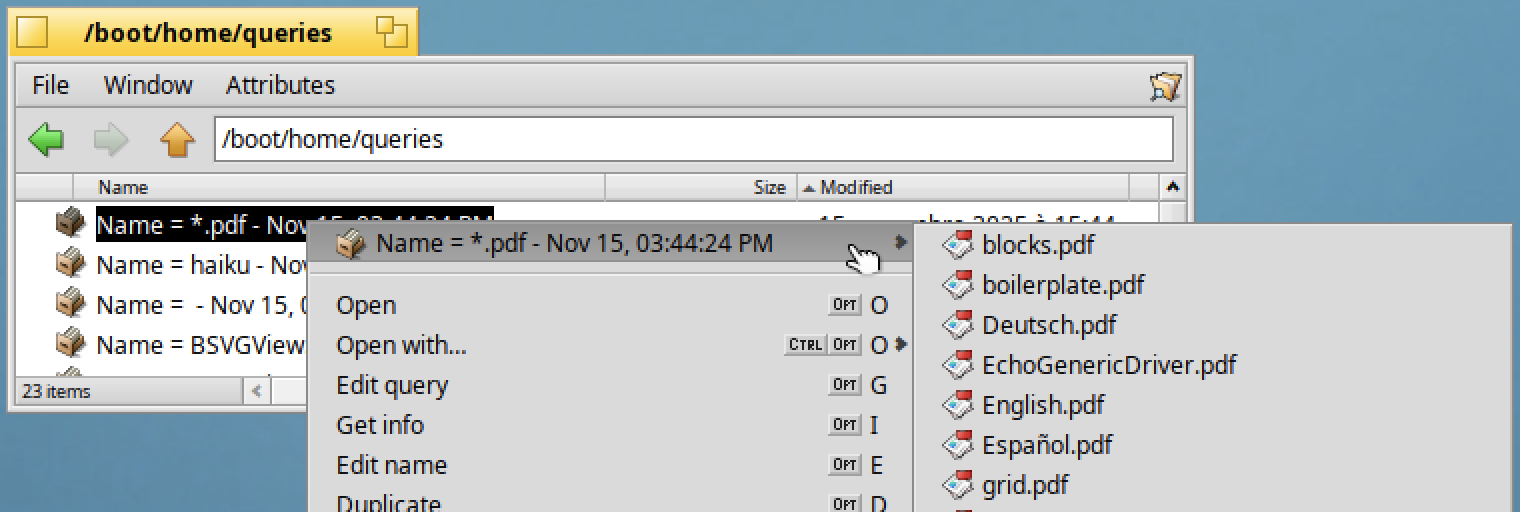
You can also use the "File>Edit query" menu in the Tracker:
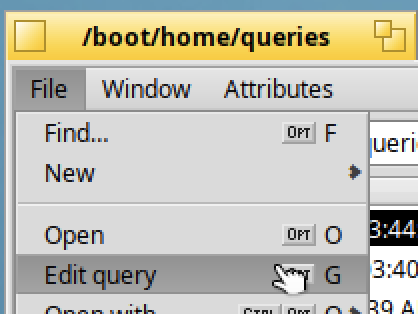
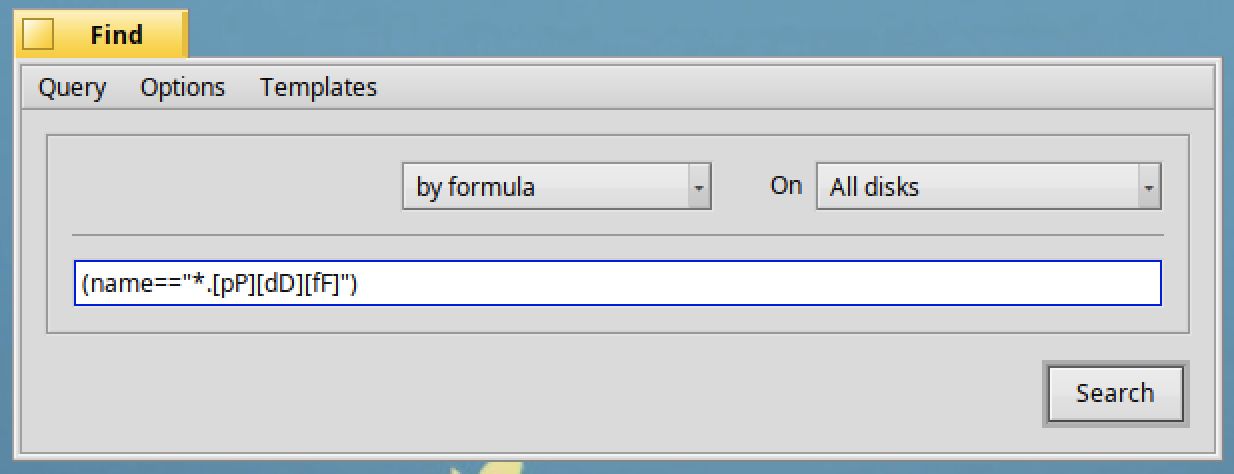
Then select "by formula":
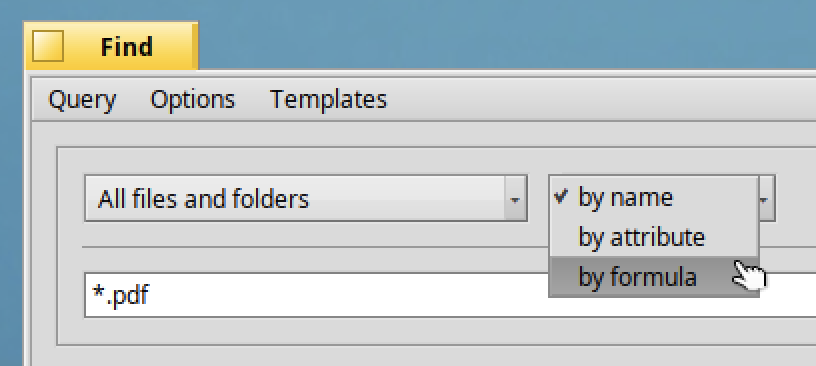
The query string formula will appear like below and you can decide to modify it:
What is an Attribute ?
In Haiku, an attribute is a piece of metadata stored directly inside the filesystem, not inside the file’s contents.
Attributes are a core feature of the Be File System (BFS) and can hold structured information such as a file’s author, rating, email headers, EXIF-style image dimensions, or any custom data an application defines.
Unlike traditional operating systems where metadata is limited to basic fields (name, size, timestamps), Haiku treats attributes as first-class citizens: they are indexed, searchable, and visible directly in Tracker as additional columns.
However, attributes exist only on BFS volumes.
This means:
-
If you download an image within Haiku, Haiku automatically assigns attributes like
BEOS:TYPE,Media:Width, andMedia:Height. -
But if you transfer an image from another OS (e.g., from macOS or Linux) using SCP, USB drive, or another protocol, the file will not contain Haiku attributes.
The file itself remains intact, but the BFS-specific metadata does not travel with it because other filesystems don’t support Haiku-style attributes.
Once the file arrives on a Haiku BFS volume, Haiku can re-generate some of these attributes (such as MIME type and media dimensions) through file sniffing and Translators.
Let's take an example.
Under Haiku download a JPEG image with WebPositive:

Check the attributes assigned to the downloaded image:
listattr /boot/home/Desktop/pexels-pixabay-247599.jpg
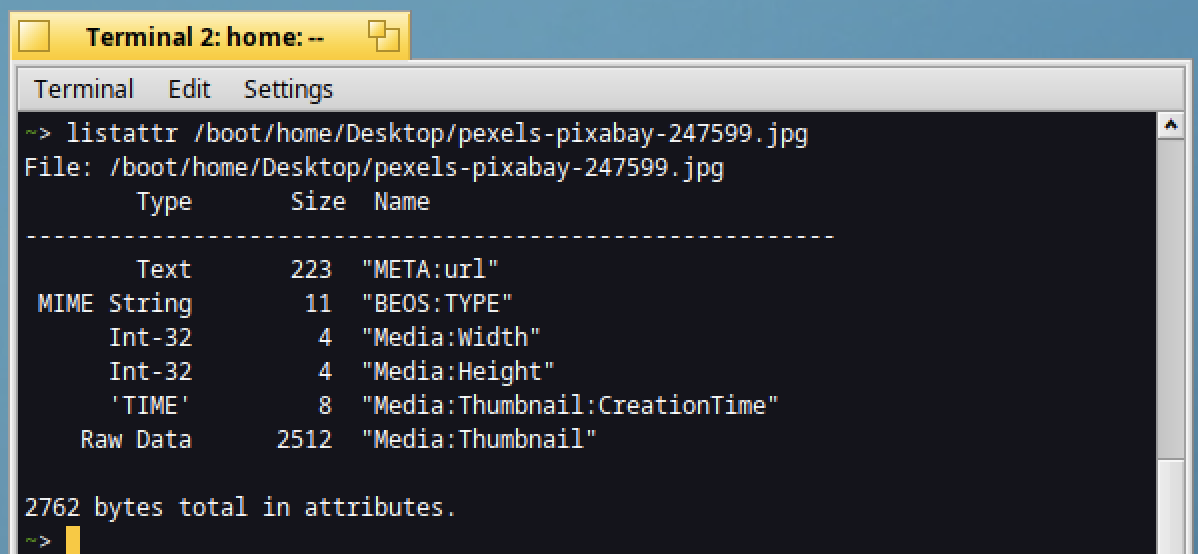
As you can see, after the file was downloaded by WebPositive, new attributes have been assigned to the image like the BEOS:TYPE, Media:Width and Media:Height.
Let's check the MIME type and the image's width:
catattr BEOS:TYPE /boot/home/Desktop/pexels-pixabay-247599.jpg
catattr Media:Width /boot/home/Desktop/pexels-pixabay-247599.jpg
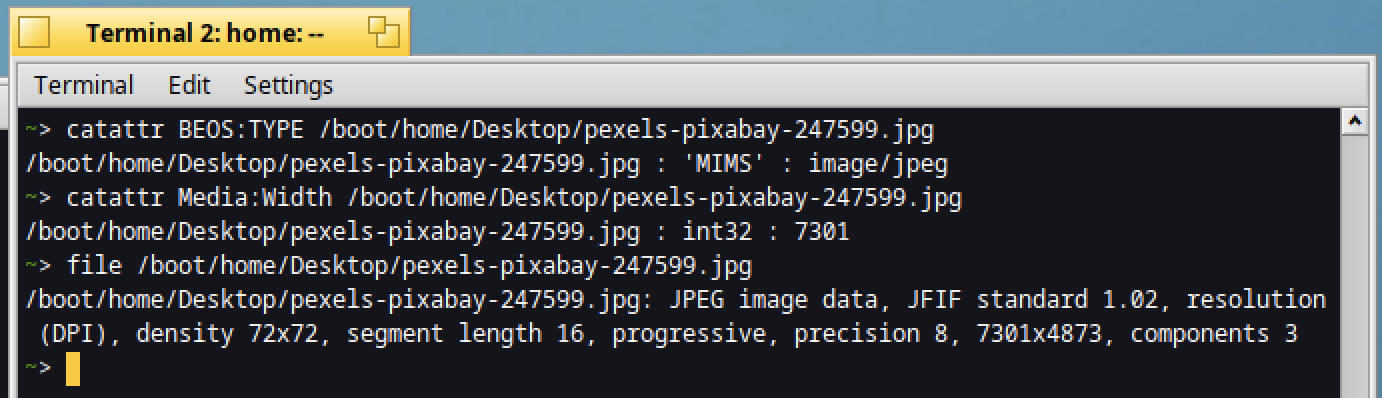
The file is a JPEG image and its width is 7301 pixels.
Now what about the image downloaded from another system and transferred to Haiku ?
Let's check its attributes:
listattr /boot/home/Desktop/pexels-pixabay-247599.jpg
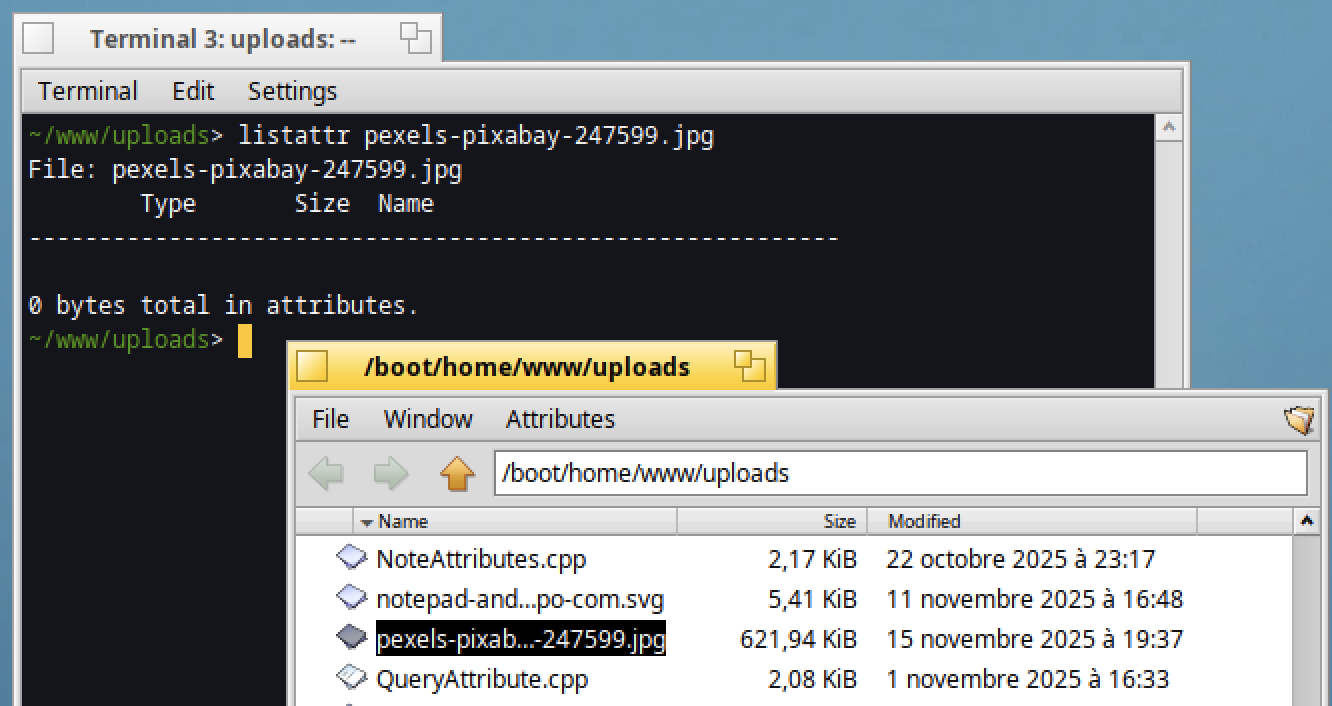
No attribute is assigned by default.
However if you do any action on this image from the Tracker - like a right click on the file - you will notice some changes:
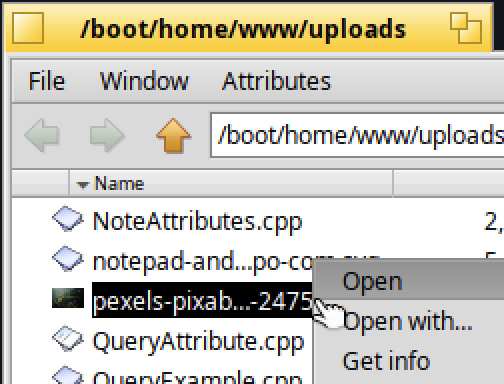
- A thumbnail is attached to the image
- New attributes are assigned to the file
You can check the details of the changes as below:
listattr /boot/home/Desktop/pexels-pixabay-247599.jpg
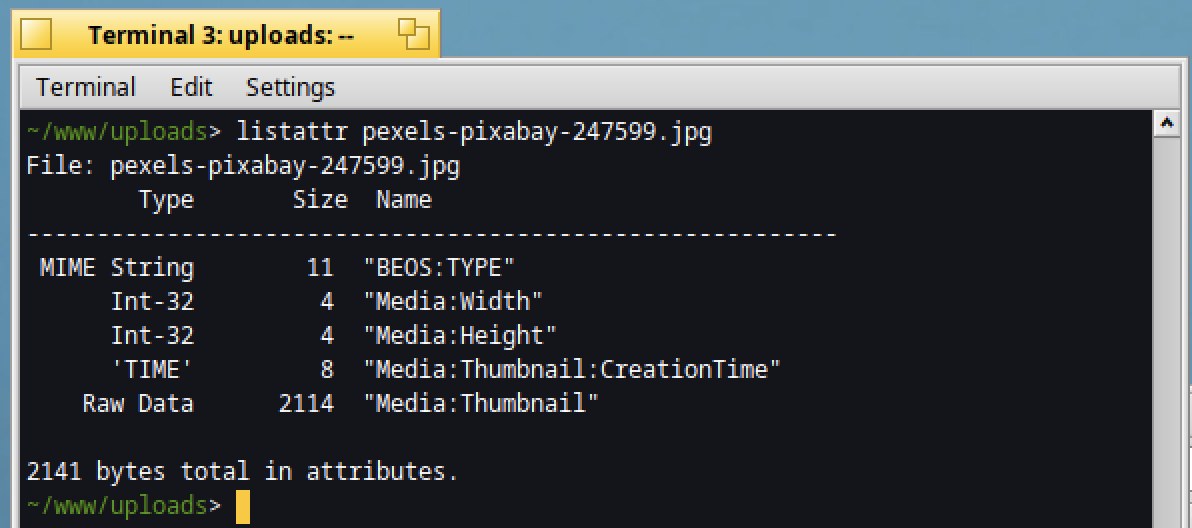
Now, let's showcase the query of attributes!
Using queries via Tracker for attribute search
In order to do an attribute-based search:
-
Open Find… again.
-
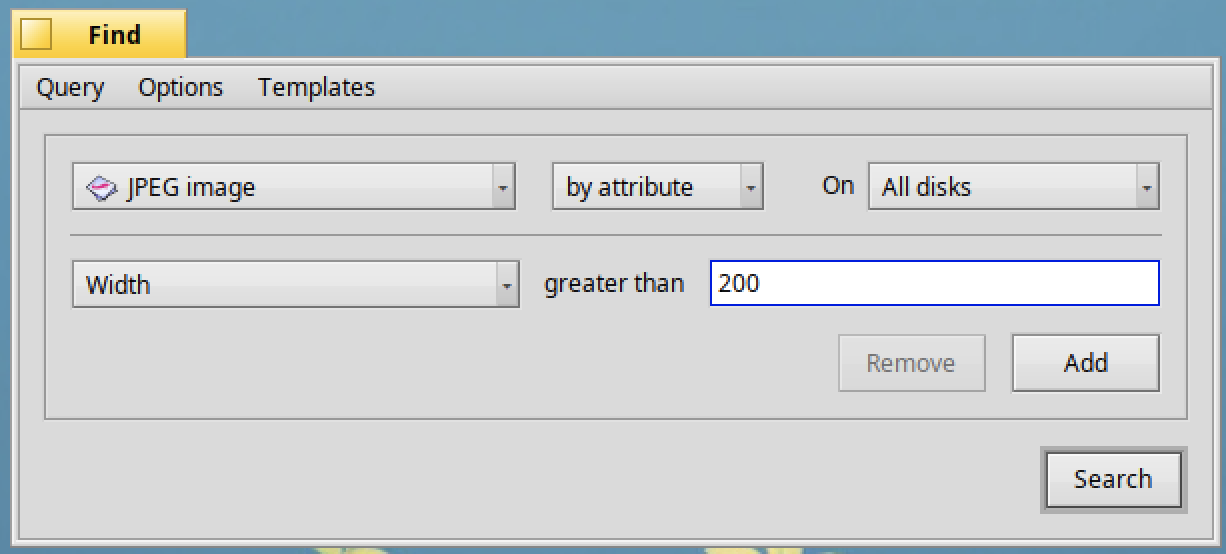
Select a particular file type (e.g., JPEG image) and change search method to By attribute.
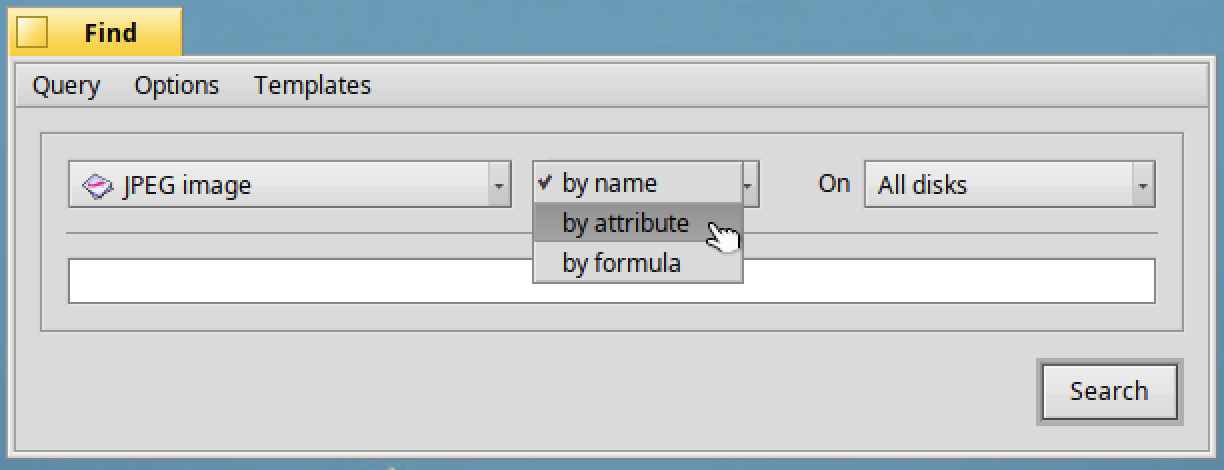
-
Choose an attribute (via the pop-up menu) — e.g., Width, and select greater than
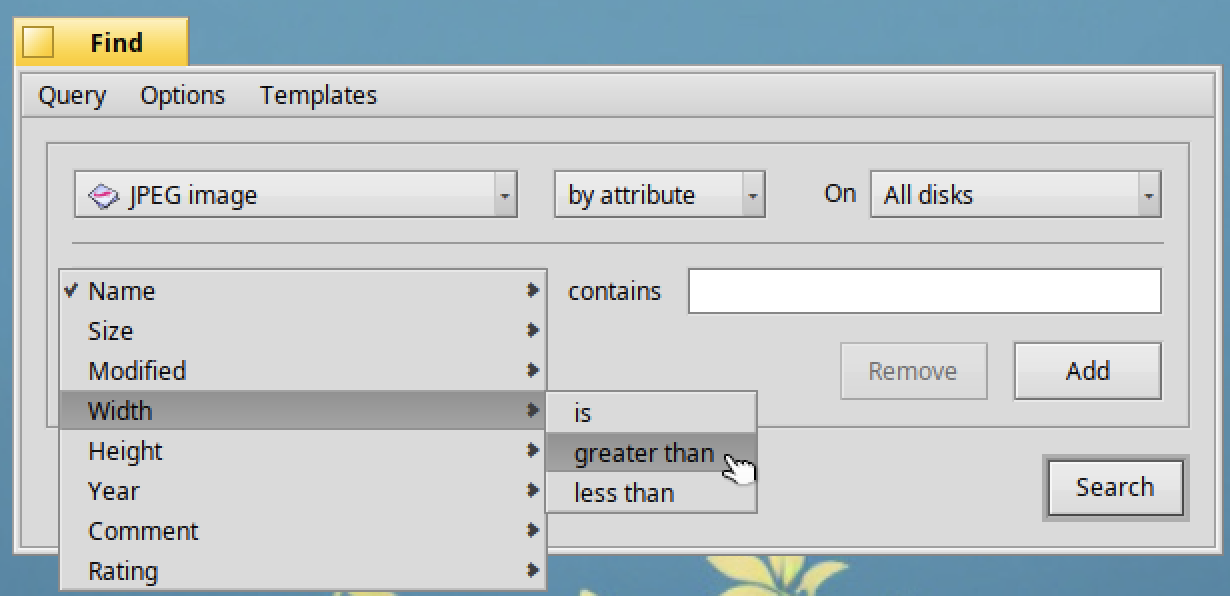
- Indicate a value of 200 (pixels):
-
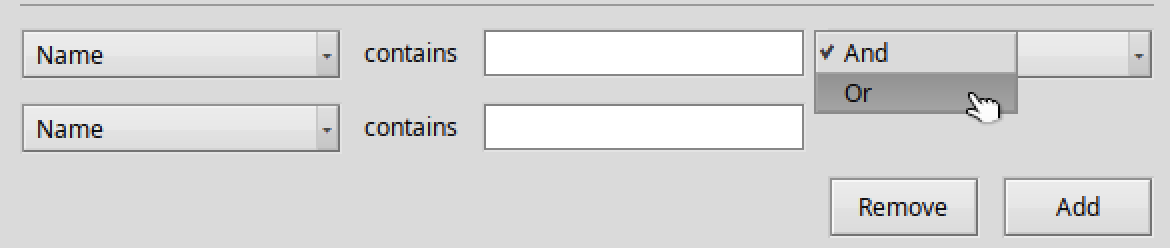
You can combine attributes with AND/OR logic by clicking the Add/Remove buttons if needed (we will not use it in our example):
-
Click on "Search" to launch and save the query.
-
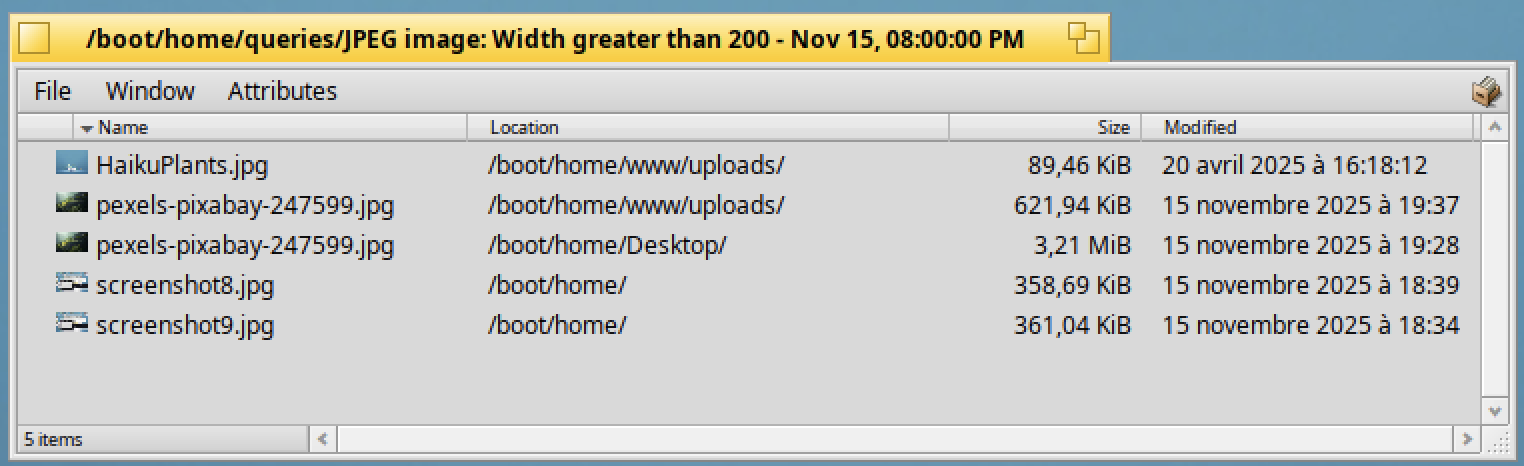
Now whenever you open it, it shows only the files matching your criteria — and if new matching files appear later, they show up automatically:
- In the result window, right click on the columns and select "Image file>Width";
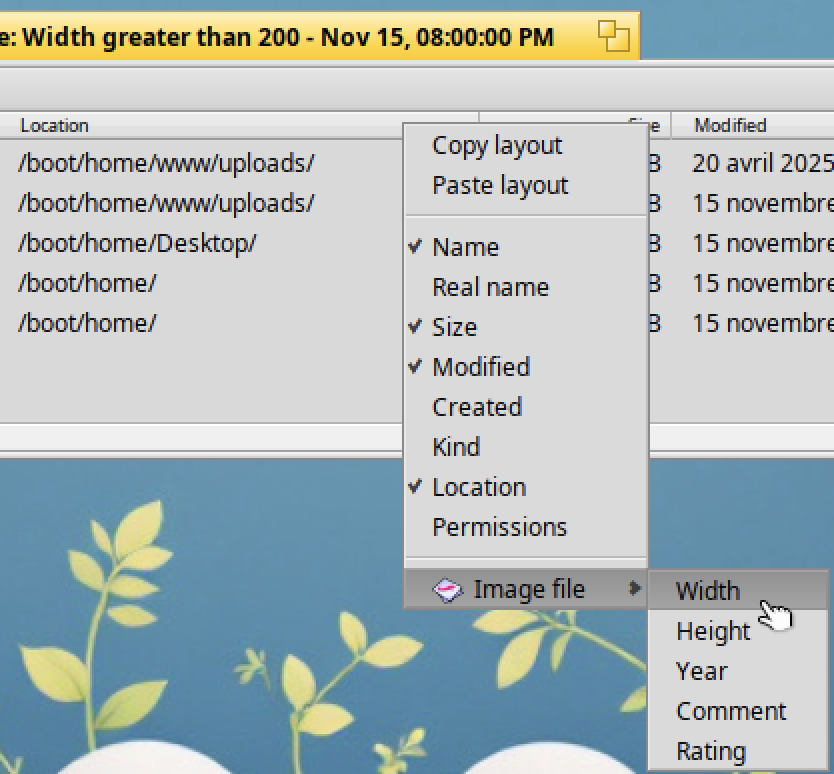
- Move this "Width" column just after the "Location one":
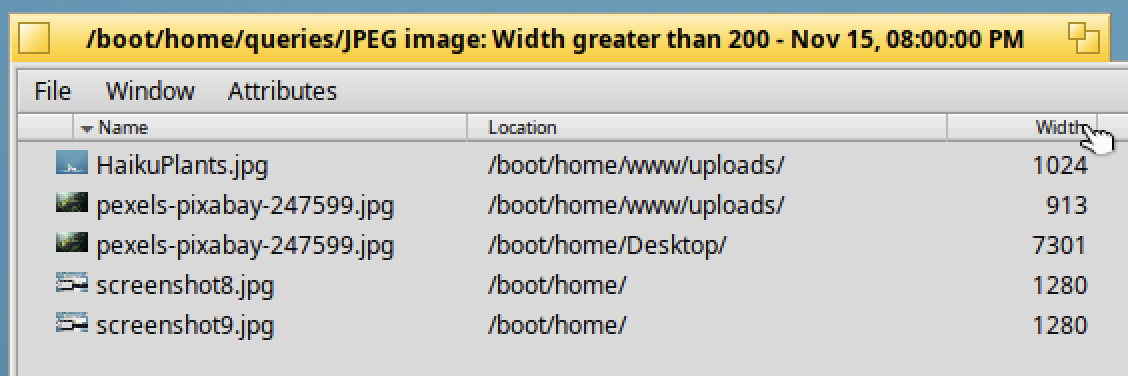
As you can see all the JPEG images have a width greater than 200 pixels.
Nice Isn't it ?
But what about the other JPEG images in the "/system" folder?
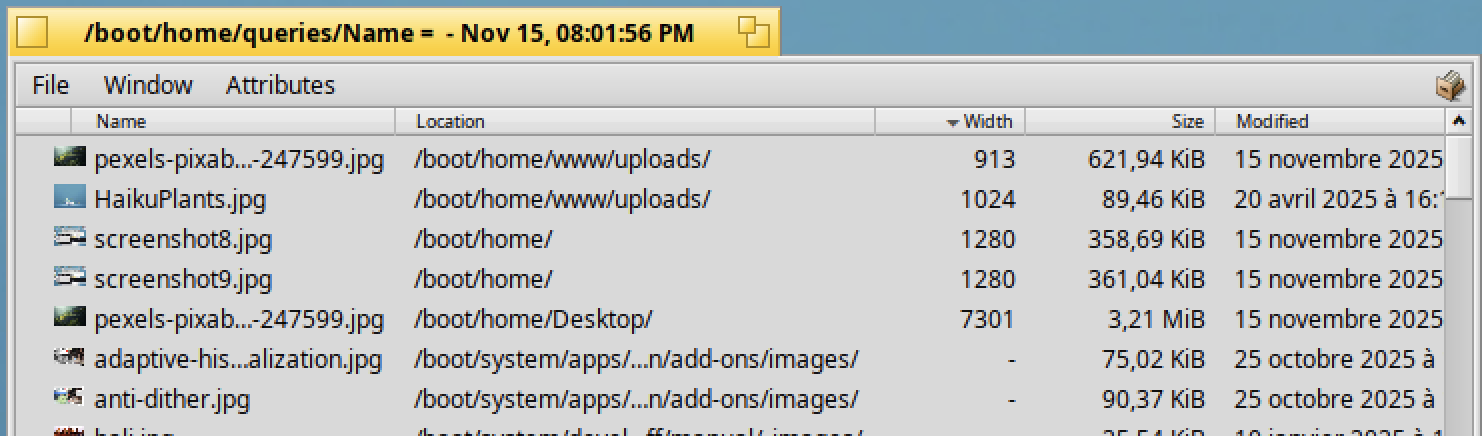
Unfortunately, for these images there's no "Media:Width" attribute, and as the "/system" is read-only, it will not be possible to assign this attribute to these images.
Now, what about the formula ?
Each query is defined by a formula string.
Let's edit the current query: click on File>Edit query:
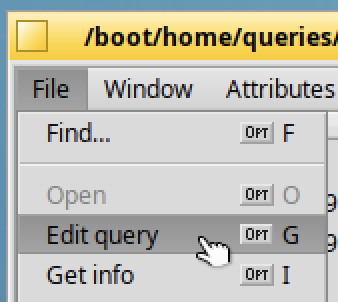
Select "by formula":
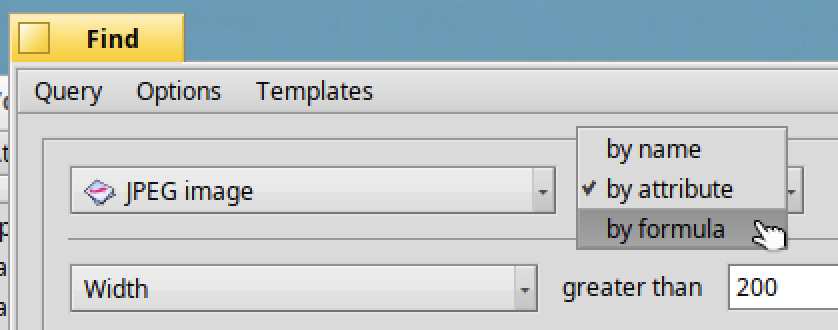
The formula string associated to our query is:
((Media:Width>200)&&(BEOS:TYPE=="image/jpeg"))
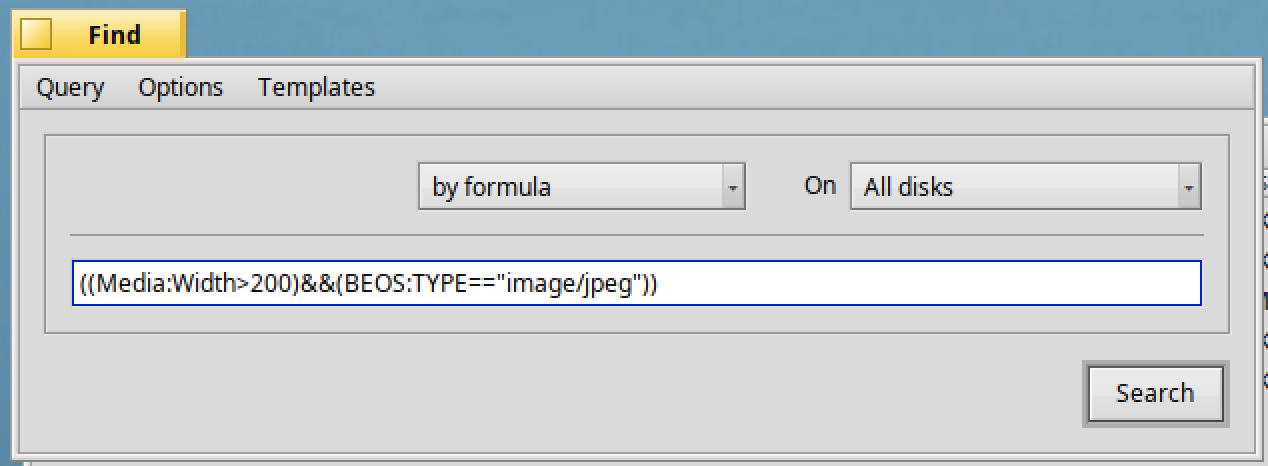
Congratulations, you are now mastering queries via the Tracker!
Using Queries from the Terminal
For those who prefer the command-line, Haiku also supports a query command which can use the same formulas as the GUI.
In order to proceed with the same query than the previous example, in a Terminal type:
query -a "((Media:Width>200)&&(BEOS:TYPE=="image/jpeg"))"
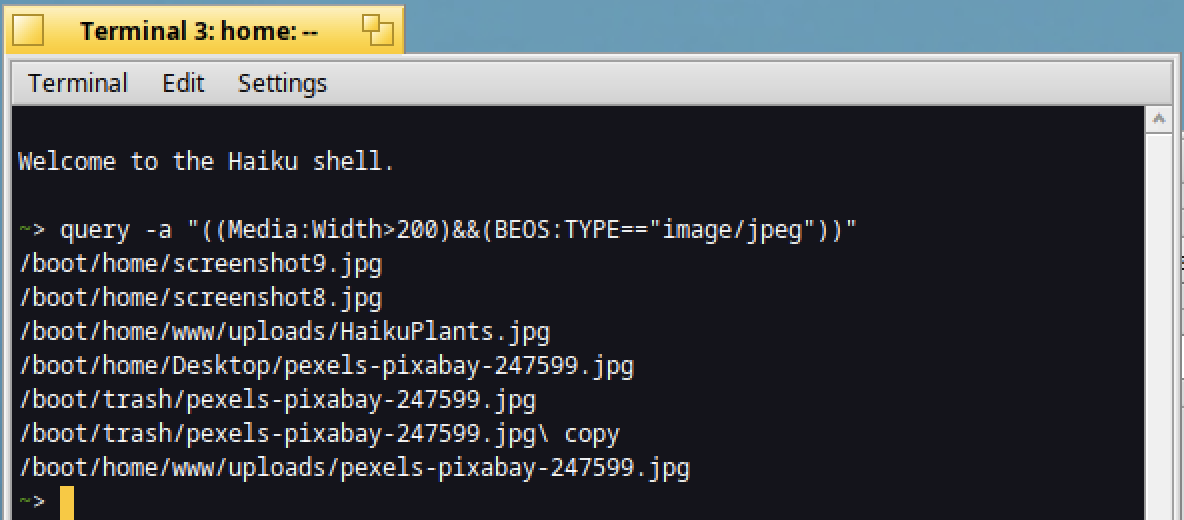
It will output matching paths in the Terminal.
You can combine this in scripts, cron jobs, or pipe into other tools.
The advantages of the Terminal mode are:
-
Good for automation: you can build shell scripts that run a query, process results, and act accordingly.
-
Good for reporting or logging, or integration with other command-line tools.
-
Re-use the same powerful attribute/formula syntax you used in the GUI.
Why queries make a difference in Haiku?
Here are some of the stand-out benefits of using queries in Haiku compared to a typical static file search:
-
Live-update: Once you open a saved query, the results update as files are added, changed or removed. You don’t have to run a new search manually. This makes queries behave partly like “smart folders”.
-
Attribute-rich: Because Haiku strongly supports file attributes (metadata) and indexing, you can filter on a wide variety of attributes beyond just name or date. For example: kind of file, artist, rating, colour tag, time created/modified, custom metadata. The GUI allows you to pick attribute fields and use AND/OR logic
-
Reusable/templated: You save a query once, open it often, tweak it as needed. You can even create query templates (which open the Find panel rather than straight to results) so they act as starting points
-
Integration with Tracker UI: Queries appear as folders in
~/queries/(by default) and act like any other folder in Tracker. You can right-click to “drill down” or navigate within them -
Command-line symmetry: The formula you build in the GUI can be reused on the command line via
query. So your power-user workflows and automation workflows share the same underlying logic.
Tips & best practices
-
When designing attribute-based queries, first pick the correct file type (e.g., Text, Audio, Image, E-mail) so the relevant attributes are available in the GUI
-
Use meaningful saved query names and store them in
~/queries/so they are easily accessible via Tracker. -
Once your query works in Tracker, switch to formula mode and copy the string — so you can use it in
queryon the command line or share with others -
Be thoughtful about indexing: attribute searches work only if those attributes are indexed (see lsindex / mkindex).
Conclusion
The query system in Haiku is a subtle but powerful feature that rewards users who think in terms of dynamic search definitions, not just one-time searches.
By combining the GUI via Tracker with attribute-based queries and command-line automation via query, you unlock workflows that many users of other operating systems might envy: live smart folders, rich metadata filtering, and the ability to script complex search logic.
For writers, developers, retro-gaming collections, audio libraries or any scenario where you want to find things fast and keep finding them as your collection grows, Haiku’s query capability is a real asset.
Are you using queries under Haiku ?
If so, let's share your experience in the comments below:)