
Scripting : useful files commands
 DigitalBox
- Scripting
- February 25, 2025
Scripting commands can be powerful.
That's why I have decided to write a set of articles dedicated to commands by category.
Today the category is relative to files and folders : the commands below are useful when you need to handle files via the Terminal or when scripting.
Some of them are only available on Haiku, so enjoy :)
| command | description |
| cd | Changes the current working directory |
| ls | Lists the contents of a directory |
| pwd | Prints the current working directory |
| stat | Displays detailed information about a file or directory |
| du | Estimates file or directory disk usage |
| filepanel (haiku) | Opens a file selection dialog from the Terminal |
| open (haiku) | Opens files, applications or directories |
| findpaths (haiku) | Finds system paths for a given resource, like libraries or settings |
Change directory
The "cd" command allows to change the current directory in a Terminal.
If you need to go back to your home, you can type one of the below commands :
cd ~
cd /boot/home
cd
cd $HOME
The last command use the environment variable named "HOME".
You can check which variables are available via the "env" command :
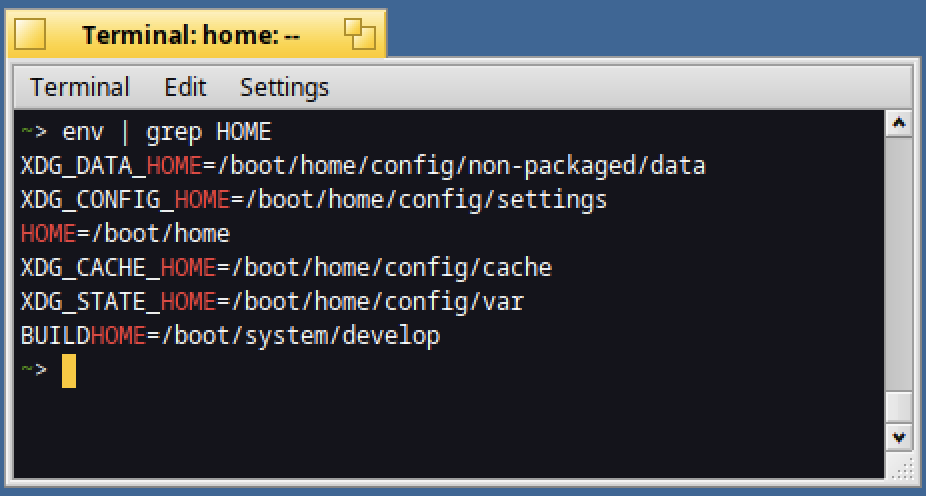
And if you need to go up one directory level, type :
cd ..

Print working directory
The "pwd" command shows the full path of the current directory :
pwd
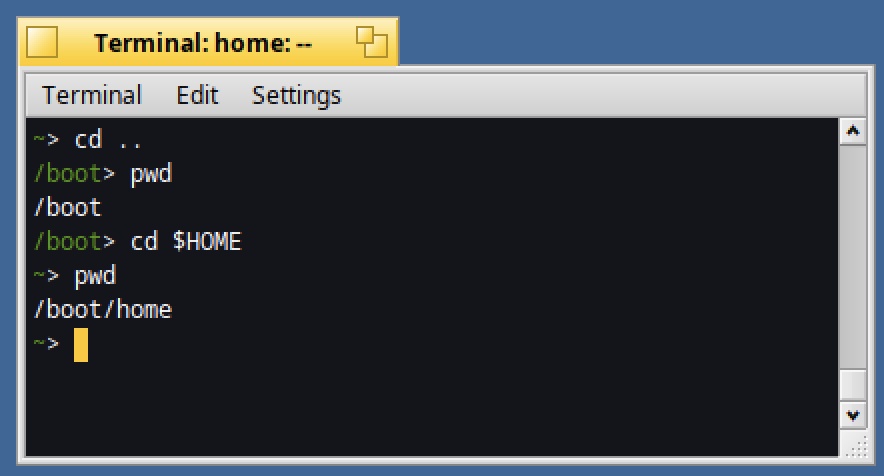
If you look at the possible alternative to display the current directory, you can :
- use the "PWD" environment variable
- display the result of the `pwd` command
- or just use the "pwd" command :)
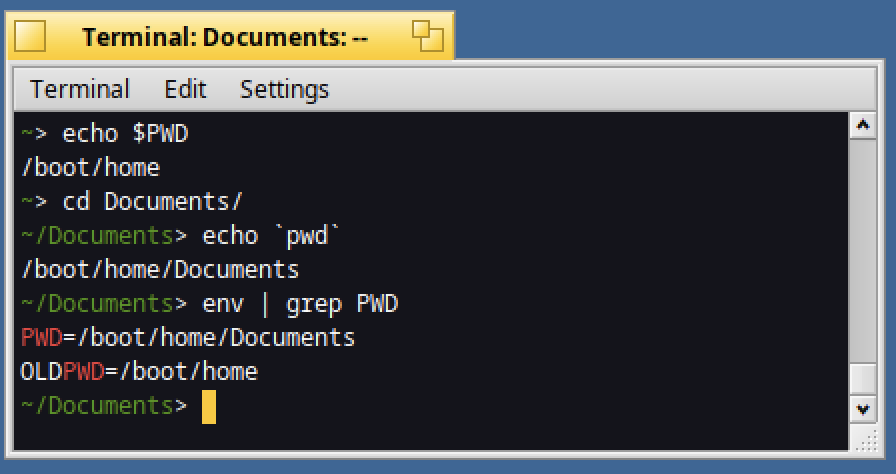
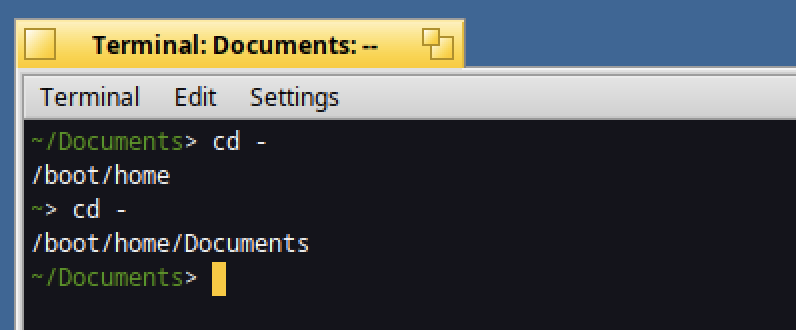
Please note that "OLDPWD" environment variable provides the latest directory used before the current one.
You can change the directory to "OLDPWD" with the below command :
cd -
List directory contents
What about listing the content of a directory ?
For that you need to use the "ls" command.
You can for instance list the directory details in reverse order (from the oldest to the most recent) :
ls -lrt

Now let's display the hidden files :
ls -la
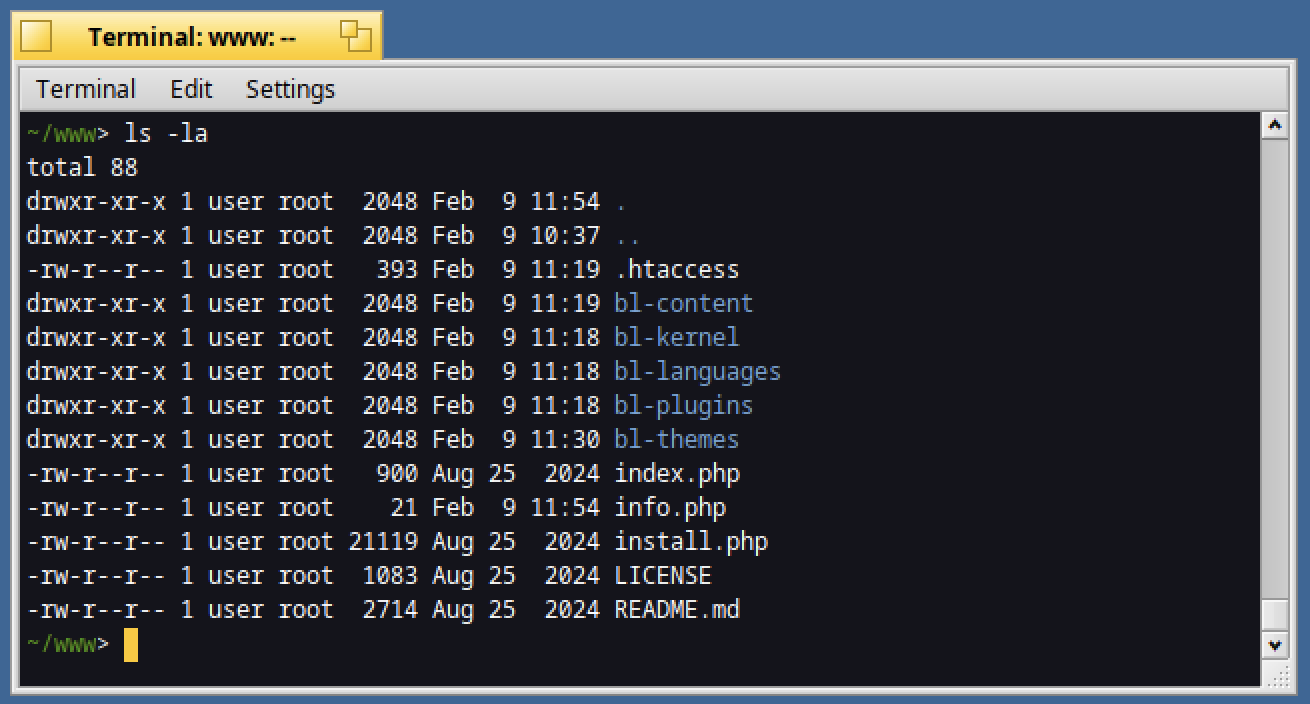
The ".htaccess" is an hidden file :)
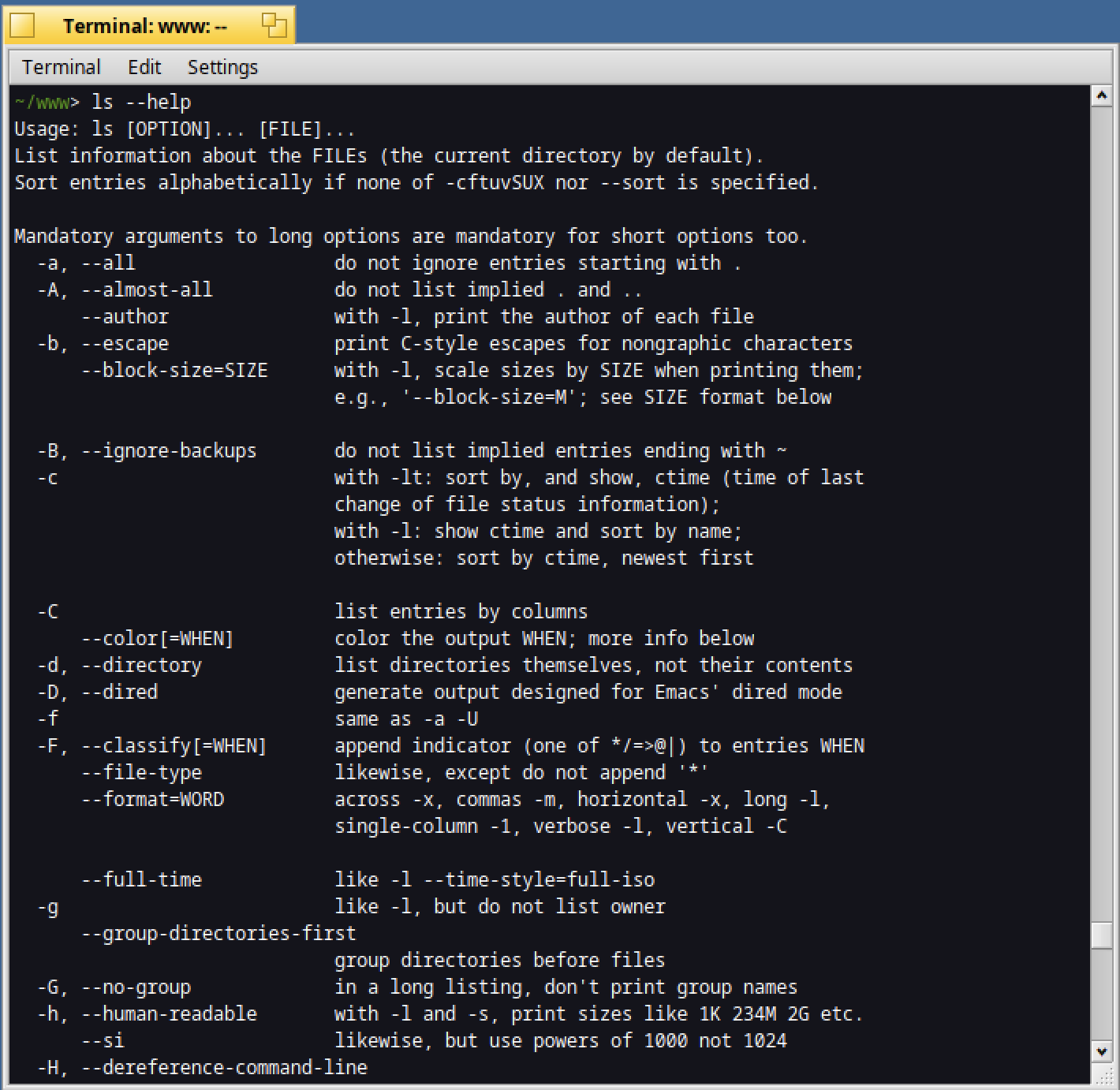
If you want to discover all the possible options of the "ls" command, you can type :
ls --help
Display file/directory details
The "stat" command gives detailed information such as size, permissions, and timestamps.
Type this command followed by a file or directory name :
stat info.php
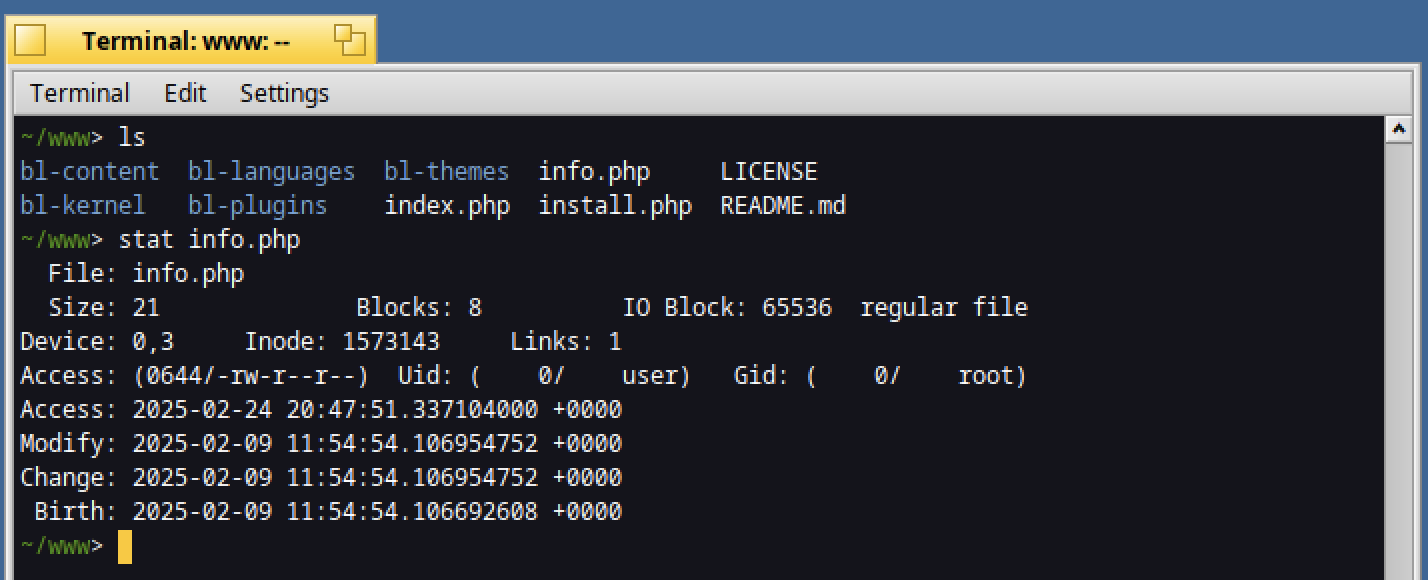
As you can see, it will give a lot of information of the file.
If you need - for a specific reason - to only retrieve one information, you can use the "format" option as below :
stat --format="%s" info.php

Only the size of the file is retrieved :)
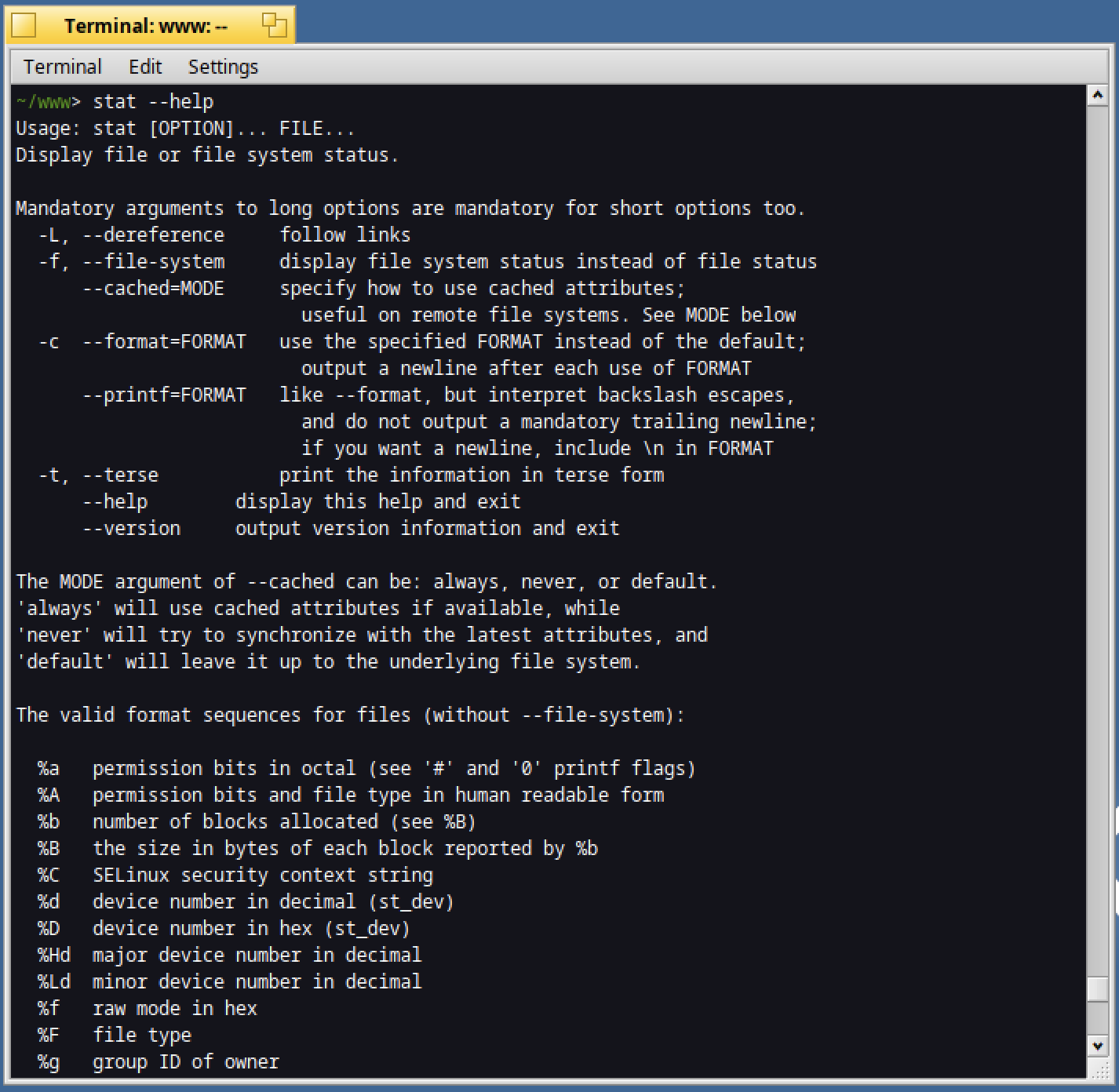
If you need to have the details of the format, you can have it with the "help" option :
stat --help
Estimate disk usage
If you need to have an estimation of the size of each folder in the "www" directory, type :
du -sh */
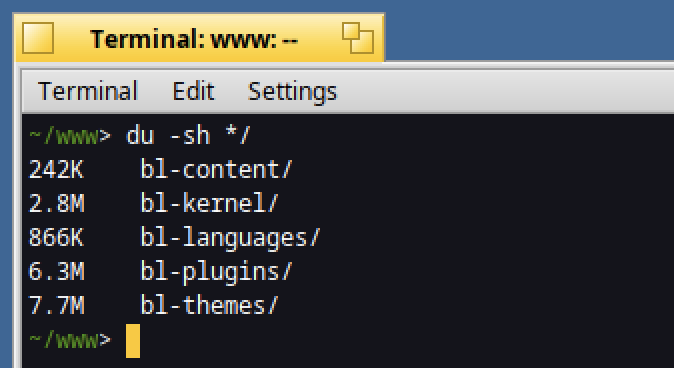
Nice isn't it ?
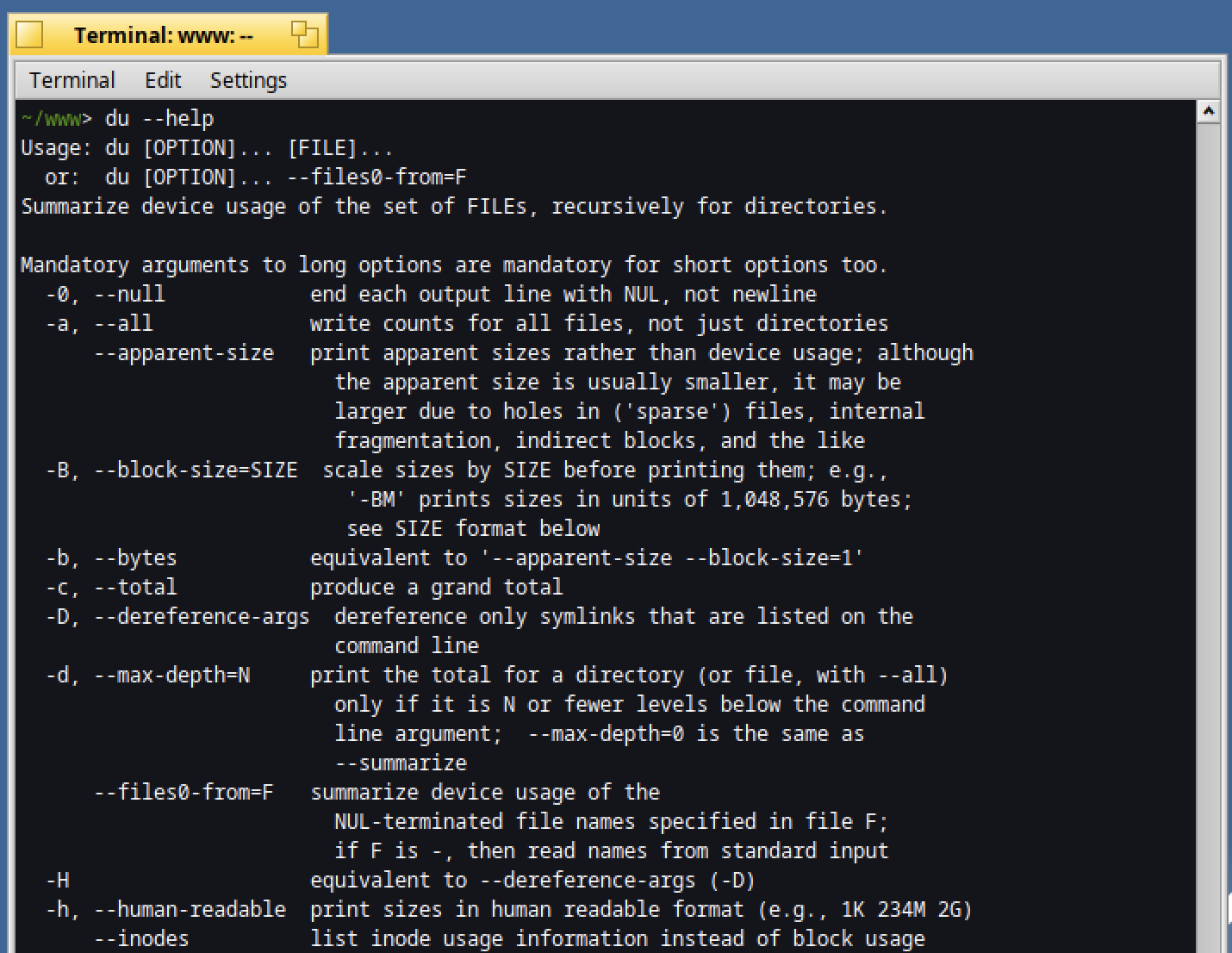
As for previous commands, you can display the available options :
du --help
File selection dialog
Now let's use the Haiku only commands.
Let's start by "filepanel" :
filepanel -t "Please select a file"
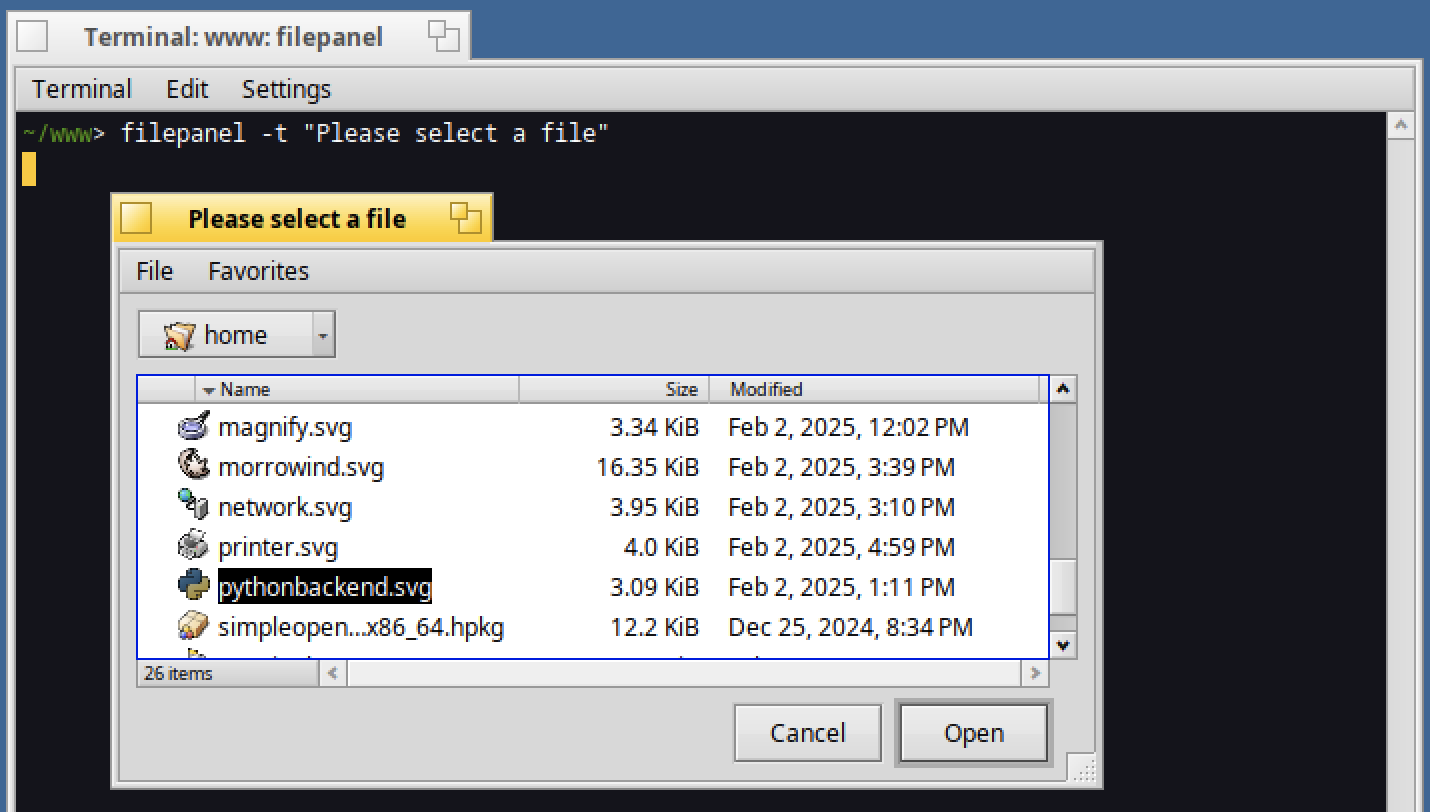
Once the file is selected and validated :

Nice, we have retrieved the filename selected by the user !
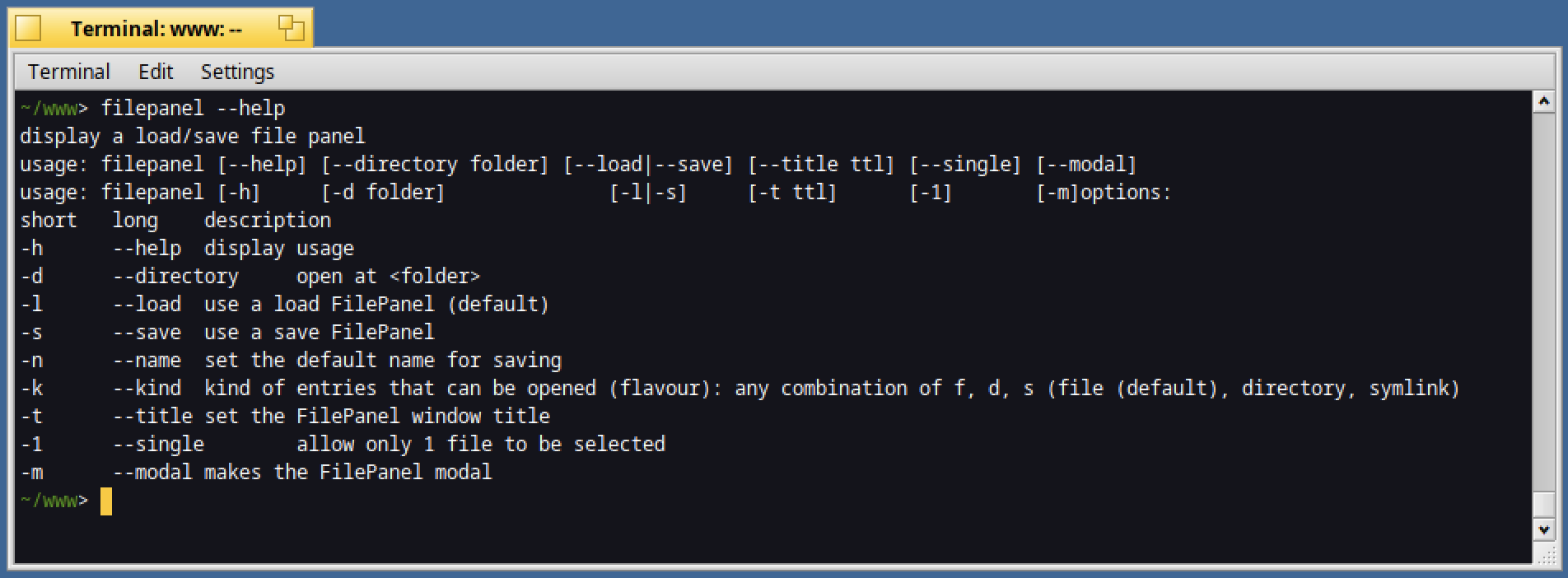
You can also select directory only, or disable the multiple files selection.
All the options are available with the help option :
filepanel --help
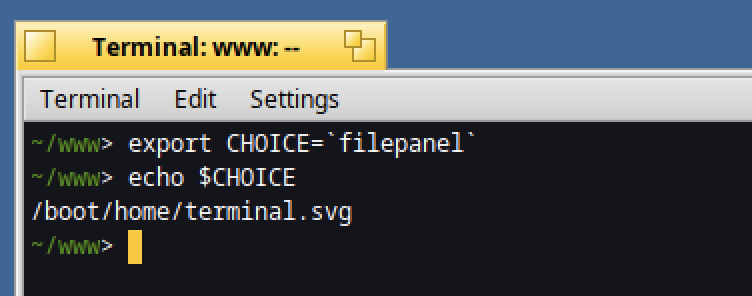
What about asking for a file and store it in the environment variable named "CHOICE" ?
export CHOICE=`filepanel`
echo $CHOICE
Open file/directory
Let' use the "open" command !
If you need to open a new Tracker window from the current directory type :
open .
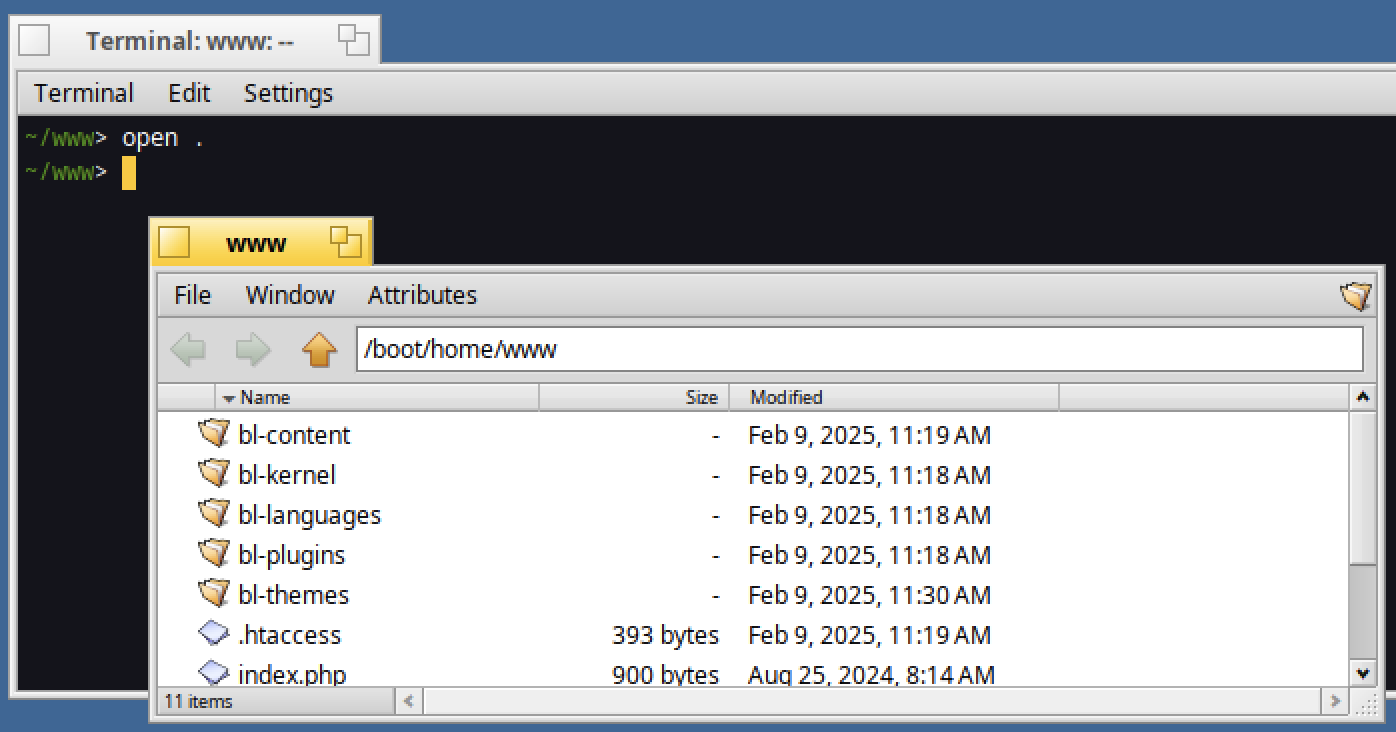
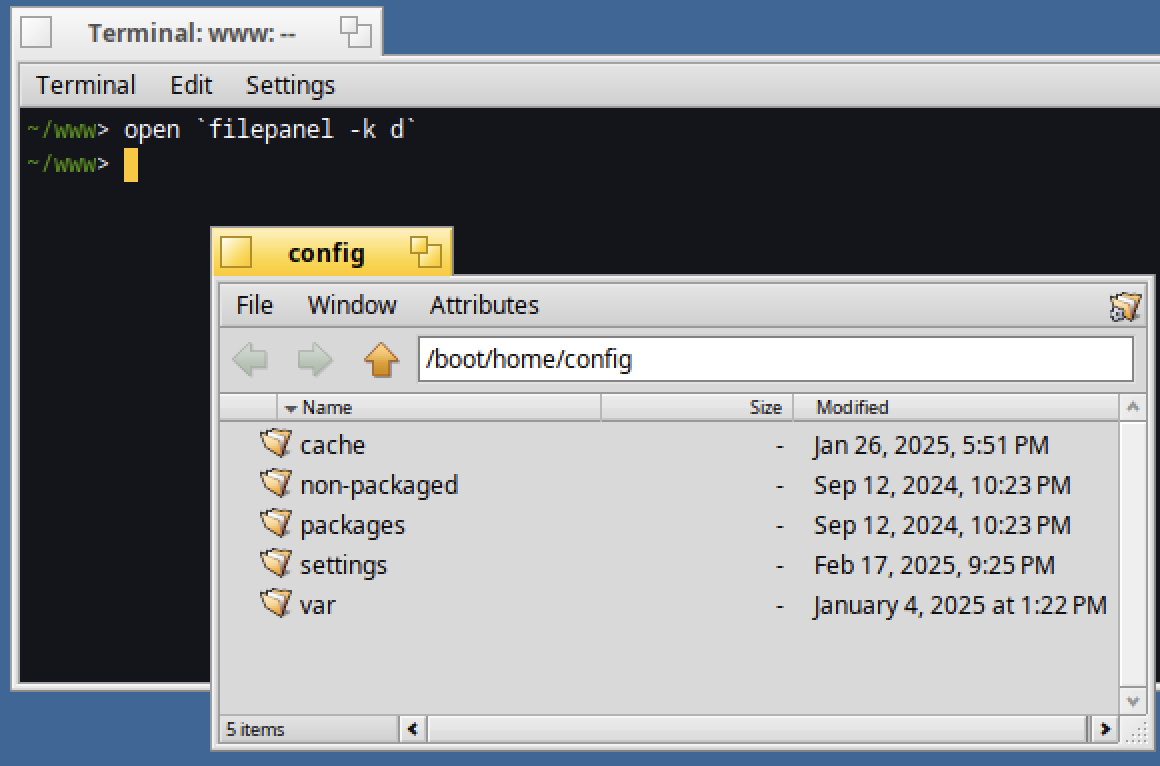
Great now what about open a new directory in the tracker as requested by the user ?
open `filepanel -k d`

Once the "config" directory has been selected, you will have the below :
Nice ?
System paths
Let's identify specific system directories or resources up to the findpaths command.
findpaths B_FIND_PATH_LIB_DIRECTORY
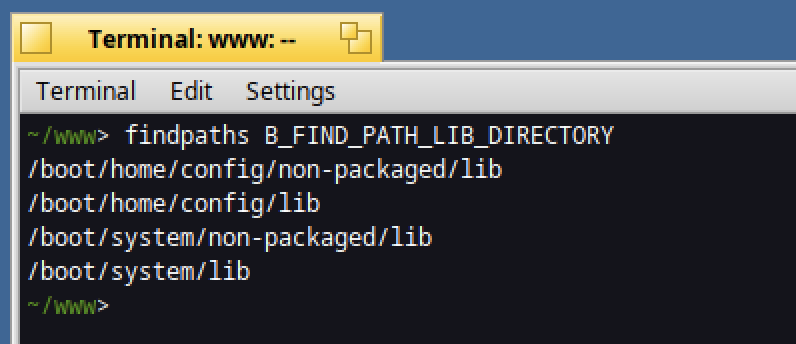
What about displaying other kind of paths ?
The possibles values are :
| Kind | Description |
|---|---|
| B_FIND_PATH_APPS_DIRECTORY | Folder for installed applications |
| B_FIND_PATH_BIN_DIRECTORY | Directory containing binary executables |
| B_FIND_PATH_BOOT_DIRECTORY | System boot directory |
| B_FIND_PATH_CACHE_DIRECTORY | Directory used for system cache |
| B_FIND_PATH_DATA_DIRECTORY | Folder for application data |
| B_FIND_PATH_DEVELOP_DIRECTORY | Directory containing development tools and files |
| B_FIND_PATH_ETC_DIRECTORY | Directory for system configuration files |
| B_FIND_PATH_FONTS_DIRECTORY | Folder for system fonts |
| B_FIND_PATH_HEADERS_DIRECTORY | Directory for header files (.h) used in development |
| B_FIND_PATH_LIB_DIRECTORY | Directory for shared libraries (.so, .a) |
| B_FIND_PATH_LOG_DIRECTORY | Folder containing system and application logs |
| B_FIND_PATH_PREFERENCES_DIRECTORY | Directory for user preference files |
| B_FIND_PATH_SERVERS_DIRECTORY | Folder for system services and daemons |
| B_FIND_PATH_SETTINGS_DIRECTORY | Folder for application settings |
| B_FIND_PATH_SYSTEM_DIRECTORY | Directory containing essential system files |
| B_FIND_PATH_VAR_DIRECTORY | Folder for variable files (logs, temporary states) |
It could be interesting in case you need to find all the folders relative to a type of resource :)
Mixing commands
You can of course mix commands together.
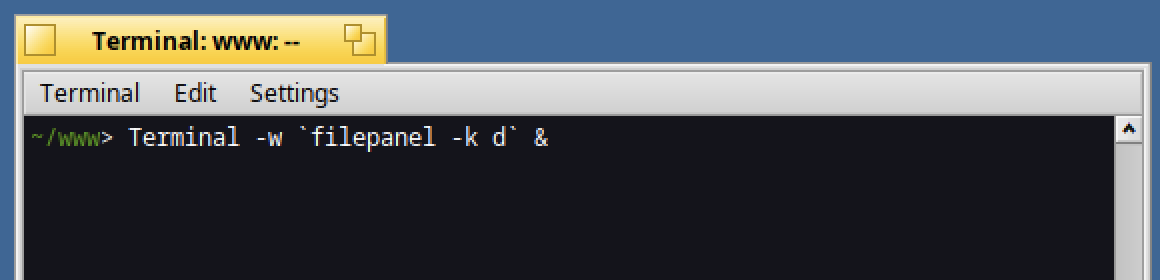
Below - for instance - is a way to select a new folder where a new Terminal will be opened :
Terminal -w `filepanel -k d` &
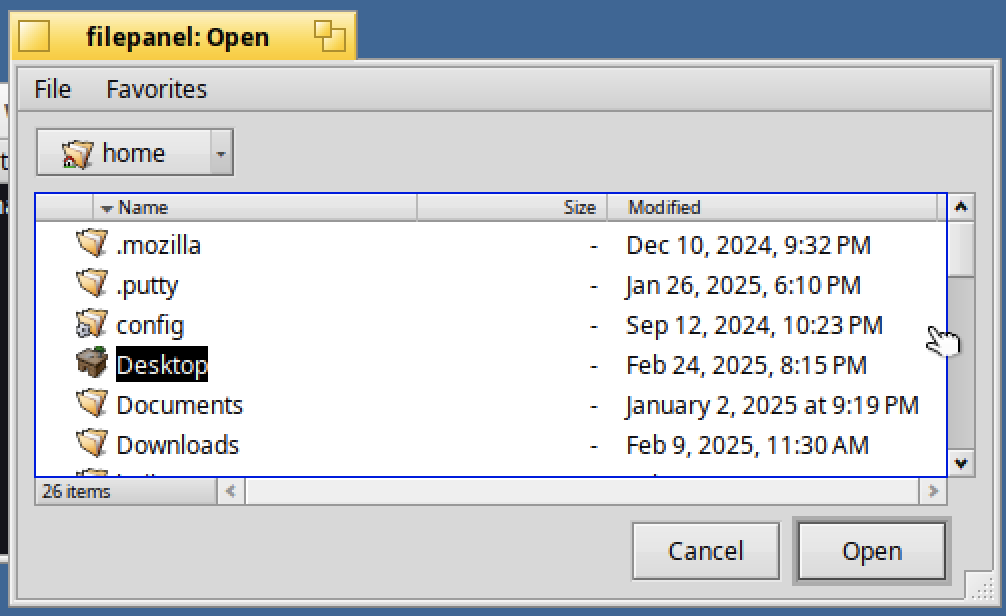
Select the directory of your choice like "Desktop" :
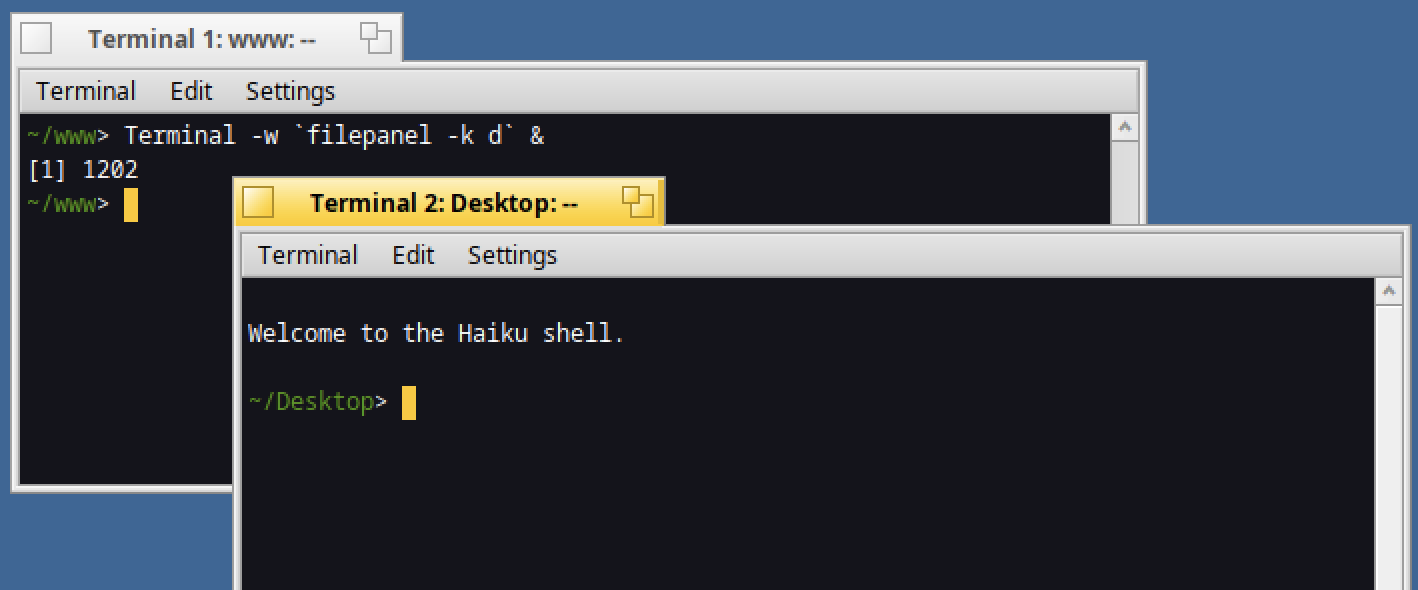
Tada !
The "Desktop" folder is now opened in a new Terminal :
How do you use files commands ?
Let's share your findings in the comments below.