
Scripting: useful misc commands
 DigitalBox
- Scripting
- June 8, 2025
We will review this week some miscellaneous commands to use in your scripts.
These commands weren't in a specific category, that's why the "misc" classification was used:)
| Command | Description |
| xargs | Builds and executes command lines from standard input arguments |
| which | Displays the full path of a command found in the user's PATH |
| history | Shows the list of previously executed shell commands |
| logger | Writes messages to the system log (syslog) |
| logname | Prints the login name of the current user |
| setvolume | Sets or retrieves the system volume level |
| dpms | Controls the Display Power Management Signaling state (screen on/off) |
| translate | Converts files between formats using Haiku's DataTranslations system |
xargs
This command is useful to transform the output of a command into arguments for another command.
Let's take an example.
The rm (remove) command is used to delete files, however it doesn't accept the pipe feature ("|"), meaning it only accepts arguments corresponding to the files to remove.
Imagine you would like to delete backup files on your system.
The command to identify them is:
find /boot/home/config/ -name *.bak
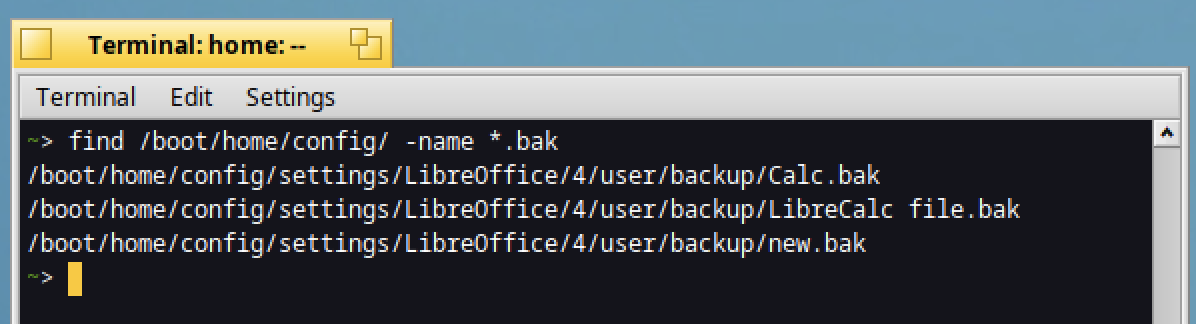
Now the xargs command will transform these results as arguments for the "rm" command.
For that type:
find /boot/home/config/ -name *.bak -print0 | xargs -0 rm -v

Nice, with this set of commands, the backup files are nicely removed:)
which
A useful and easy to use command.
In case you need to identify the location of a command from the PATH variable, you need to use the which command.
For instance, is there any "python3" utility accessible via the PATH ?
To answer the question, type in a Terminal:
which python3
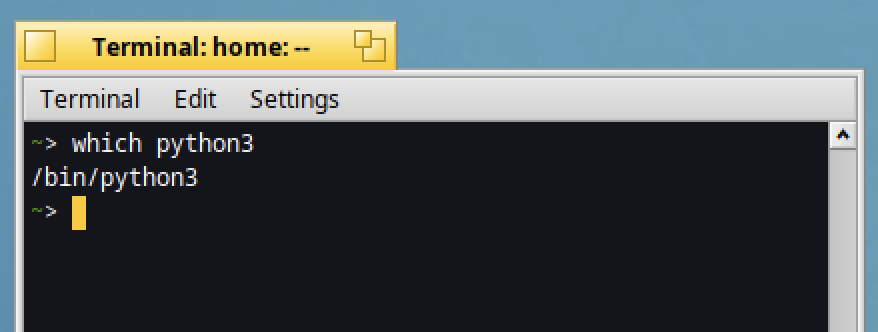
The python3 interpreter is available in the /bin directory:)
history
The history utility is giving the list of previously executed shell commands.
In the Terminal type:
history
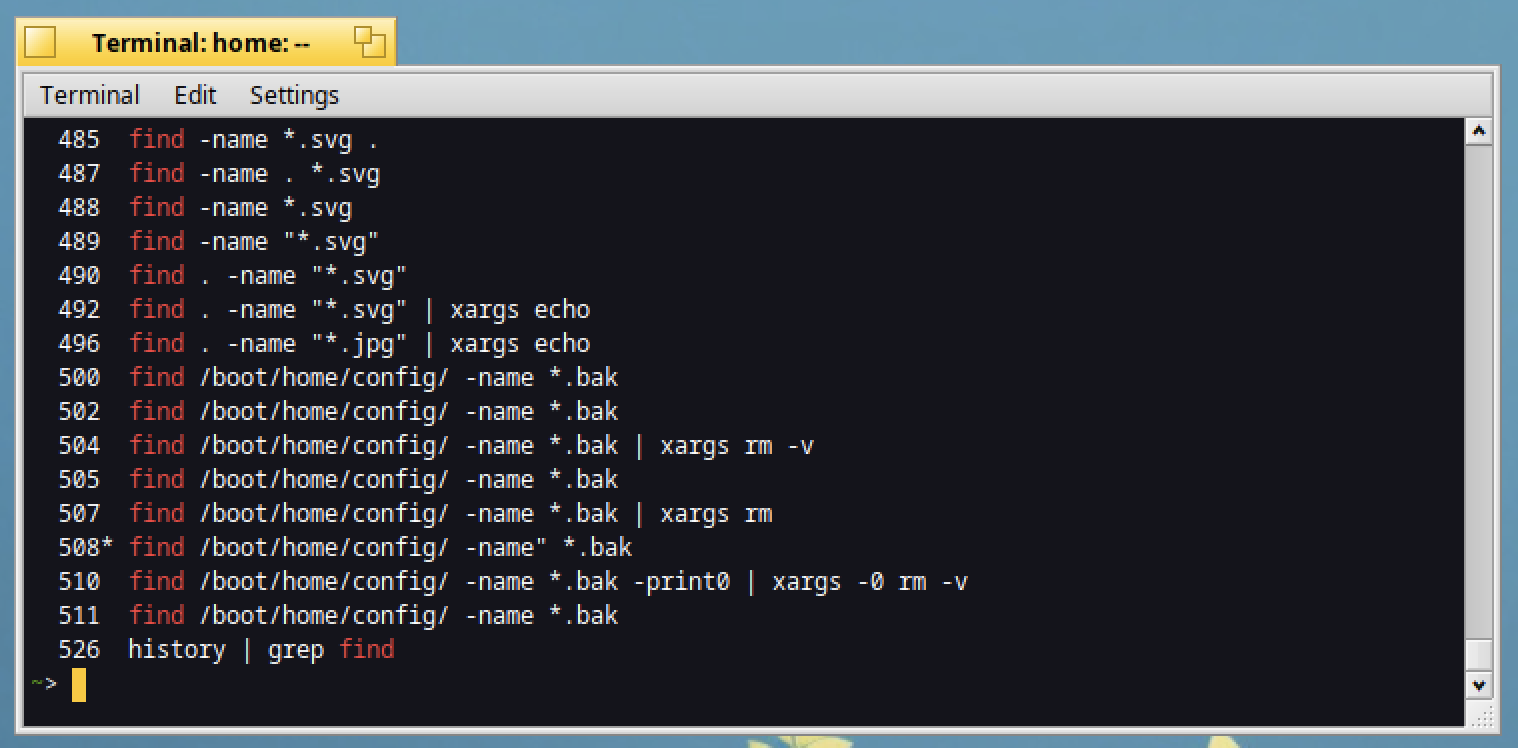
It will display all the history of the commands previously typed in the Terminal.
The size of the history is 500 by default:
echo $HISTSIZE
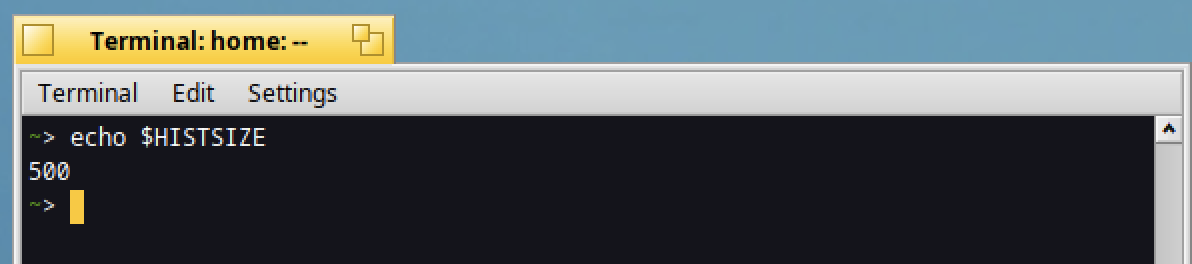
You might want to display only the last 10 commands:
history | tail -n 10
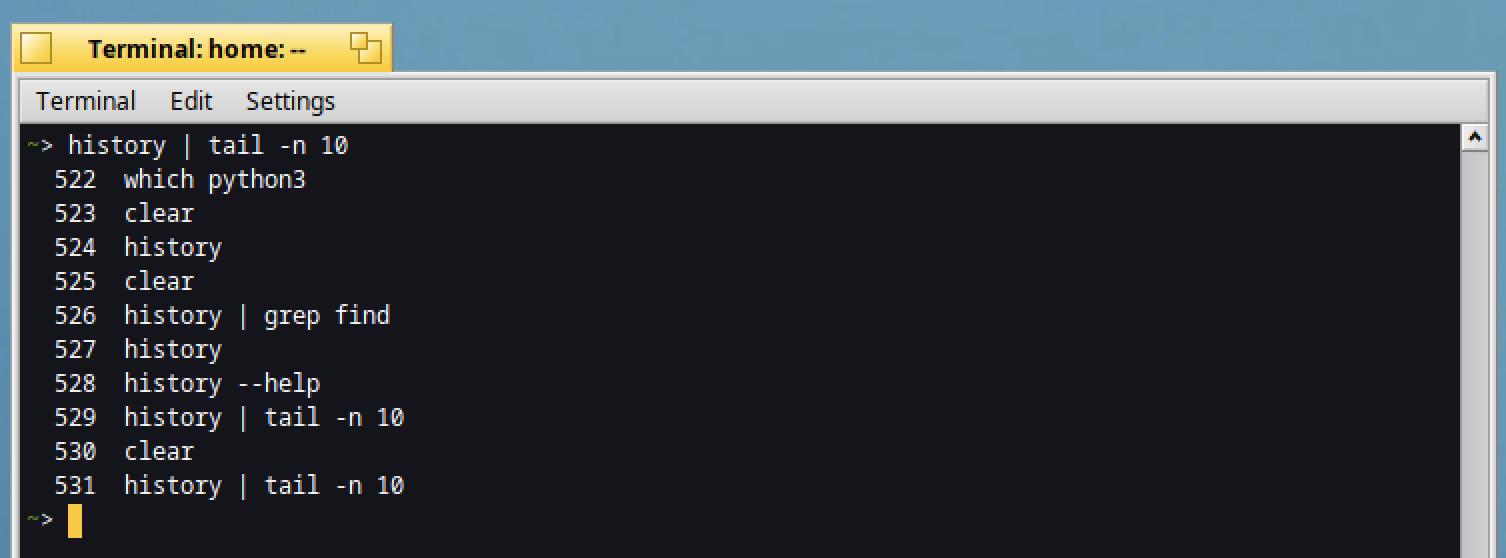
Or the first 10 commands:
history | head -n 10
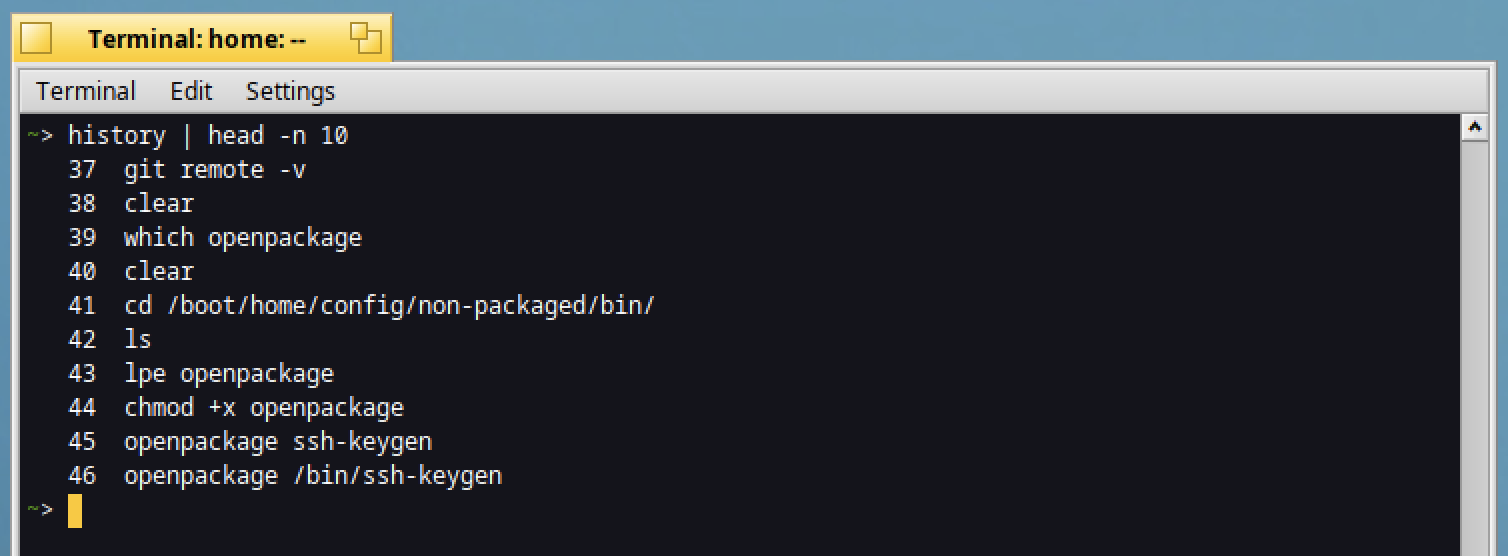
logger
If your script needs to put some information in the system log, then the logger command is the way to go.
Let's write some information in the logs:
logger "This is a customized log message"
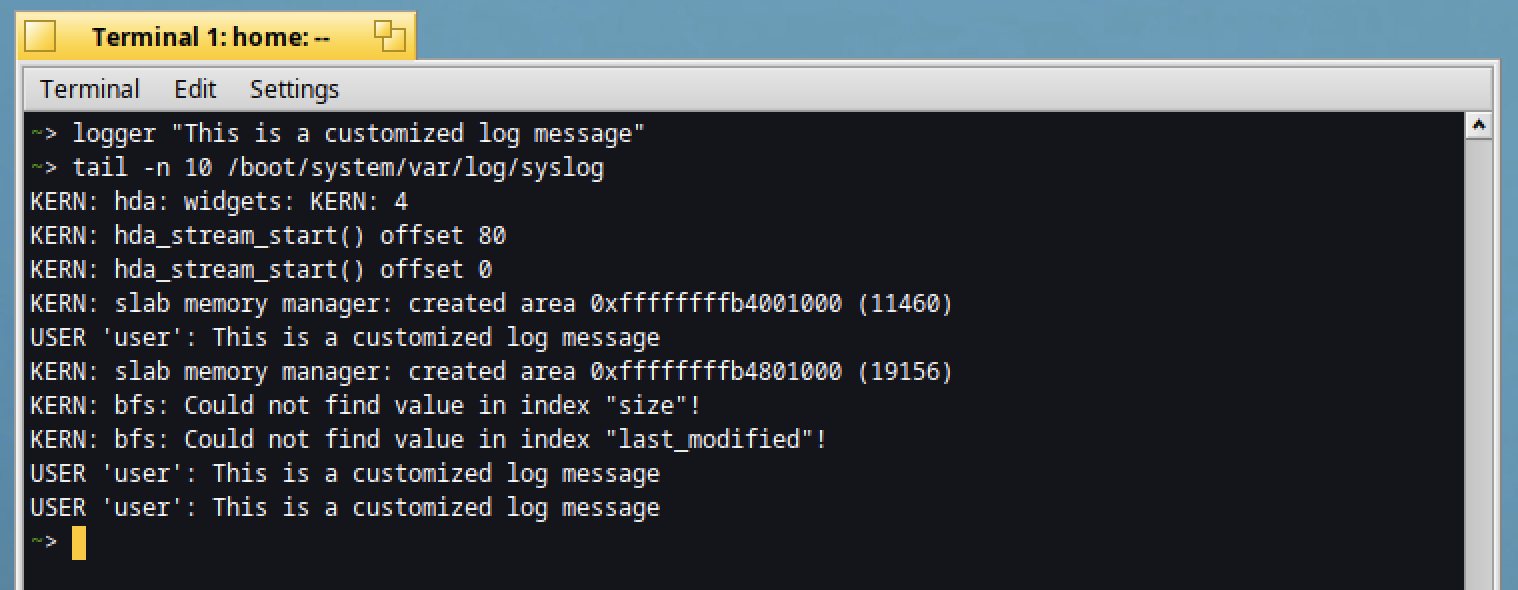
The message will then be inserted in the "/boot/system/var/log/syslog" file.
logname
This is a basic command which prints the login name of the current user.
logname
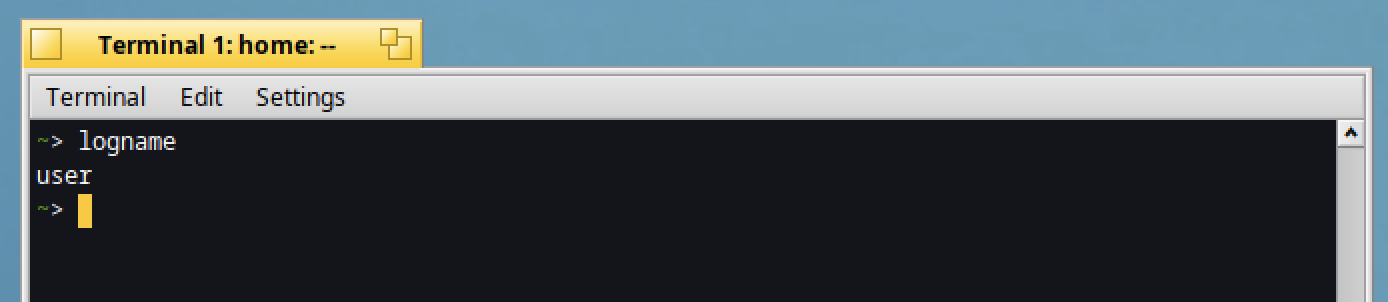
This is confirmed because "user" is indeed the default user name under Haiku.
setvolume
What about changing the volume of your system?
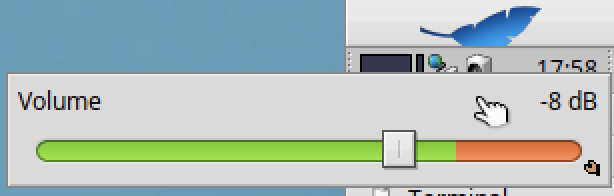
Imagine the current volume is set to -8 dB:
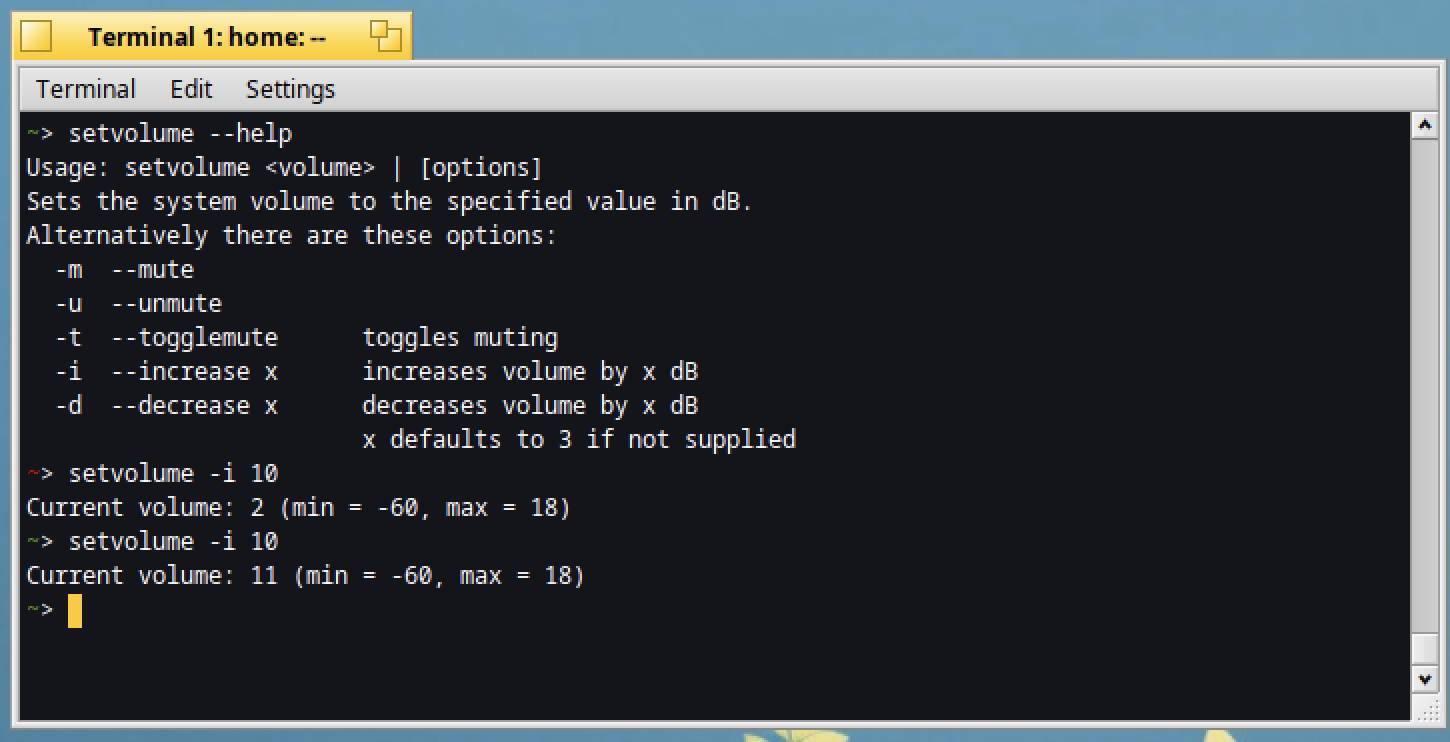
Let's increase this volume two times:
setvolume -i 10
setvolume -i 10
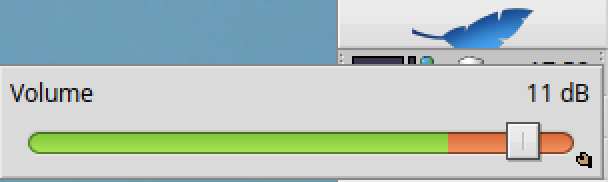
The changes are reflected the next time you open the volume in the Deskbar:
You can also create shortcuts to map volume decrease/increase to specific keys from your keyboard.
dpms
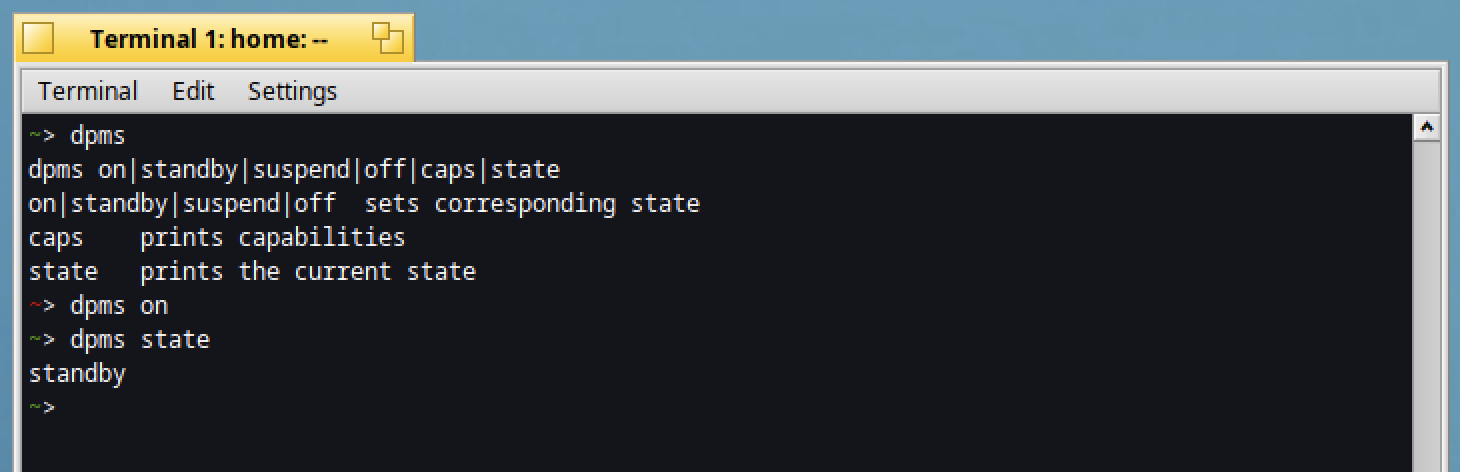
This command controls the Display Power Management Signaling state.
You can change the current state like below:
dpms on
translate
Let's finalize this article by using the translate command to convert a HVIF icon into a PNG image.
translate /boot/home/Desktop/Insider/butterfly.hvif /boot/home/Desktop/Insider/butterfly.png PNG
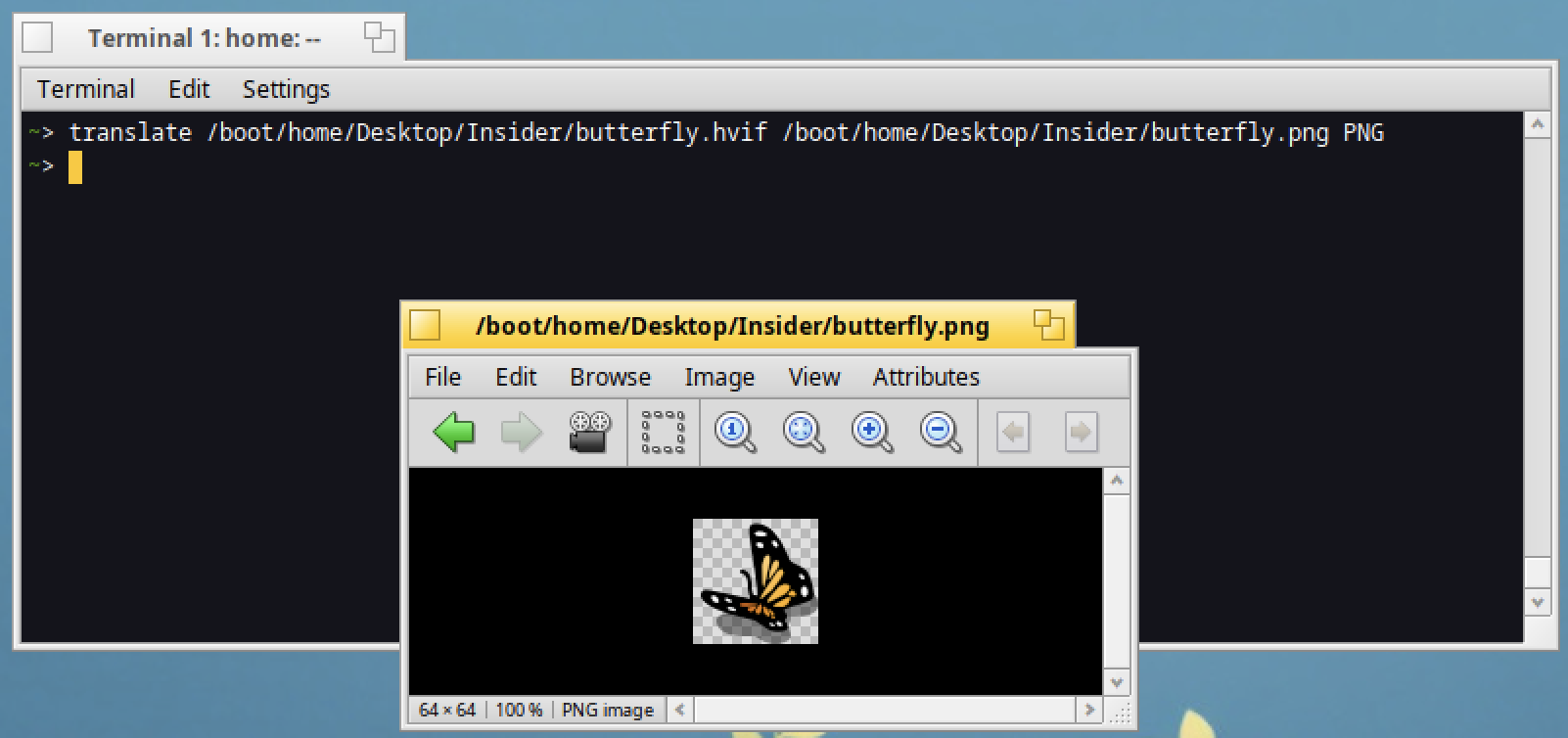
When the image is opened, the nice PNG butterfly is visible:)
Any other misc command you would like to share?
You can put a comment just below.