
Scripting : useful process commands
 DigitalBox
- Scripting
- May 15, 2025
This week the series continue with process commands.
When you need to handle the various processes running on your system via scripting, the below commands are the ones to use.
| Command | Description |
| ps | Displays a list of currently running processes (teams) and their threads |
| kill | Sends a signal to a process to terminate or control it |
| prio | Changes the priority of a thread |
| sleep | Delays execution for a specified number of seconds |
| waitfor | Waits for a specific team or thread to start/finish execution |
| timeout | Runs a command with a time limit before it's automatically terminated |
| nohup | Runs a command immune to hangups |
| listport | Lists all system ports used for inter-process communication |
| launch_roster | Displays or manages running applications launched by the system's Launch Daemon |
ps
This command - which means "process status" - is useful when you need to list all the current running processes.
In a Terminal type:
ps
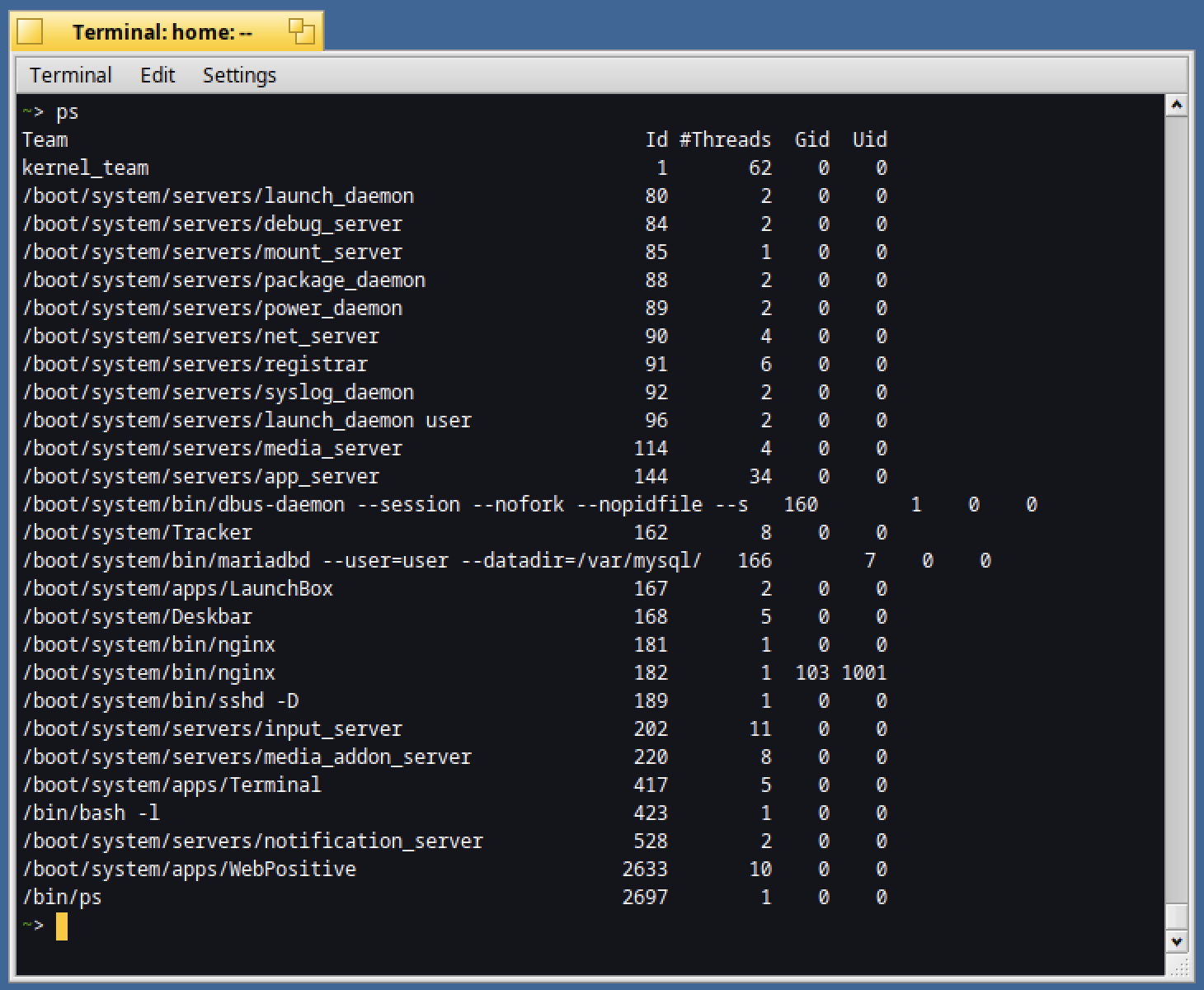
The list of running "teams" is indicated with the associated number of threads.
The useful information is the "Id" of the team which is needed why you ask for more details.
Imagine you would like more details about the WebPositive team (Id=2633).
In a Terminal type:
ps 2633
or
ps WebPositive
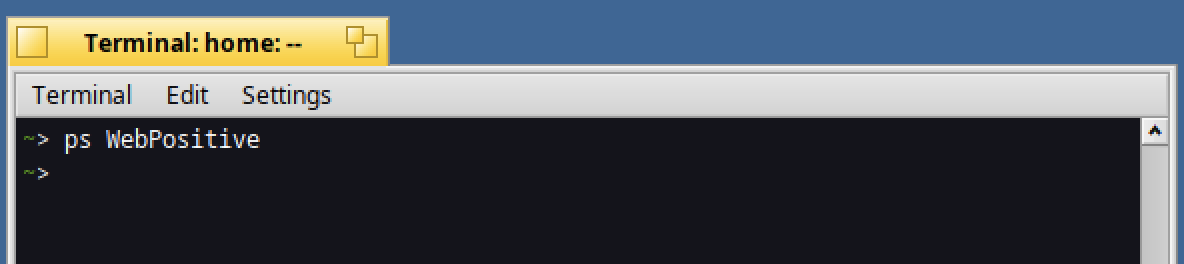
If WebPositive is not launched, then the above command will return nothing.
Now launch WebPositive:
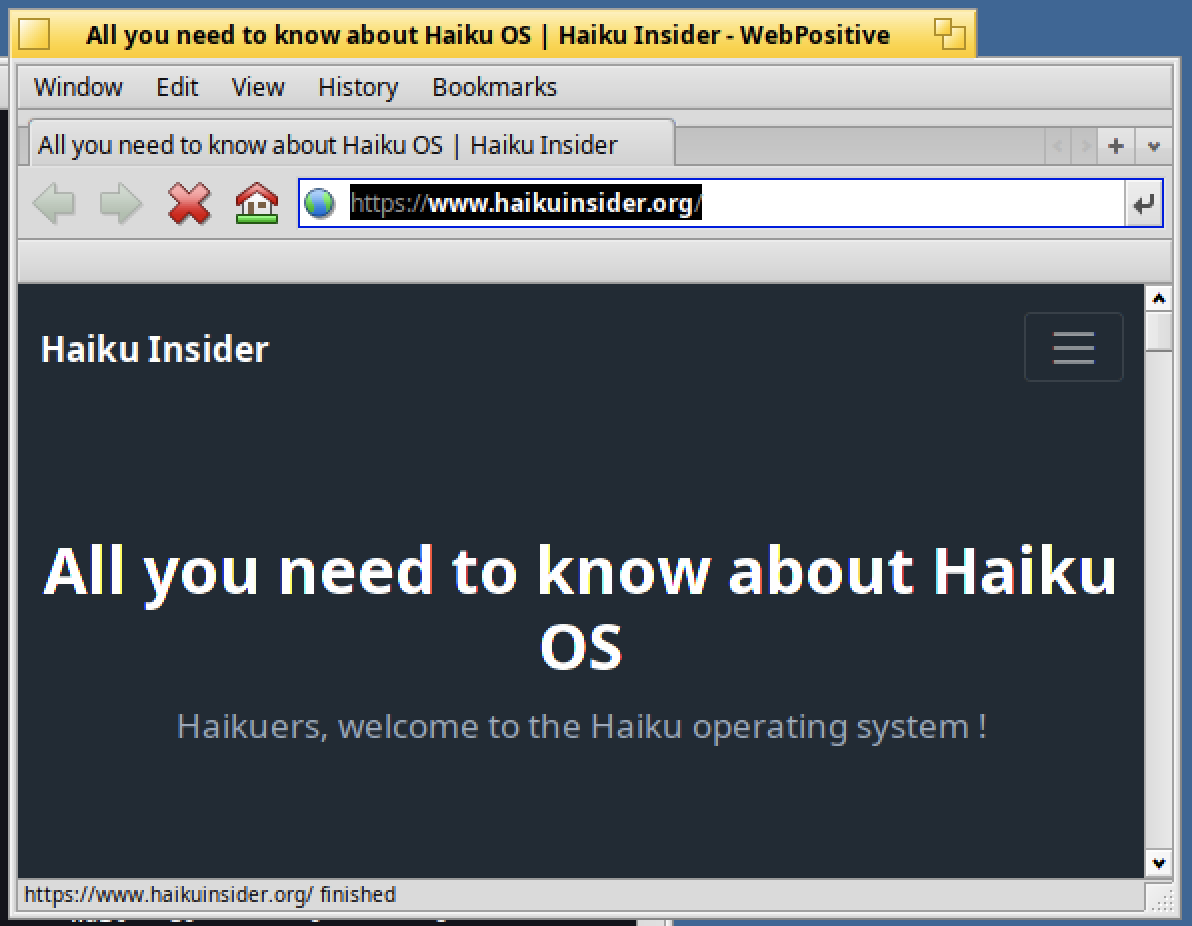
If you type again the command:
ps WebPositive
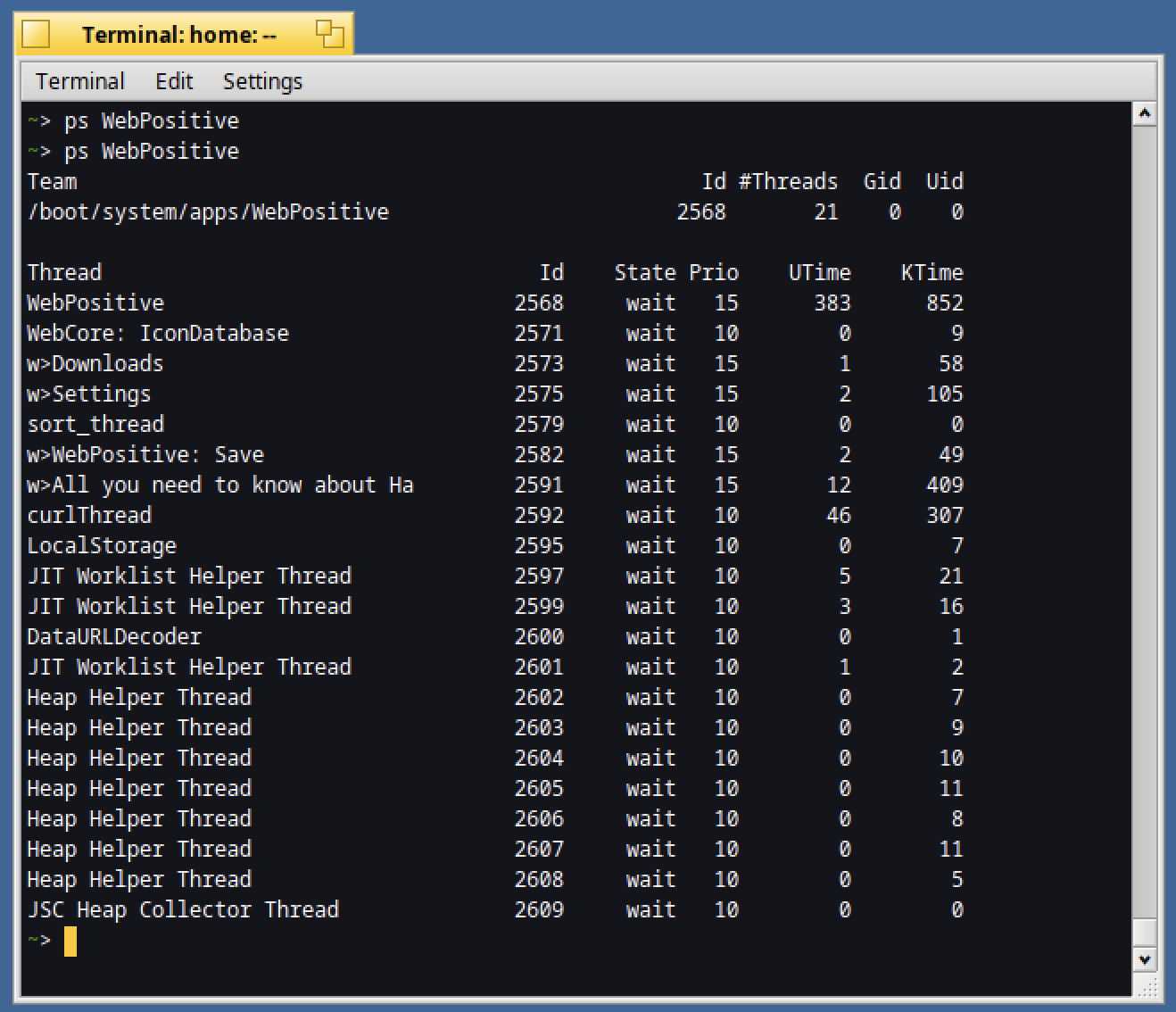
Then all the threads used by WebPositive process are displayed with their corresponding id and priority.
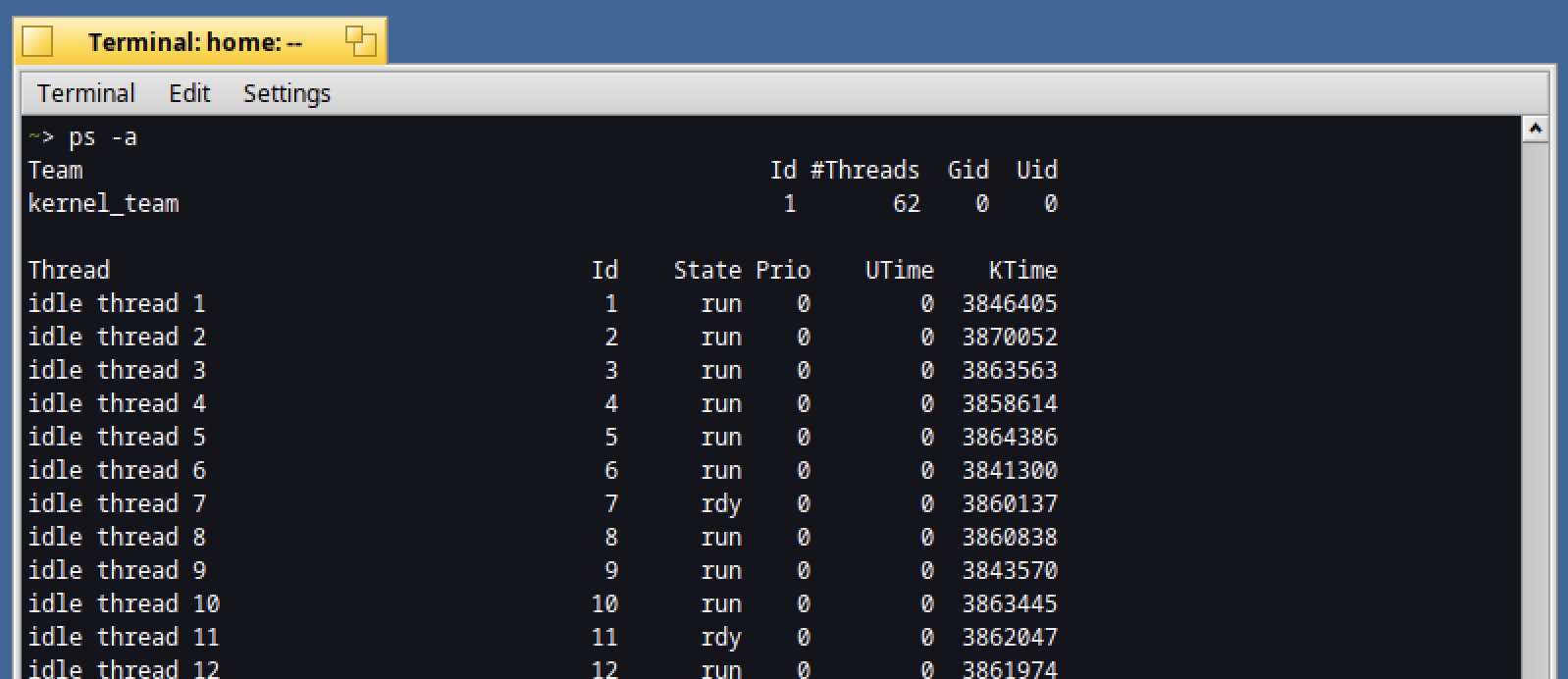
In case you need to display all the running processes with their threads, you can use the "-a" option:
ps -a
kill
The kill command sends a signal to a process to terminate or control it.
For instance, if you want to quit WebPositive type:
kill WebPositive
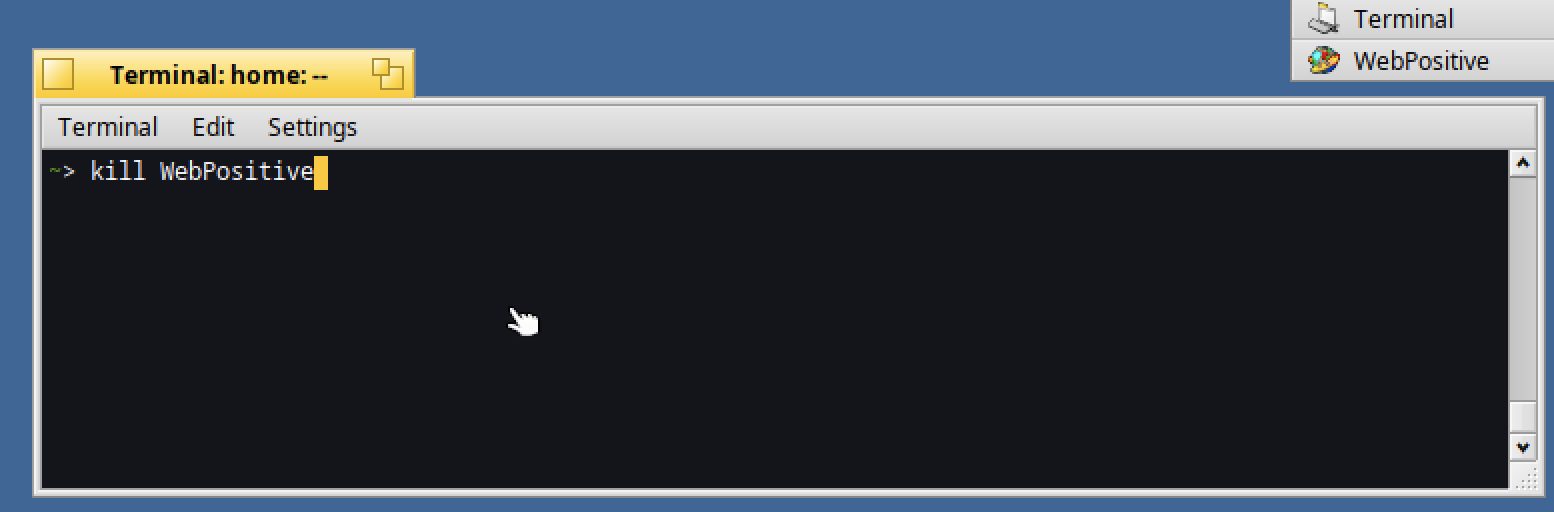
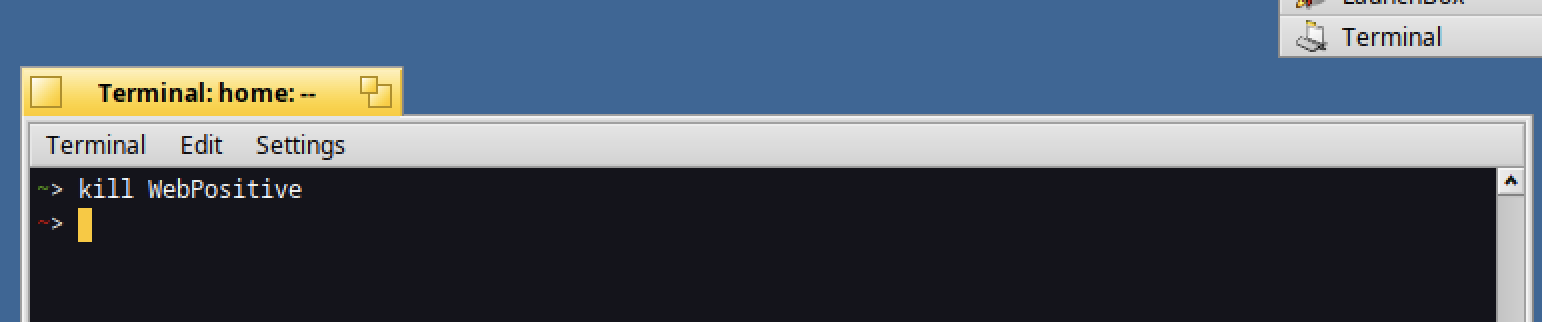
Once the command is launched, as you can see WebPositive application will quit:
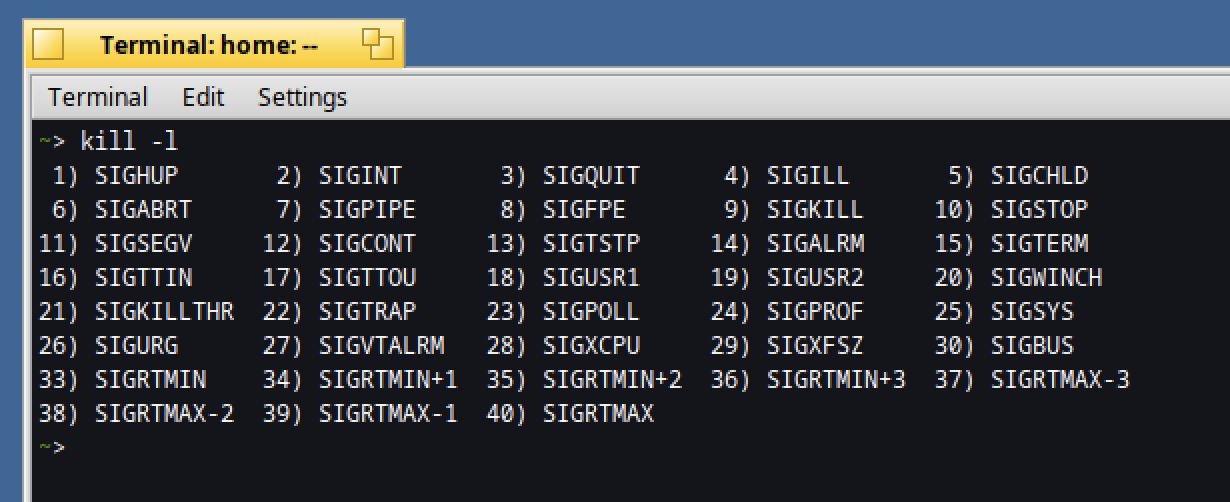
To check all the possible signals which can be sent by the kill command, type:
kill -l
Now, imagine that WebPositive application is stuck on your system.
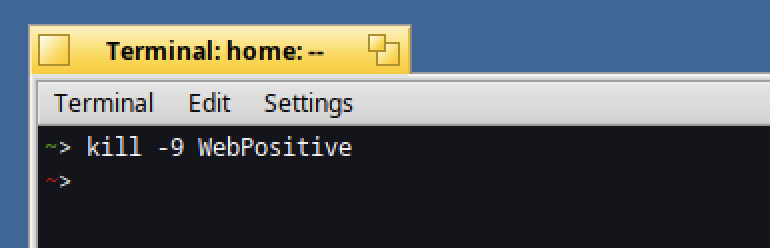
If you need to force the application to be killed (SIGKILL), you can use the signal "9" with the command below:
kill -9 WebPositive
prio
This command let you change the priority of a thread.
If you do a right click on the ProcessController in the Deskbar, then select "Threads and CPU usage", you should see the below display:
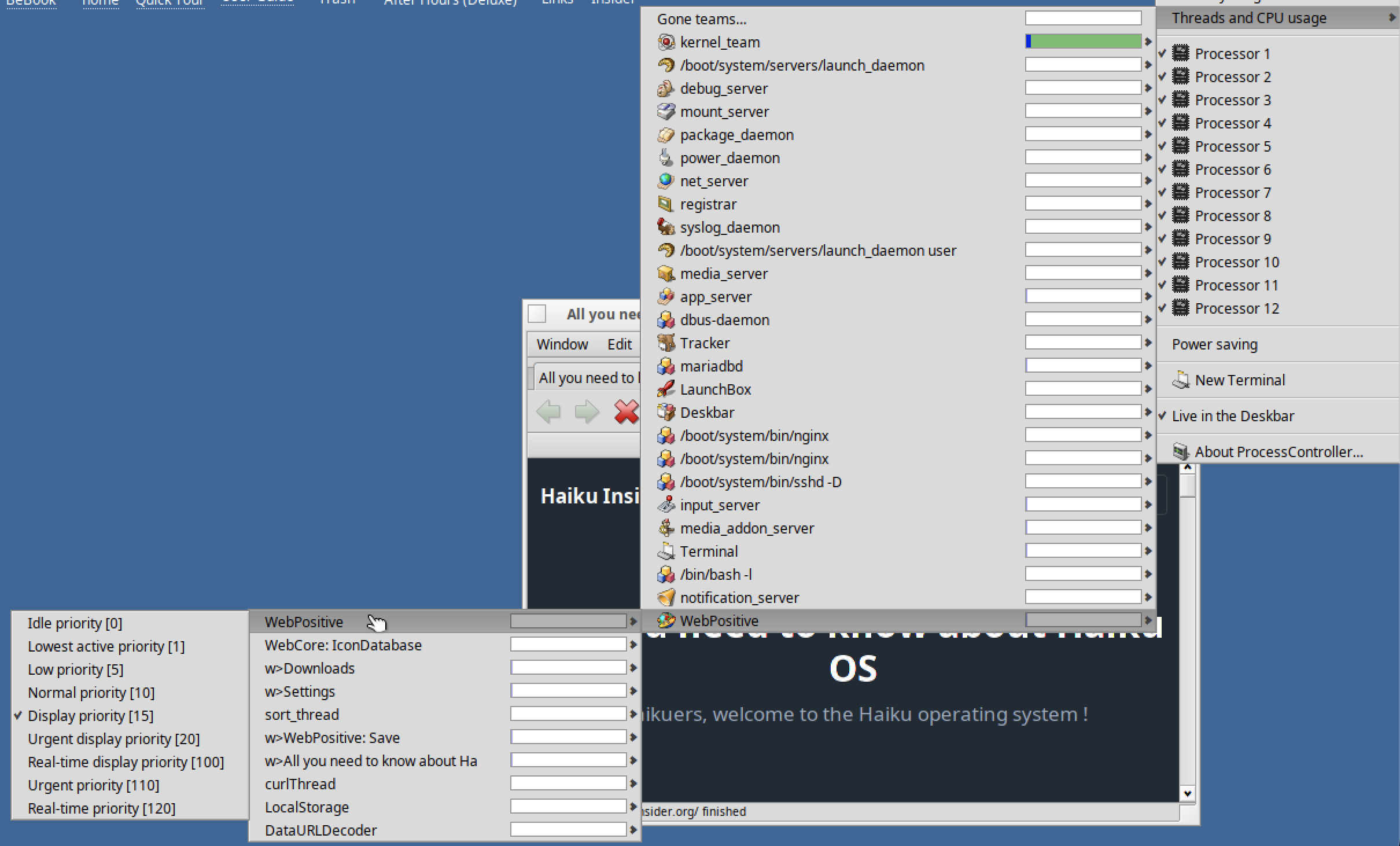
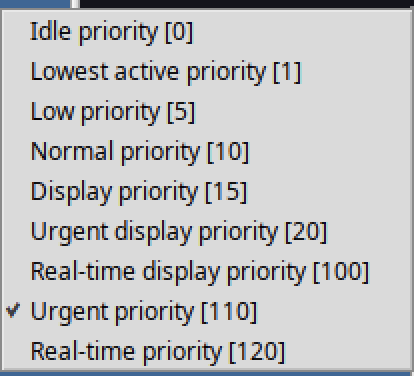
The WebPositive thread is having a priority of 15 which is a "Display priority":
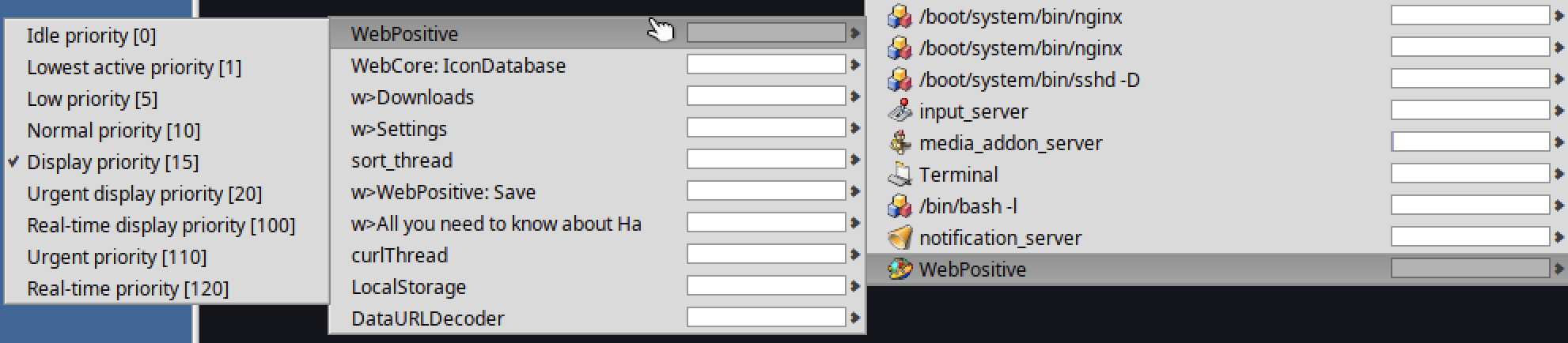
The higher the number is, the better the priority of the thread will be.
Imagine you would like to change the priority of WebPositive thread to "Urgent priority" (110):
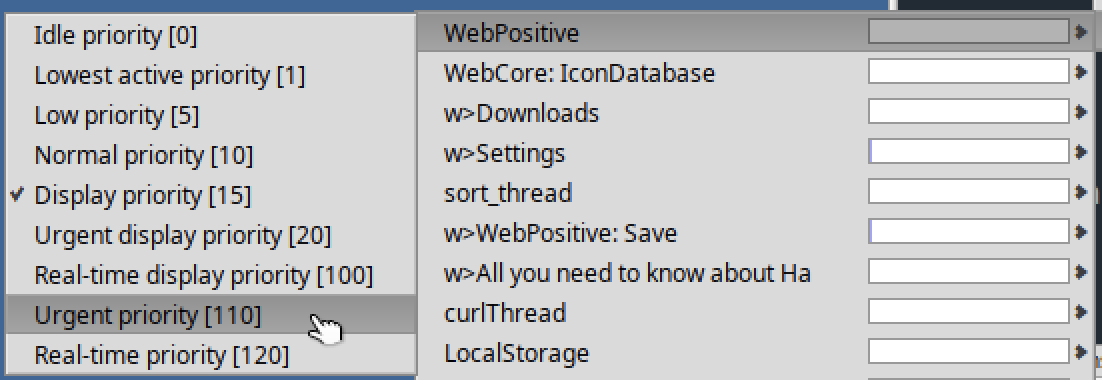
For that type in a Terminal:
prio 2837 110
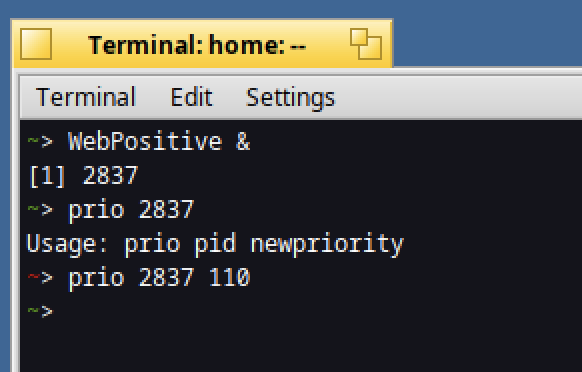
2837 is the thread id used for WebPositive's main thread.
Once the command has been launched, if you check again the "Threads and CPU usage" in the Deskbar, you will notice that the priority of WebPositive's thread has been updated:
sleep
What about waiting for a specific period of time before launching the next command in your script ?
For that the sleep command is the one to use.
In a Terminal type:
sleep 5
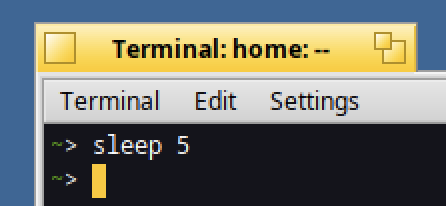
It will wait for 5 seconds before running the next command:)
waitfor
In case you need a command which identify that a thread has started or has ended, you can use the "waitfor" command.
The below usages are possible:
waitfor
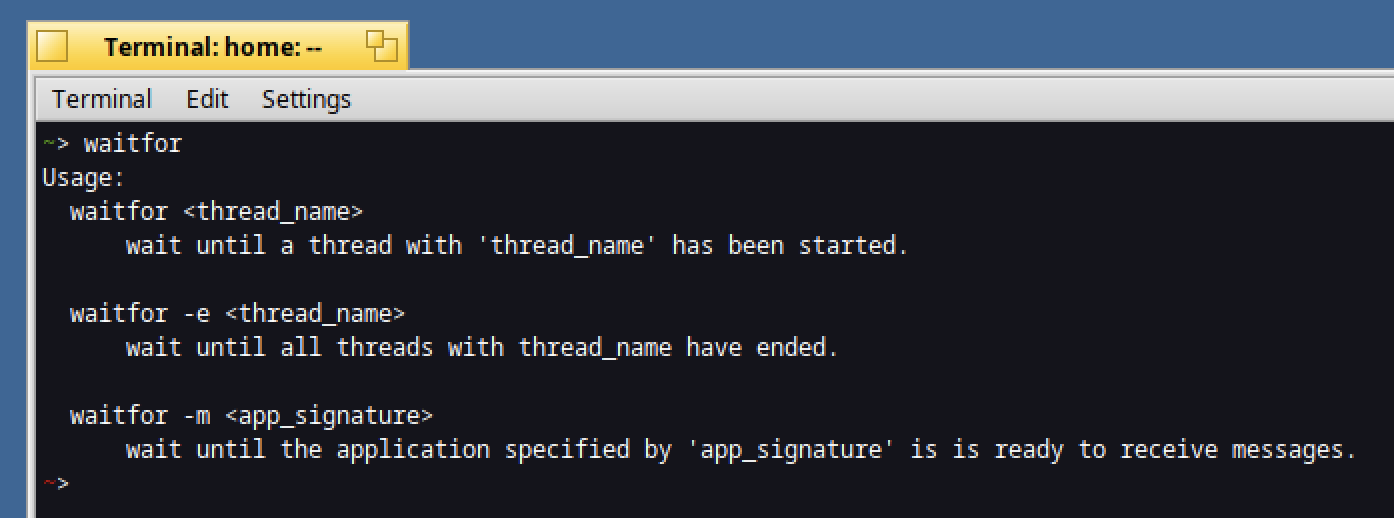
The first usage is when you need an application to start before launching a command.
Below the display of the message will occur only when WebPositive has been started:
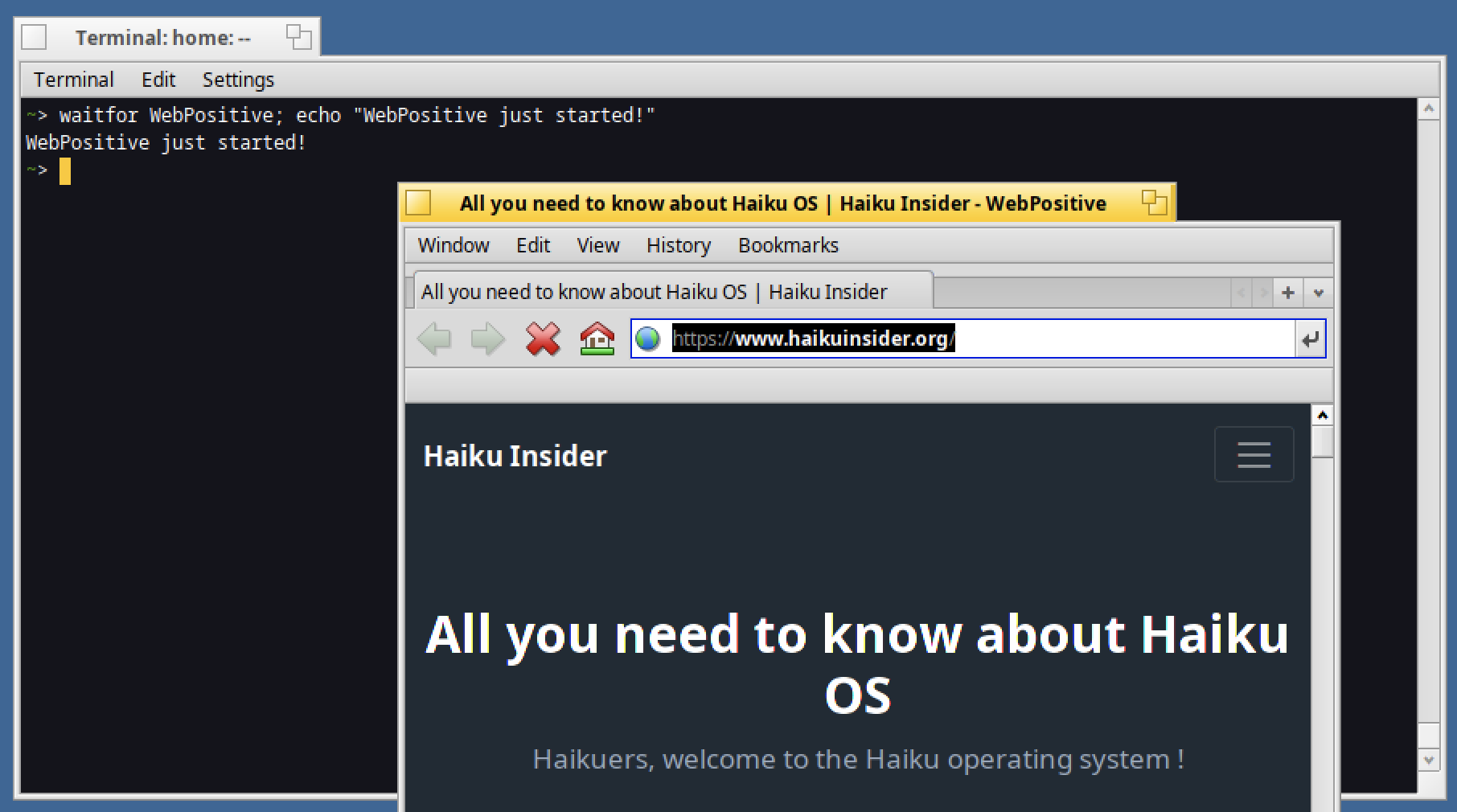
waitfor WebPositive; echo "WebPositive just started!"
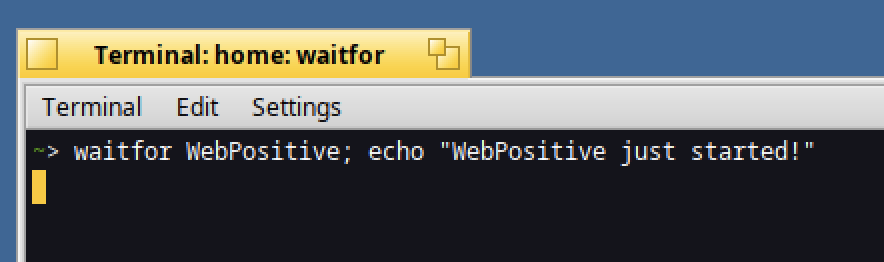
If you launch WebPositive, you will see that the below message will be displayed right away:
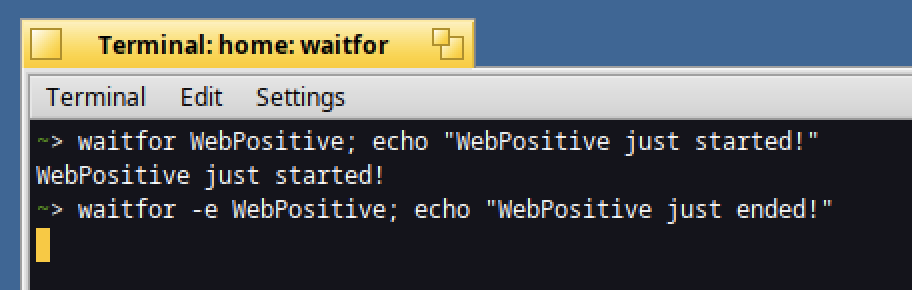
In the opposite situation, when you want to display or execute a command only when a thread is terminated, use the "-e" option.
Type in a Terminal:
waitfor -e WebPositive; echo "WebPositive just ended!"
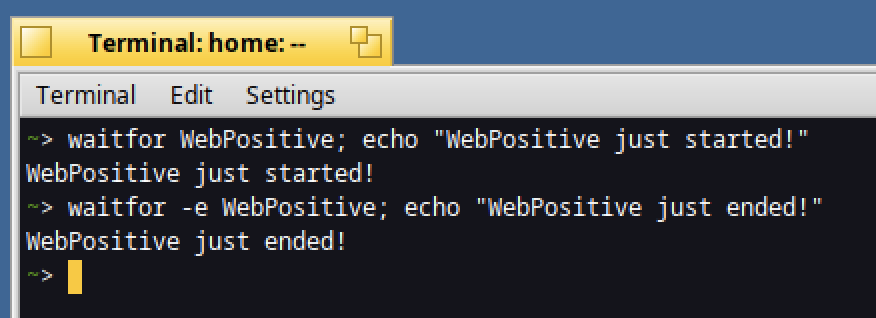
Now close WebPositive browser.
You should see the below message displayed once WebPositive has been closed:
timeout
The timeout command is useful when you need to run a command with a time limit before it's automatically terminated.
For instance the below timeout command will start WebPositive :
timeout 10 WebPositive
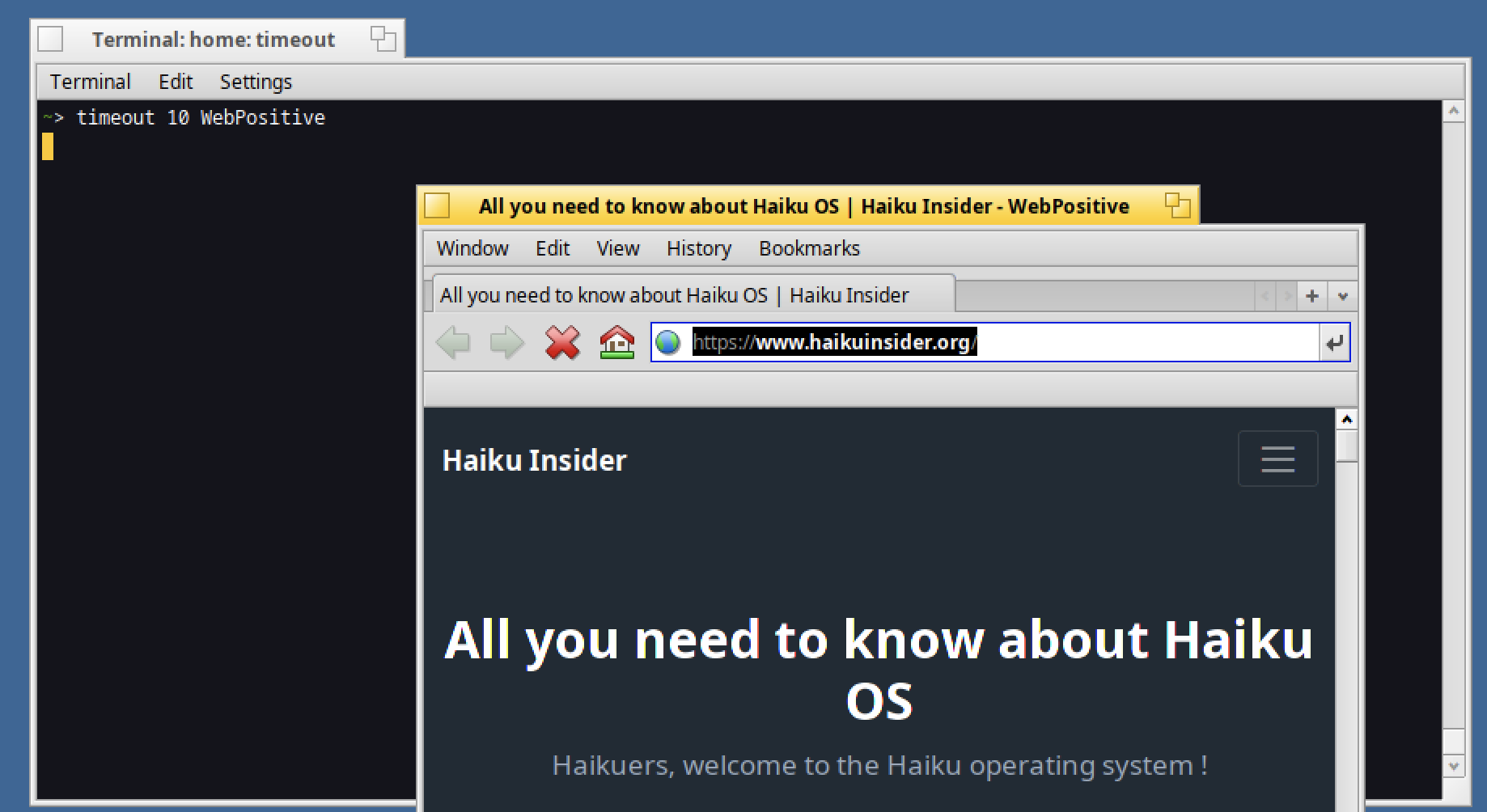
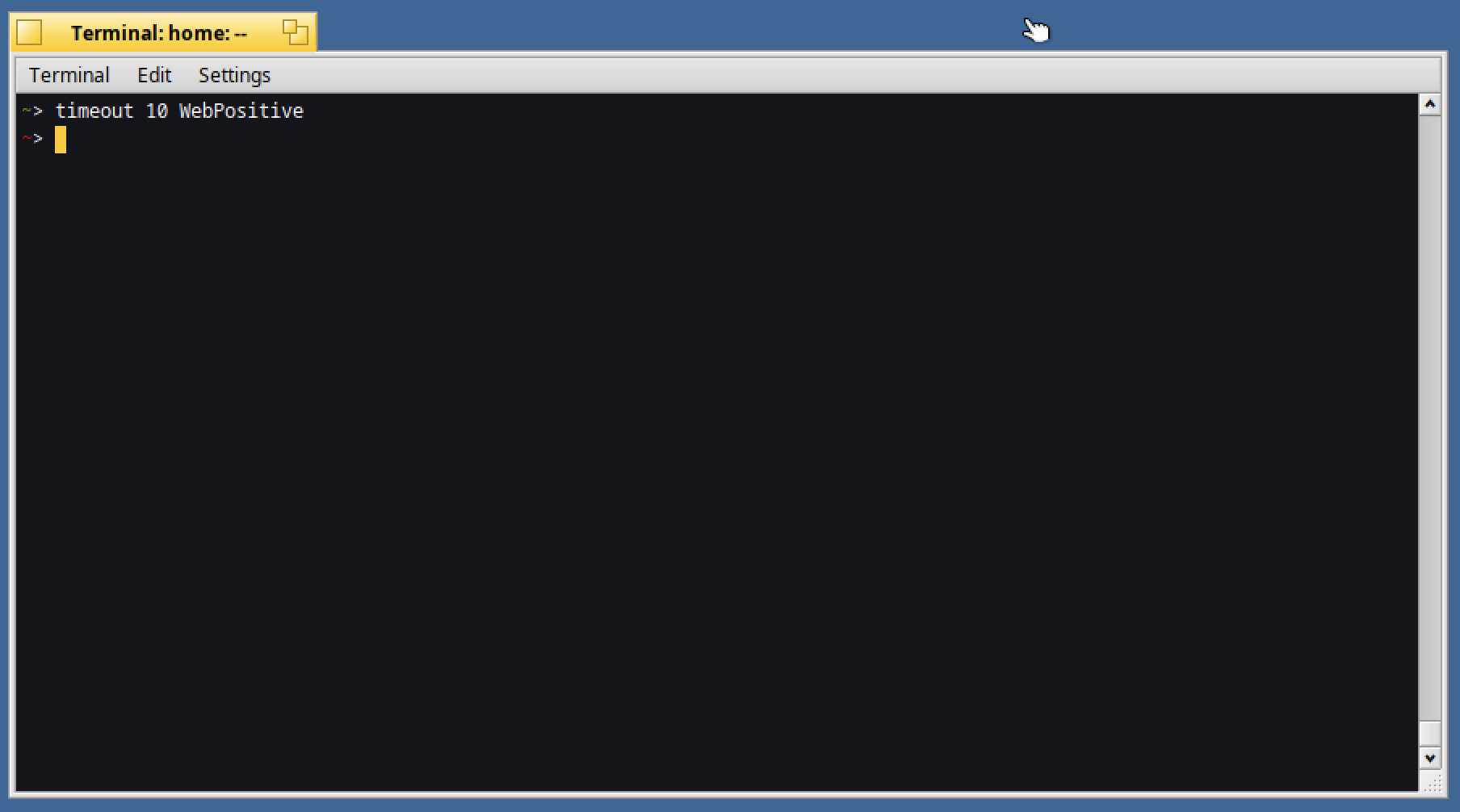
And then the application will be closed after 10 seconds:
nohup
Do you need to start a process in a Terminal so that when this Terminal is closed, it will not quit that process ?
For that use the nohup command.
In a standard case, let's launch WebPositive via the Terminal:
WebPositive
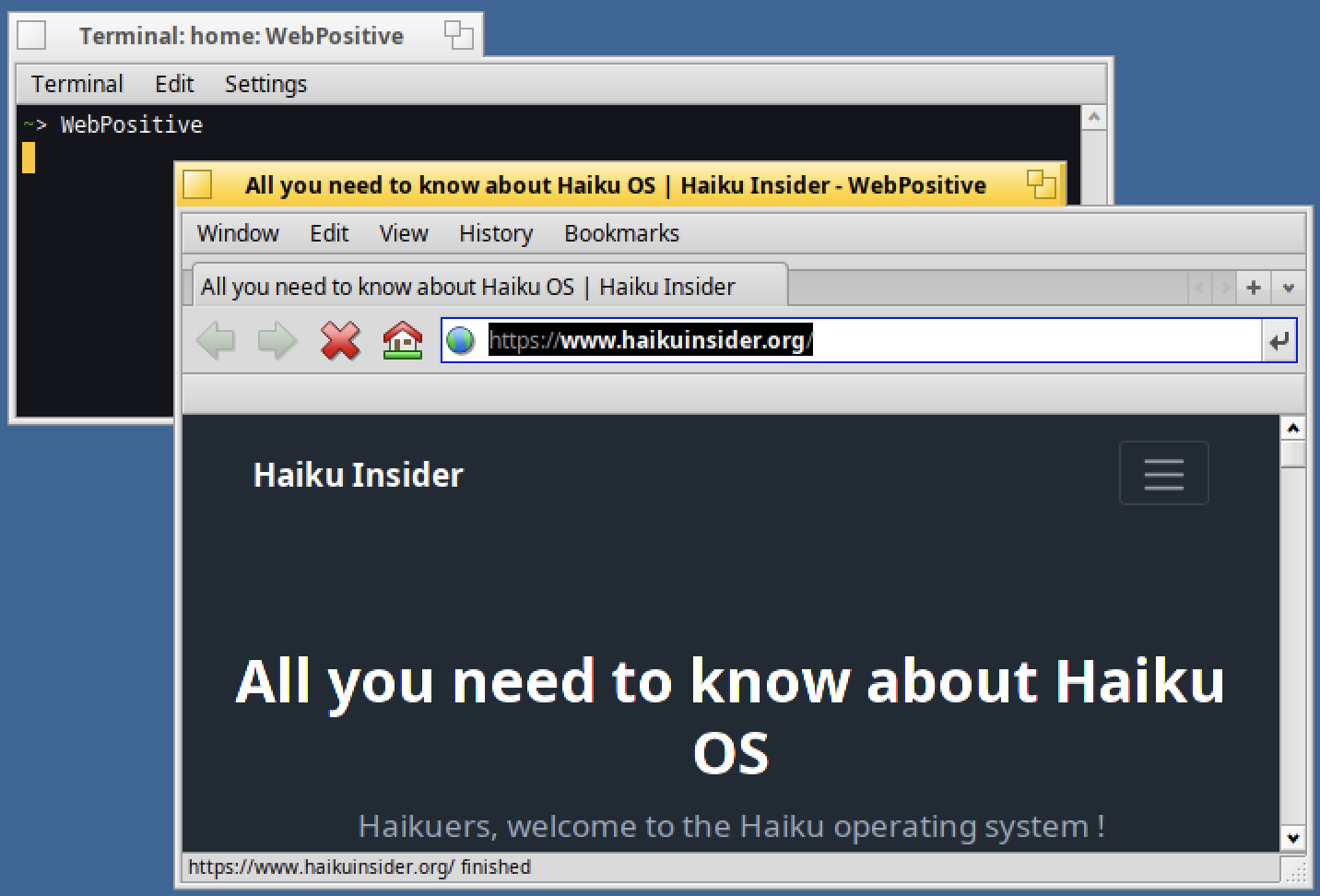
Then let's close the Terminal's window:
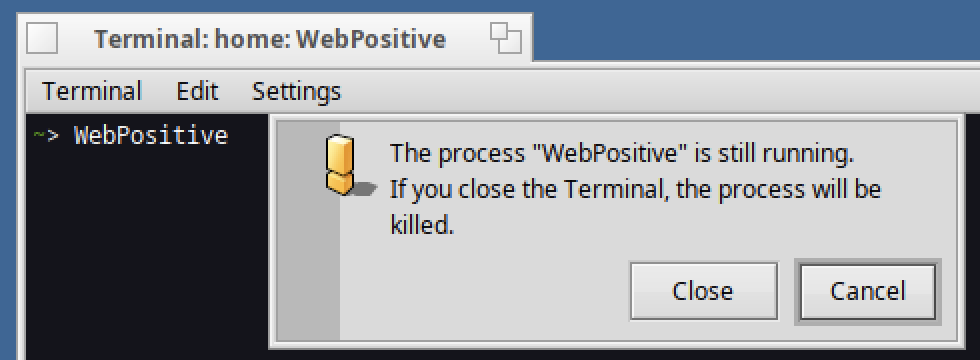
As the warning message warmed you, WebPositive will be closed when the Terminal is closed.
Now, in a case where nohup command is used, let's launch WebPositive:
nohup WebPositive
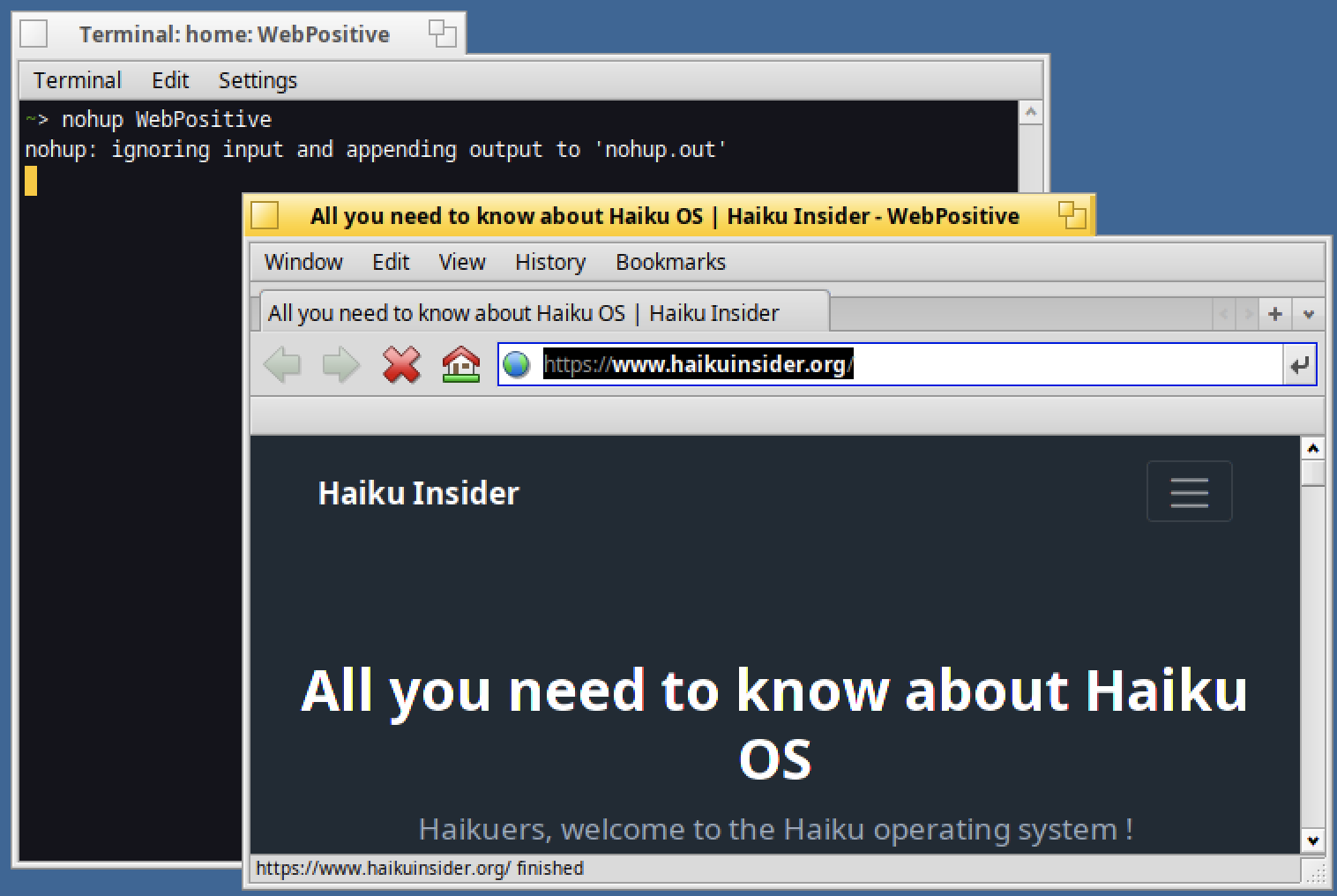
Close the Terminal:
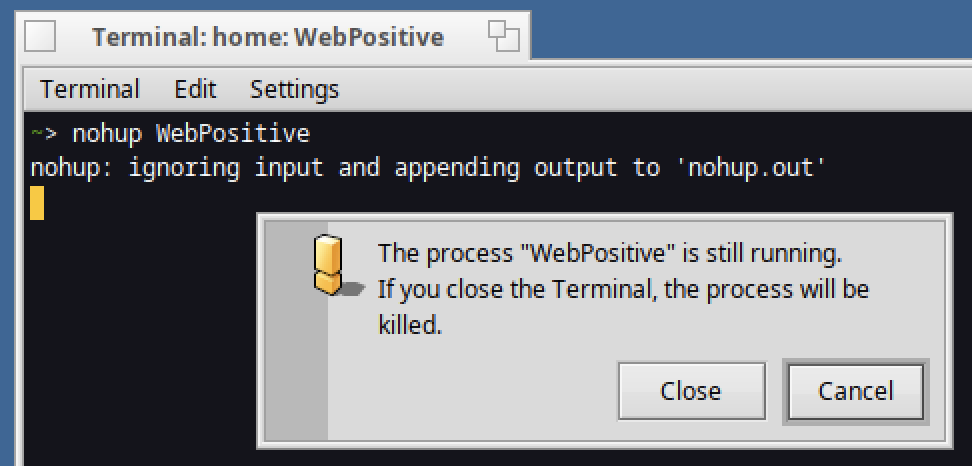
Even if a warning message is displayed, WebPositive will still be running after the closure of the Terminal.

listport
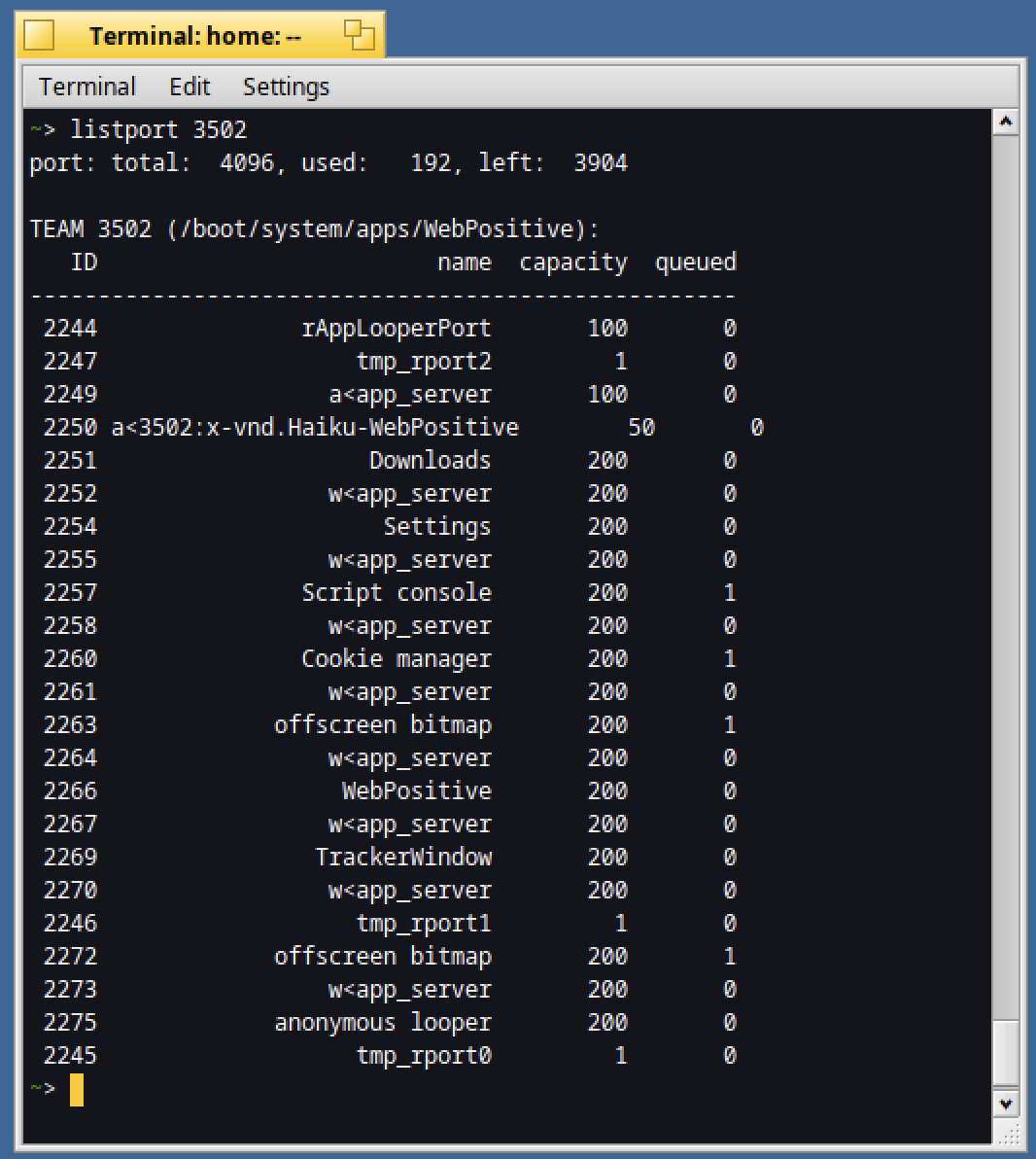
The listport command helps you to identify the ports used by inter-process communication.
For instance, to identify these ports for WebPositive, type:
ps WebPositive
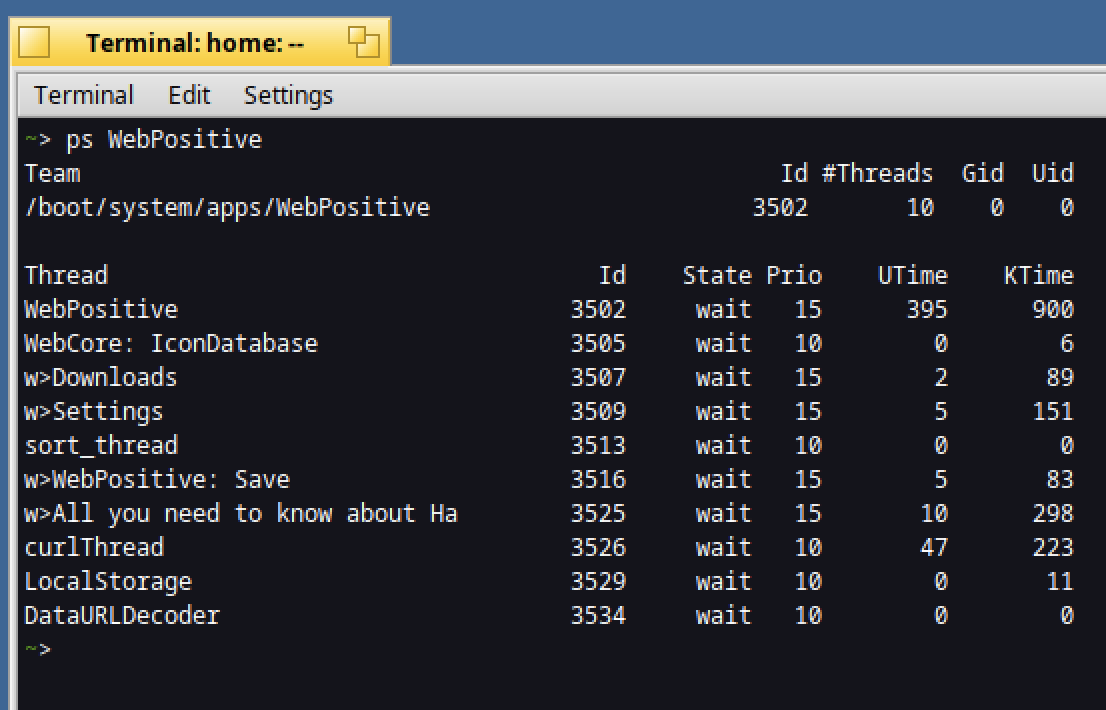
Now let's use the thread's id 3502 for the listport command:
listport 3502
launch_roster
The launch_roster command is quite useful in case you need to display or manage running applications launched by the system's Launch Daemon.
Launch the below command in a Terminal:
launch_roster
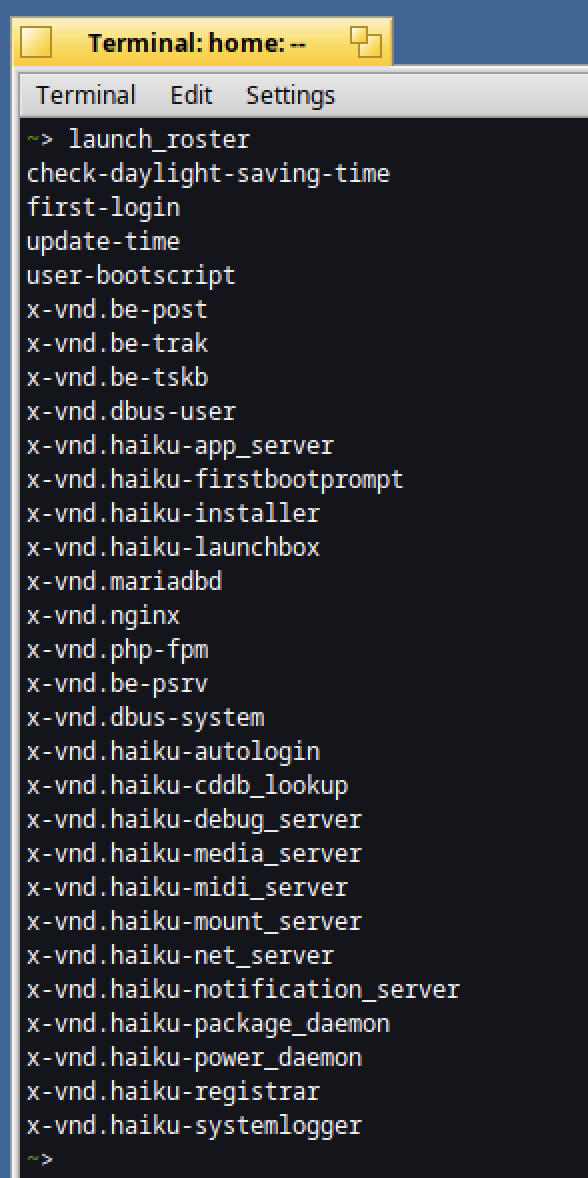
You can see the various servers or daemons running on your system.
If you need - for instance - to have more details regarding the app server, type:
launch_roster x-vnd.haiku-app_server
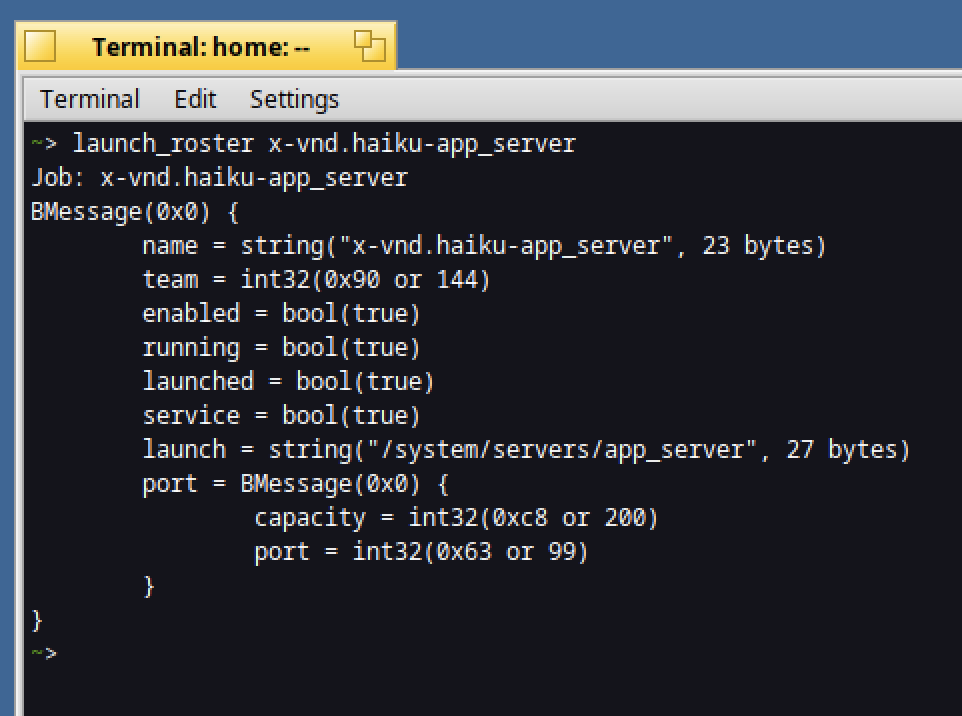
If you need to know more about that command, you can check the dedicated article named Using the launch daemon.
Do you have other commands in mind relative to process handling under Haiku ?
Let's share your findings in the comments below.