
Storage Kit: getting started
 DigitalBox
- KitLab
- December 15, 2025
In the previous KitLab article, we have learned how to use the Translation Kit.
Let’s now step away and explore one of Haiku’s endemic components: the Storage Kit — the foundation of files, directories, attributes, and queries.
The Storage Kit is the foundation for all file handling in Haiku.
It provides a unified, object-oriented interface to the Be File System (BFS), letting you read, write, and explore files — including their extended attributes and indexed data, unique to Haiku.
What is the Storage Kit?
The Storage Kit manages everything related to storage on Haiku:
- File entries
(BEntry)— represents the file location - File nodes
(BNode)— and its subclasses (BFile,BDirectory,BSymLink) give access to the real data and attributes stored on disk. - File information and metadata
(BNodeInfoandBAppFileInfo) — provide higher-level details such as MIME type, icons, and application signatures. - Queries, paths, and volumes
(BQuery,BPath, andBVolume)— let you search files, handle paths, and explore mounted volumes.
At the heart of it, every file or directory in Haiku is represented by a node — an object in the filesystem that may contain data and extended attributes.
In this first article, we’ll start simple:
- Opening a file
- Reading and writing text
- Understanding how the Storage Kit fits together
Source Code: SimpleStorage.cpp
This example writes a small text file to your home folder and reads it back.
#include <Application.h>
#include <File.h>
#include <Path.h>
#include <FindDirectory.h>
#include <stdio.h>

class SimpleStorageApp : public BApplication
{
public:
    SimpleStorageApp()
        :
        BApplication("application/x-vnd.kitlab-storagekit")
    {
        WriteAndReadExample();
    }

    void WriteAndReadExample()
    {
        // Find the user's home directory
        BPath homePath;
        if (find_directory(B_USER_DIRECTORY, &homePath) != B_OK)
            return;

        homePath.Append("SampleStorage.txt");

        // --- Write the file ---
        BFile file(homePath.Path(), B_WRITE_ONLY | B_CREATE_FILE | B_ERASE_FILE);
        if (file.InitCheck() != B_OK) {
            printf("Failed to create file.\n");
            return;
        }

        const char* text = "Hello, Storage Kit!\nThis file was created by a Haiku app.\n";
        file.Write(text, strlen(text));
        file.Unset(); // Close the file

        // --- Read it back ---
        BFile readFile(homePath.Path(), B_READ_ONLY);
        if (readFile.InitCheck() != B_OK) {
            printf("Failed to open file for reading.\n");
            return;
        }

        char buffer[256];
        ssize_t bytesRead = readFile.Read(buffer, sizeof(buffer) - 1);
        buffer[bytesRead] = '\0';

        printf("File contents:\n%s\n", buffer);

        PostMessage(B_QUIT_REQUESTED);  // Quit application
    }
};

int
main()
{
    SimpleStorageApp app;
    app.Run();
    return 0;
}
How it works
-
find_directory()locates the user's home folder — a convenient, system-aware way to find paths. -
BPathhandles file paths safely and portably. -
BFileprovides a high-level interface for reading and writing data. -
We open the file with flags:
-
B_CREATE_FILE→ create if it doesn’t exist -
B_ERASE_FILE→ clear previous contents -
B_WRITE_ONLY→ open for writing
-
-
After writing, we reopen it in read-only mode to verify the content.
Compile & run
Launch from Terminal:
./HelloStorage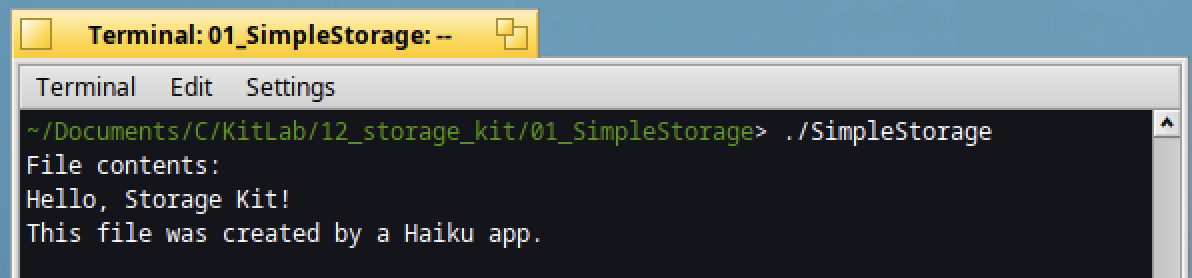
When run, you’ll find the file /boot/home/SampleStorage.txt containing:
Hello, Storage Kit!
This file was created by a Haiku app.
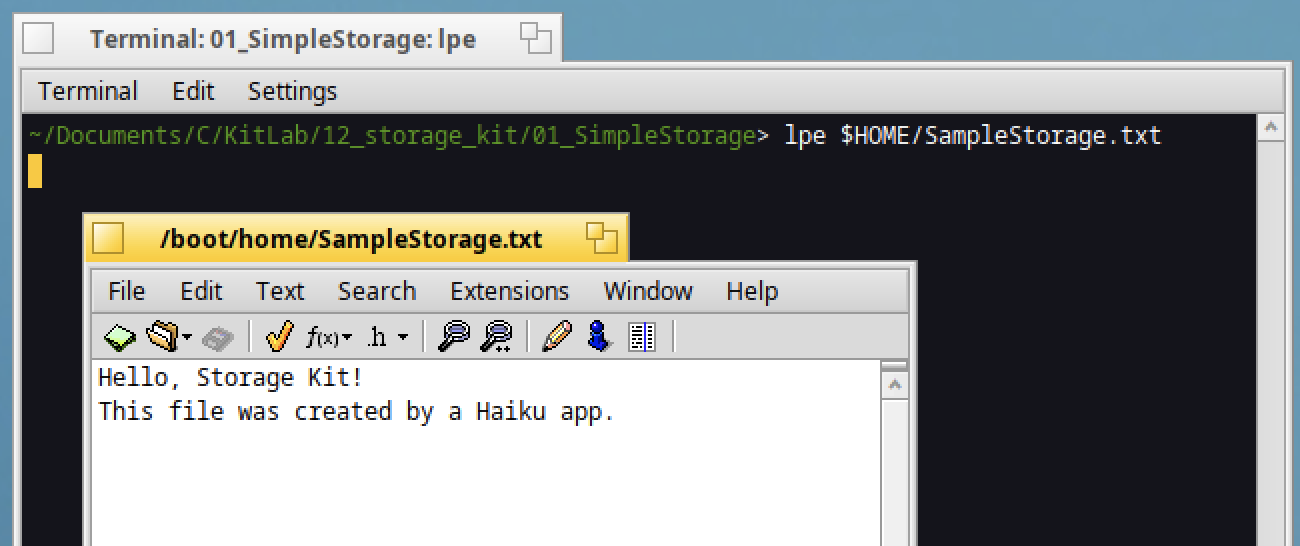
As you can see, the API to handle files is simple and elegant:)
Try this
-
Change the destination: use
B_DESKTOP_DIRECTORYinstead ofB_USER_DIRECTORY. -
Append data instead of overwriting: open with
B_OPEN_AT_END | B_WRITE_ONLY. -
Check file size with
BEntry::GetSize()orBFile::GetSize().
What’s Next?
Now that you know how to open and manipulate files with the Storage Kit, the next step is to work with directories and entries — listing files, navigating paths, and managing folders.
In the next KitLab article, we’ll explore:
-
BDirectoryfor reading folder contents -
BEntryfor file references -
Using
entry_refandnode_refto access files efficiently
Conclusion
With just a few lines of code, you’ve written a fully functional Haiku application that interacts with the filesystem through the Storage Kit.
This Kit is more than file I/O — it’s the backbone of Haiku’s powerful attribute and query system, which we’ll explore soon.