
Support kit: getting started
 DigitalBox
- KitLab
- March 9, 2026
In the previous KitLab articles, we explored several Haiku Kits such as the Application, Interface, Translation, Storage and Locale kits.
Today, we begin a new chapter: the Support Kit — the foundational toolkit used by nearly every Haiku application.
For this first article, we’ll start with something both simple and powerful: BString.
BString is Haiku’s high-level string class, offering safe, convenient, and efficient operations compared to low-level C strings.
And to make this topic visual and interactive, we’ll build a small application that transforms text in real time using BString and displays the result in a window.
What is BString?
BString is Haiku’s main utility class for storing and manipulating text.
It provides:
-
Safe memory management
-
Easy concatenation
-
Formatting utilities
-
Search and replace functions
-
Case conversion
-
Trimming, removal, substring extraction
You can think of it as a lightweight alternative to std::string, optimized for Haiku and fully integrated into the operating system.
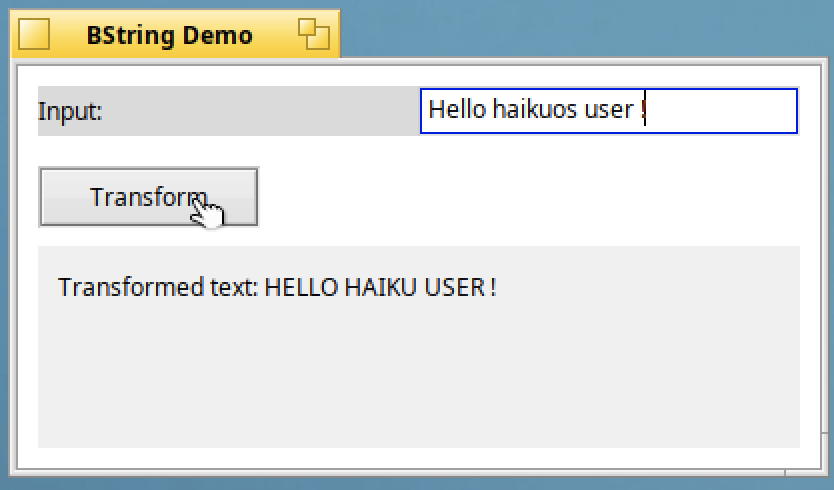
In this first example, we’ll allow the user to type a text, and when pressing a button, we’ll use BString to transform the text and display the result visually.
Source Code: StringDemo.cpp
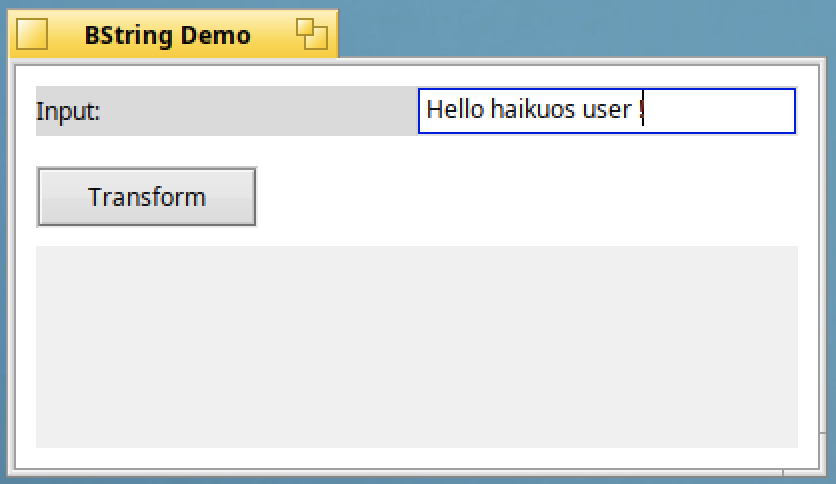
This example creates a simple window with:
-
An editable text field (for input)
-
A button (“Transform”)
-
A read-only view showing the transformed text
-
Behind the scenes, we use BString to modify the input: trimming spaces, replacing characters, converting case, etc.
#include <Application.h>
#include <Window.h>
#include <View.h>
#include <Button.h>
#include <TextControl.h>
#include <String.h>

// Custom view that displays the transformed text
class ResultView : public BView
{
public:
    ResultView(BRect frame)
        :
        BView(frame, "result_view", B_FOLLOW_ALL, B_WILL_DRAW | B_NAVIGABLE)
    {
        SetViewColor(240, 240, 240);
    }

    void SetResultText(const BString& text)
    {
        fResult = text;
        Invalidate();   // Triggers a redraw
    }

    void Draw(BRect updateRect) override
    {
        SetHighColor(0, 0, 0);
        MovePenTo(10, 25);
        DrawString(fResult.String());
    }

private:
    BString fResult;
};

// Main window that contains UI elements
class StringWindow : public BWindow
{
public:
    StringWindow(BRect frame)
        :
        BWindow(frame, "BString Demo", B_TITLED_WINDOW, B_QUIT_ON_WINDOW_CLOSE)
    {
        BRect bounds = Bounds();

        // Text input field
        fInput = new BTextControl(
            BRect(10, 10, bounds.Width() - 10, 40),
            "input",
            "Input:",
            "",
            NULL);

        AddChild(fInput);

        // Transform button
        fButton = new BButton(
            BRect(10, 50, 120, 80),
            "transform",
            "Transform",
            new BMessage('tran'));

        AddChild(fButton);

        // Result view
        fResultView = new ResultView(
            BRect(10, 90, bounds.Width() - 10, bounds.Height() - 10));

        AddChild(fResultView);
    }

    void MessageReceived(BMessage* message) override
    {
        if (message->what == 'tran') {
            HandleTransform();
        } else {
            BWindow::MessageReceived(message);
        }
    }

private:
    void HandleTransform()
    {
        BString text = fInput->Text();

        // Perform several BString operations
        text.Trim();                    // Remove leading/trailing whitespace
        text.ReplaceAll("haikuos", "Haiku");    // Search & replace
        text.ToUpper();                 // Convert to uppercase

        // Build the final display string using SetToFormat()
        BString formatted;
        formatted.SetToFormat("Transformed text: %s", text.String());

        fResultView->SetResultText(formatted);
    }

private:
    BTextControl* fInput;
    BButton* fButton;
    ResultView* fResultView;
};

// Application class
class StringApp : public BApplication
{
public:
    StringApp()
        :
        BApplication("application/x-vnd.example-bstring")
    {
        BRect rect(100, 100, 500, 300);
        StringWindow* window = new StringWindow(rect);
        window->Show();
    }
};

int
main()
{
    StringApp app;
    app.Run();
    return 0;
}
How It Works
-
BString text = fInput->Text();
Gets the raw text entered by the user. -
text.Trim();
Removes extra spaces at the beginning and end. -
text.ReplaceAll("haikuos", "Haiku");
Replaces all lowercase “haikuos” by “Haiku”. -
text.ToUpper();
Converts the entire string to uppercase. -
formatted.SetToFormat("Transformed text: %s", text.String());
Builds a formatted string using BString’s safe formatting method. -
Inside
ResultView::Draw()
The final formatted string is drawn usingDrawString().
This makes Support Kit concepts visible and interactive thanks to the Interface Kit.
Compilation
Compile with:
g++ StringDemo.cpp -o StringDemo -lbeRun it:
./StringDemoYou’ll get a window where you can type a text of your choice:
Once done, press Transform, and see the modified string immediately:
Try This
Do you want to explore more BString features?
Try modifying the transformation code:
-
Replace only the first match:
text.Replace("haikuos", "Haiku", 1); -
Extract characters:
text = text.Substring(0, 10); -
Insert text at a specific index:
text.Insert(">>> ", 0); -
Append easily:
text << " [Processed]";
BString packs a lot of convenience into a lightweight Haiku-native class.
What’s Next?
In the next Support Kit articles, we’ll dive into some of its most practical components — from dynamic lists to stream handling.
We’ll explore how BList and related classes manage collections efficiently, how BDataIO streams move data through your application, and finally how object serialization and persistence let you store and restore complex states with ease.
Stay tuned!