
SVGear
 DigitalBox
- Native
- June 22, 2026
SVG files are everywhere today: icons, illustrations, UI assets, web graphics.
On Haiku, handling them natively has always been possible to some extent, but a dedicated viewer offering real control over SVG content was missing.
Enter SVGear, a native Haiku application developed by threedeyes, one of the most prolific contributors to the Haiku ecosystem.
Let's take a look at what SVGear can do.
What is SVGear?
SVGear is a native SVG viewer and manipulation tool for Haiku.
Beyond simply displaying SVG files, it offers something particularly interesting for Haiku users: the ability to convert SVG files into HVIF — the Haiku Vector Icon Format — the compact, resolution-independent format at the heart of Haiku's icon system.
It is available from HaikuDepot or can be built from source on GitHub.
Installing SVGear
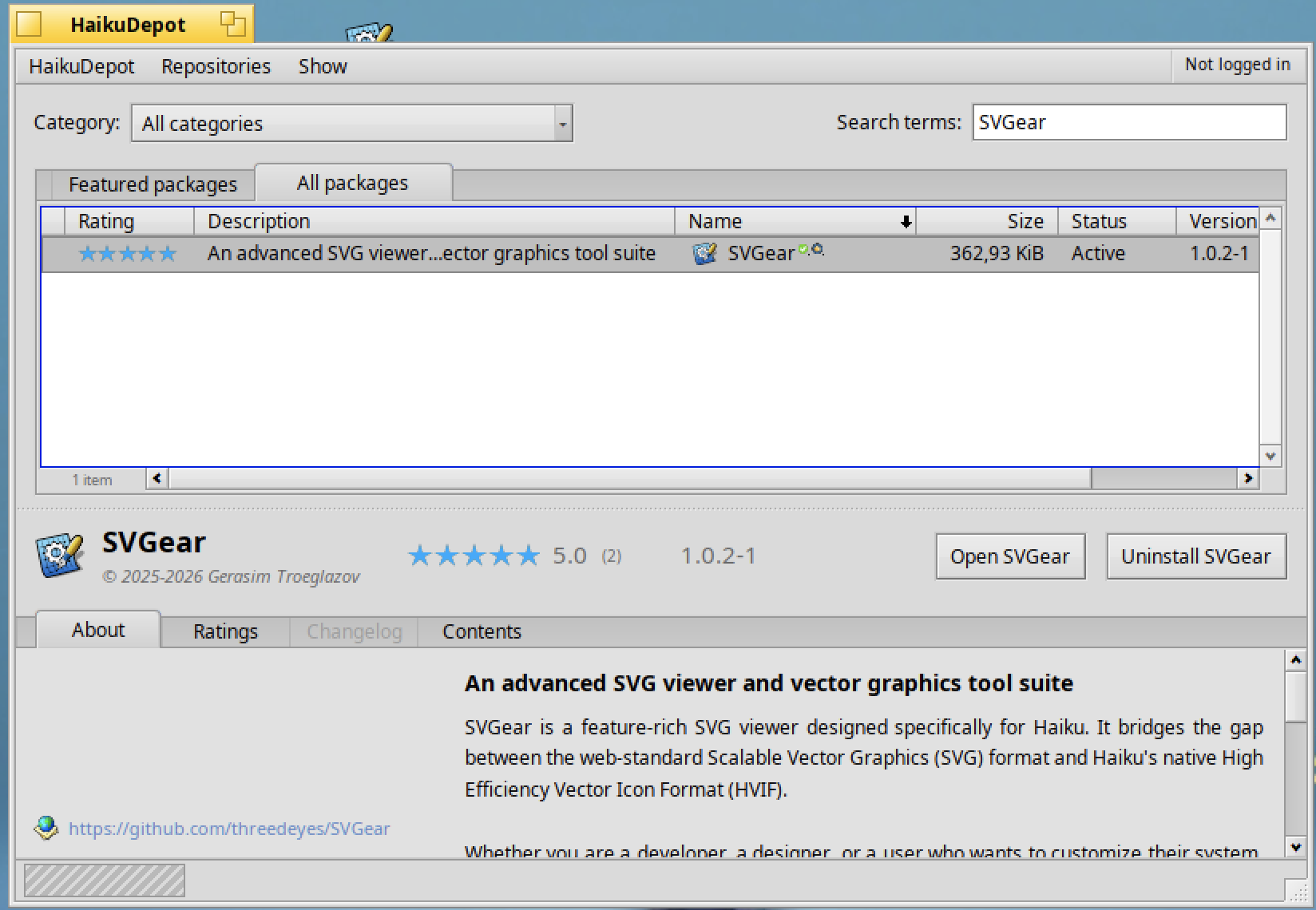
The easiest way to install SVGear is through HaikuDepot.
Simply search for "SVGear" and click Install.
Opening an SVG file
When you launch SVGear for the first time, you are greeted with a clean, native Haiku interface.
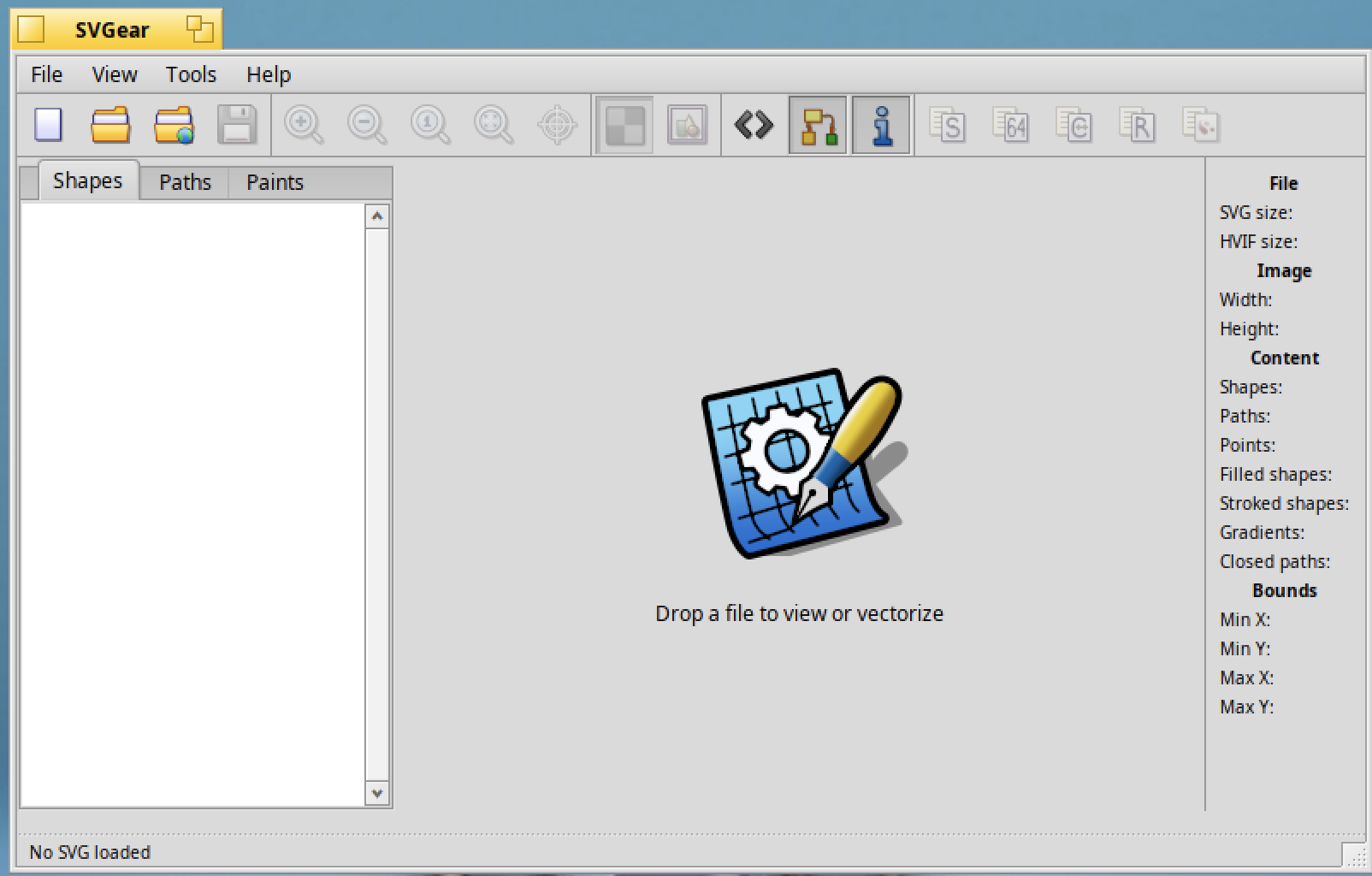
The simplest way to open a file is to drag and drop any .svg file directly into the window.
You can also use File > Open from the menu.
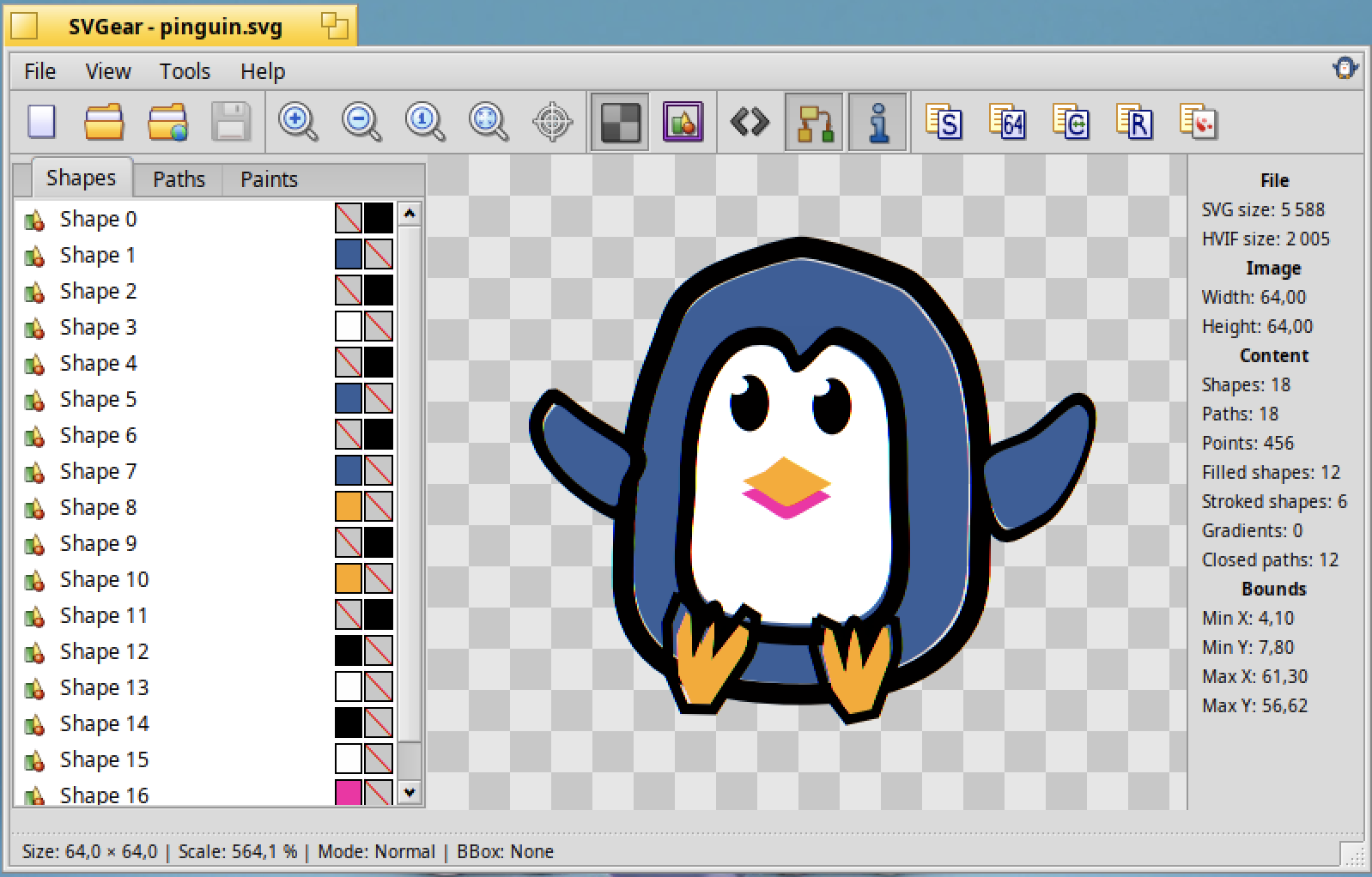
The file renders immediately at full quality, taking advantage of Haiku's native rendering pipeline.
You can zoom in and out freely — as a vector format, SVG scales without any loss of sharpness.
Exploring the SVG structure
One of SVGear's most useful features is the structure panel, which lets you inspect the internal tree of the SVG document: paths, shapes, and other elements.
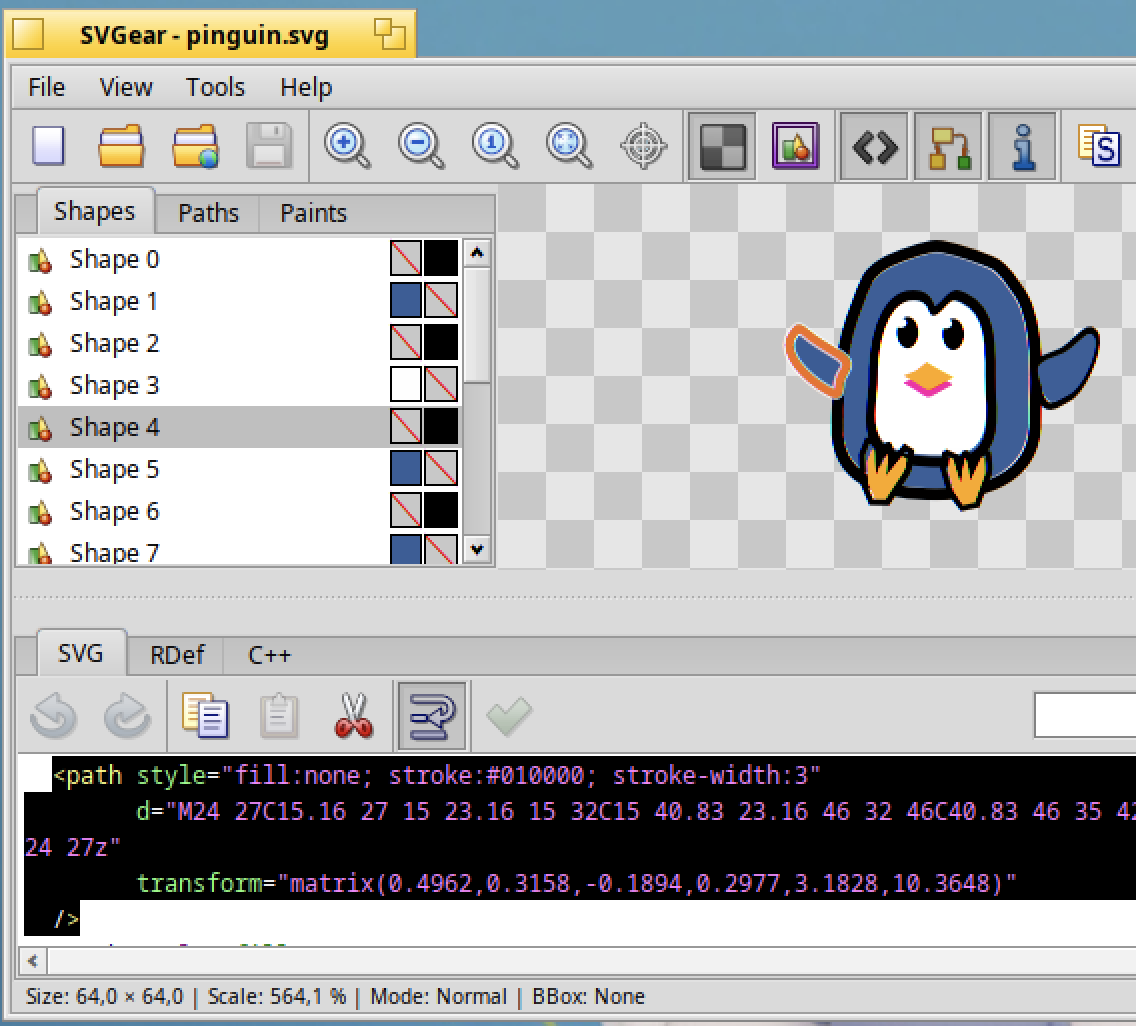
This is especially handy if you are working on icons or illustrations and want to understand how a file is organised before importing it elsewhere.
Editing the source
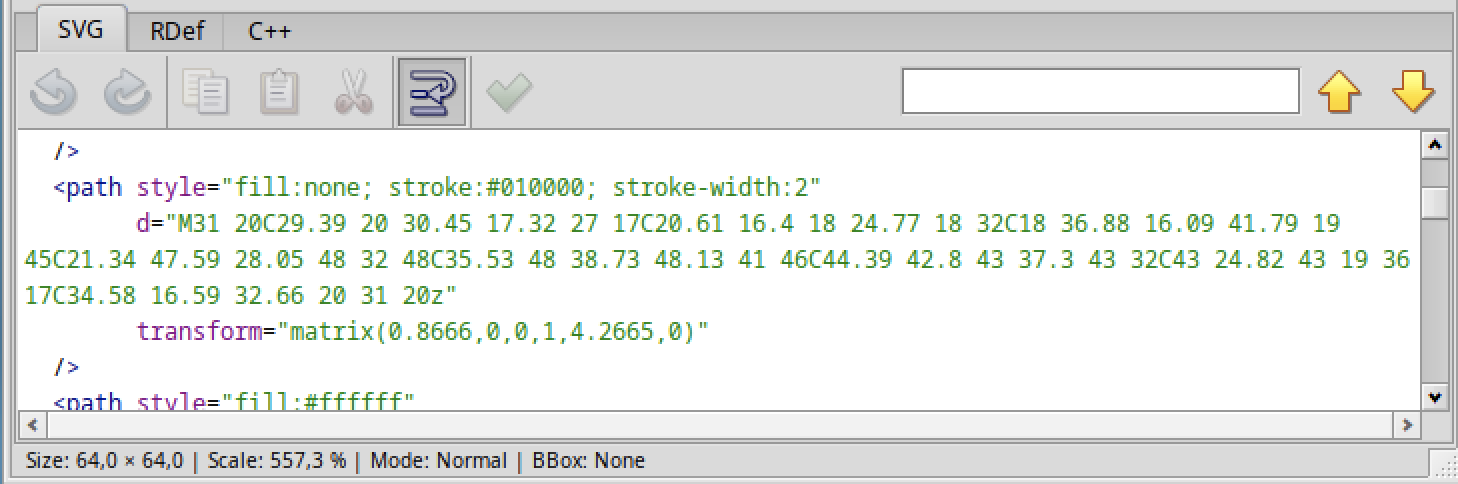
SVGear includes a built-in text editor that shows the raw SVG source with syntax highlighting.
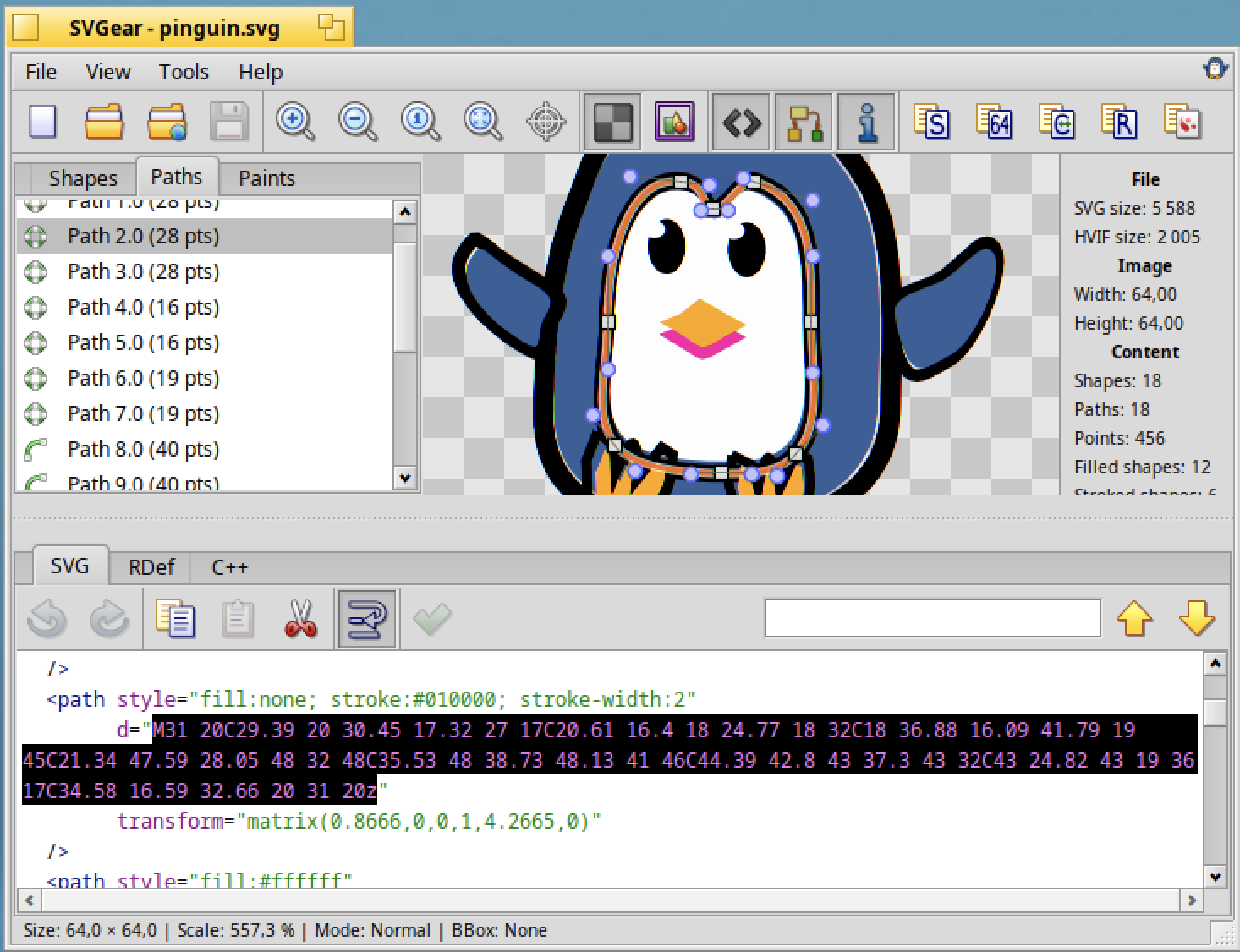
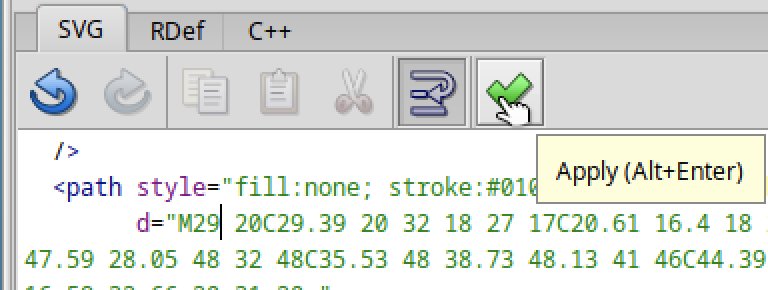
You can make direct edits to the XML and see the result update in the viewer. This is a great way to tweak colours, dimensions, or other properties without needing a full-blown vector editor.
Once your modifications have been made, use the apply button:
Converting SVG to HVIF
This is where SVGear really shines for Haiku developers and icon designers.
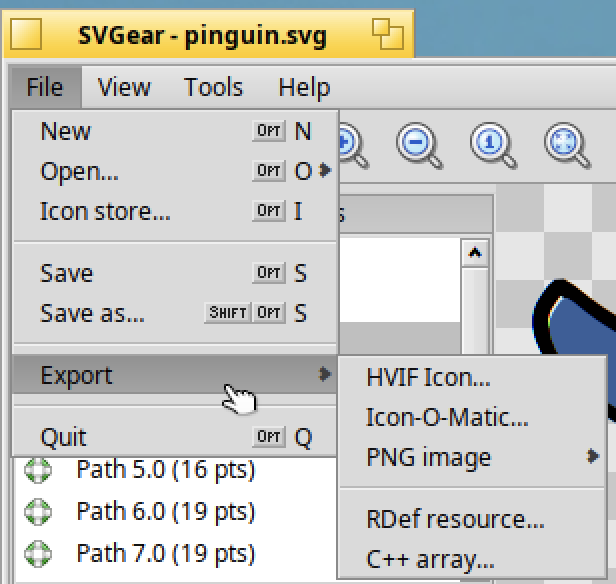
The application can export an SVG file as HVIF — the native Haiku Vector Icon Format used for all system and application icons.
To export, go to File > Export and choose the HVIF format:
The resulting .hvif file can then be embedded directly into a Haiku application's resources using rc and xres, or inspected with the Icon-O-Matic application.
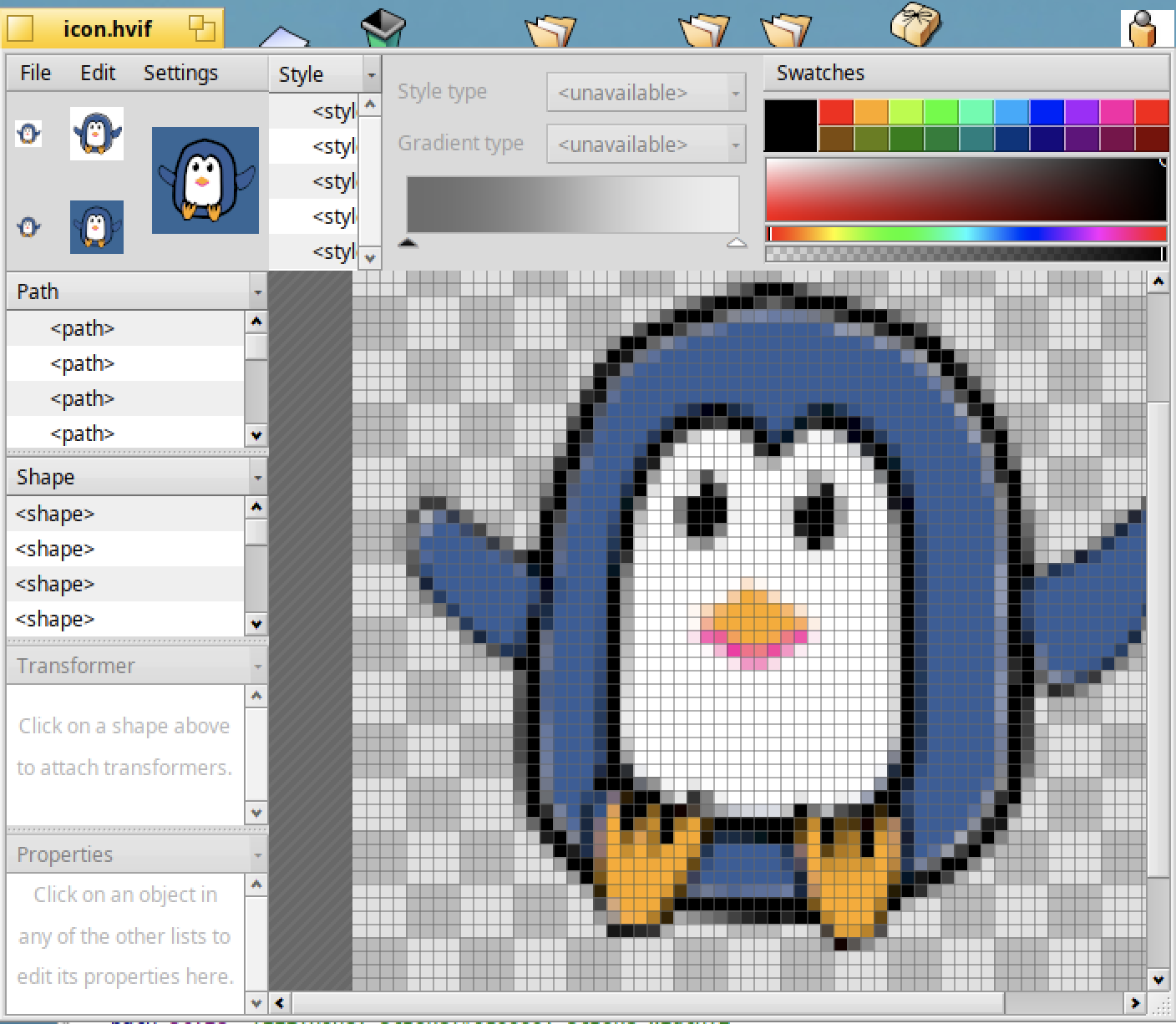
This conversion pipeline — SVG from a design tool like Inkscape, refined in SVGear, exported as HVIF — makes for a very natural workflow when creating Haiku-native icons.
File statistics
SVGear also provides a statistics view that gives you at-a-glance information about the SVG file: number of elements, paths, dimensions, and more.
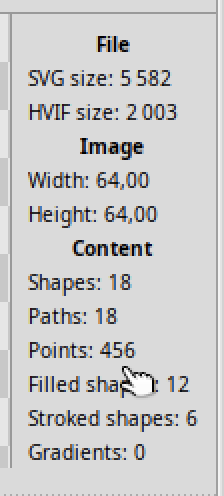
This can be useful when working with complex files or optimising icons for size.
Icon store
Last but not least : the access to the Icon store !
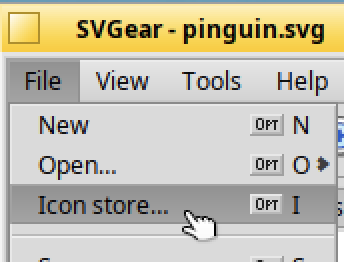
You can select the icon you want by entering a keyword in the search or select an icon category :
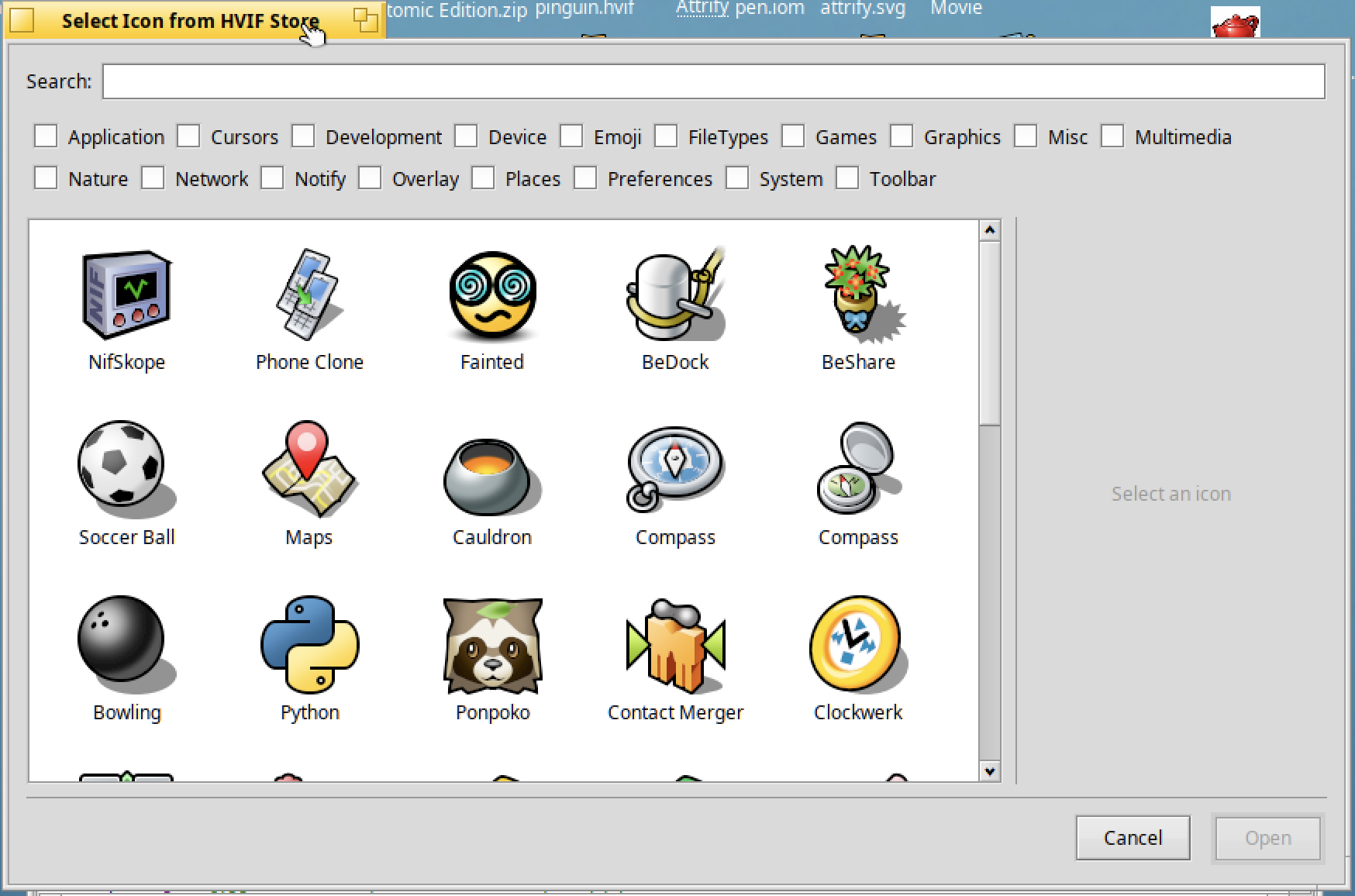
Validate you choice by using the Open button:
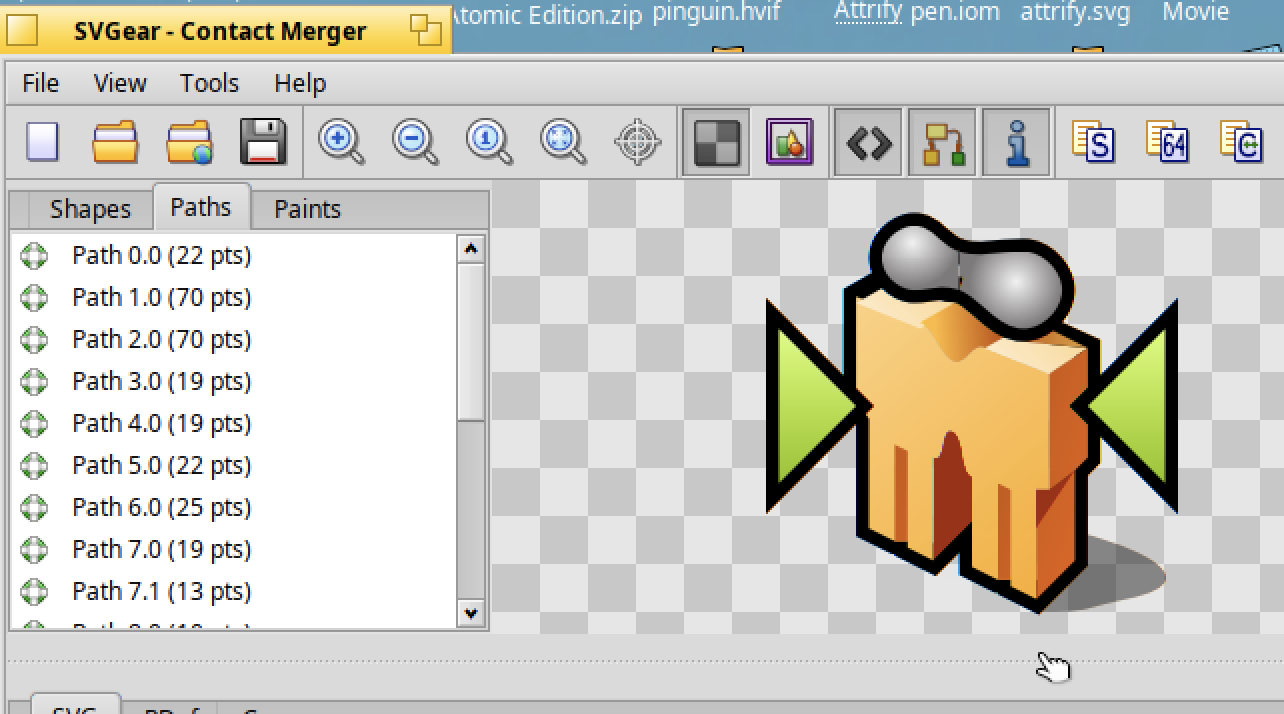
And that's it !
The corresponding icon is now retrieved on your machine :)
Conclusion
SVGear is a great example of what the Haiku native software ecosystem can offer: a focused, well-integrated tool that fills a real gap and respects the Haiku philosophy of clean, efficient native applications.
Whether you are a designer converting icons, a developer inspecting SVG assets, or simply a curious user wanting to explore SVG files, SVGear is well worth a spot in your application folder.
If you want to support the project or report issues, the GitHub page is here: https://github.com/threedeyes/SVGear
Have you already tried SVGear?
Feel free to share your experience in the comments below — and if you find it useful, leave a star on the repository!