
Translation kit: exporting an image
 DigitalBox
- KitLab
- November 17, 2025
In this article, we’ll see how to export an image from one format to another using Haiku’s Translation Kit.
How image export works in Haiku
Haiku uses a modular system of translators.
Each translator knows how to convert one type of file to another.
To export an image:
-
Load the image into a
BBitmapusingBTranslationUtils::GetBitmapFile(). -
Wrap it in a
BBitmapStream. -
Use
BTranslatorRoster::Translate()to write the bitmap to another format.
⚠️ Important: For the Translation Kit to work properly, your code must run inside a
BApplication. Translators often require an application context, even if no window is displayed.
Example:
Here’s a complete, working example that reads a file from the command line, and saves it in both JPEG and PNG formats:
#include <Application.h>
#include <Bitmap.h>
#include <BitmapStream.h>
#include <File.h>
#include <TranslationUtils.h>
#include <TranslatorRoster.h>
#include <iostream>
#include <cstring>

class SaveImageApp : public BApplication
{
public:
    SaveImageApp(int argc, char** argv)
        :
        BApplication("application/x-vnd.test-saveimage"),
        fArgc(argc),
        fArgv(argv)
    {
    }

    void ReadyToRun() override
    {
        if (fArgc < 2) {
            std::cout << "Usage: " << fArgv[0] << " <input_image>" << std::endl;
            PostMessage(B_QUIT_REQUESTED);
            return;
        }

        const char* inputFile = fArgv[1];

        // Load the original image
        BBitmap* bmp = BTranslationUtils::GetBitmapFile(inputFile);
        if (!bmp) {
            std::cout << "Failed to load " << inputFile << std::endl;
            PostMessage(B_QUIT_REQUESTED);
            return;
        }

        // Prepare the bitmap stream
        BBitmapStream stream(bmp);

        // Get the system translator roster
        BTranslatorRoster* roster = BTranslatorRoster::Default();
        if (!roster) {
            std::cout << "Failed to get translator roster" << std::endl;
            delete bmp;
            PostMessage(B_QUIT_REQUESTED);
            return;
        }

        // Save as JPEG
        BFile outJPEG("exported_image.jpg",
            B_CREATE_FILE | B_ERASE_FILE | B_WRITE_ONLY);
        status_t status = roster->Translate(&stream, nullptr, nullptr, &outJPEG, B_JPEG_FORMAT);
        if (status != B_OK) {
            std::cout << "Failed to save JPEG: " << strerror(status) << std::endl;
        } else {
            std::cout << "Saved JPEG: exported_image.jpg" << std::endl;
        }

        // Reset the stream for PNG
        stream.Seek(0, SEEK_SET);

        // Save as PNG
        BFile outPNG("exported_image.png",
            B_CREATE_FILE | B_ERASE_FILE | B_WRITE_ONLY);
        status = roster->Translate(&stream, nullptr, nullptr, &outPNG, B_PNG_FORMAT);
        if (status != B_OK) {
            std::cout << "Failed to save PNG: " << strerror(status) << std::endl;
        } else {
            std::cout << "Saved PNG: exported_image.png" << std::endl;
        }

        delete bmp;
        PostMessage(B_QUIT_REQUESTED);  // Quit application
    }

private:
    int fArgc;
    char** fArgv;
};

int main(int argc, char** argv)
{
    SaveImageApp app(argc, argv);
    app.Run();
    return 0;
}
How It Works
-
BApplication Context: Running inside a
BApplicationensures translators are properly initialized. -
BBitmapStream: Wraps the bitmap so it can be passed to the translator.
-
BTranslatorRoster::Translate(): Converts the bitmap to the desired format
-
B_JPEG_FORMAT and B_PNG_FORMAT
These constants define the target output formats:
-
B_JPEG_FORMATtells the translator to encode the bitmap as a JPEG file. -
B_PNG_FORMATtells it to encode as a PNG file.
They are defined in
<TranslatorFormats.h>and used as the last parameter ofBTranslatorRoster::Translate(). -
-
Stream Reset: Before writing the second format, we reset the stream to the beginning with
stream.Seek(0, SEEK_SET). -
Output: Both
exported_image.jpgandexported_image.pngare saved in the current directory.
Compile and Run
Compile the ImageExporter application:
Then select an image of your choice and convert it (below an SVG image):

Two images are created :
- The JPEG one: exported_image.jpg
- The PNG one: exported_image.png
Open the current directory in the Tracker and display these converted images:
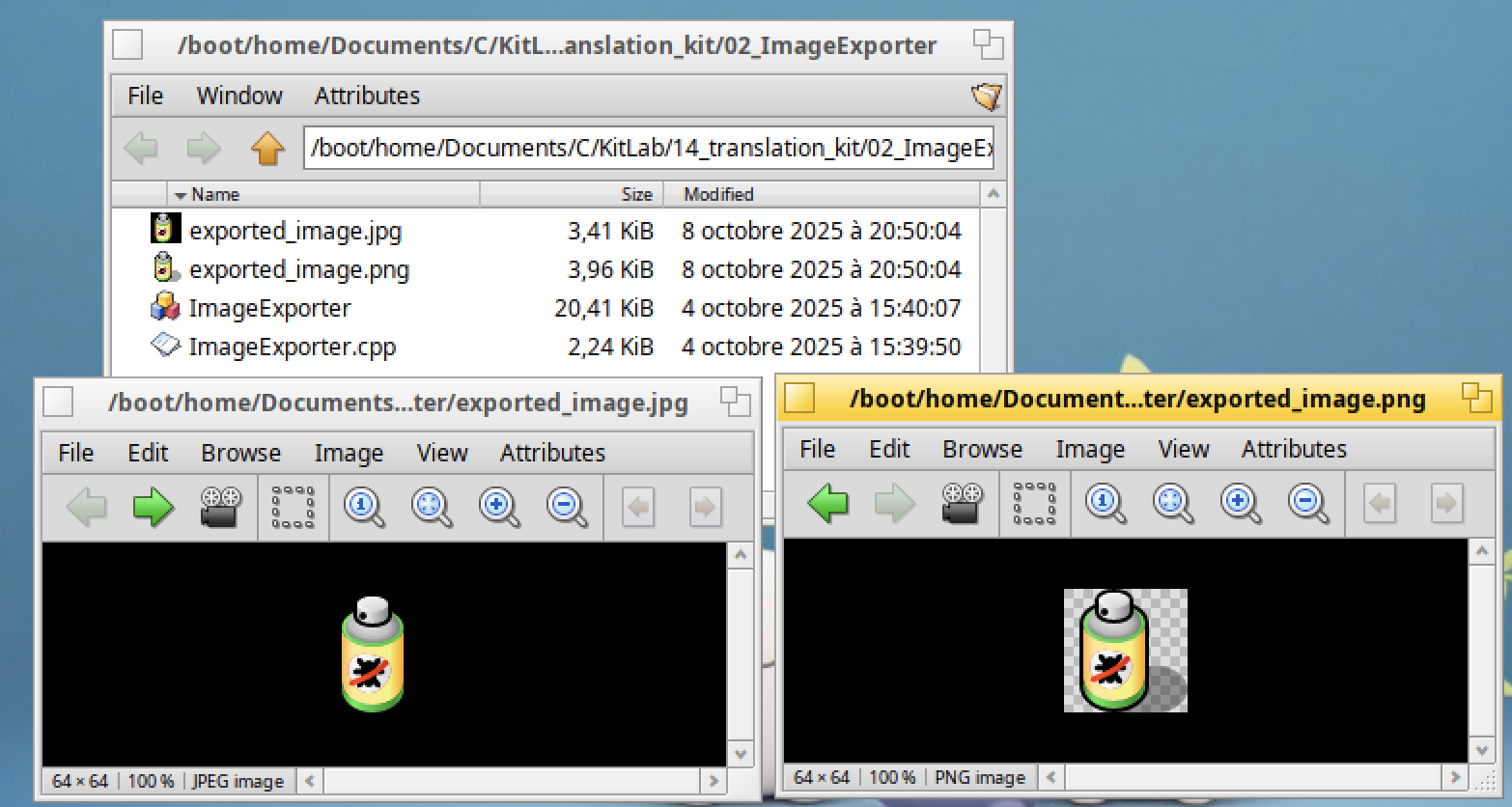
It's working fine, isn't it ?
You can notice that the program is only a few lines of code!
It demonstrates how the Translation Kit is useful and powerful.
Try This
-
Modify the program to read the output filenames from the command line.
-
Allow drag-and-drop of an image file onto the application for quick export.
Why It Matters
-
The Translation Kit allows Haiku applications to handle multiple file formats without reinventing conversion code.
-
Using
BBitmapStream+BTranslatorRosterfits neatly into Haiku’s message-based, modular architecture. -
Supports both raster and some vector images, depending on installed translators.
What’s Next
In upcoming KitLab articles, we’ll see how to:
-
Work with text translators
-
Writing a simple translator
Stay tuned, and keep on exploring Haiku’s Translation Kit!